How Stripo modules help in creating multilingual email campaigns. All approaches explained
Summarize
When a business is expanding into new markets, the issue of localizing its content is especially acute. Email localization is a hard process, so why bother? To answer this, statistics say that 40% of consumers will not make a purchase if they are not provided with an experience in their language. Losing such a large chunk of the audience is not the best move.
But how can you make your life easier when trying to run dozens of email campaigns in different languages? Among other available methods, modules, in synergy with other useful features, can help make different localization pipelines much easier. And in this article, we’ll show you how.
Key takeaways
- Modules, when combined with other features, can significantly simplify the email localization process — from creating emails to sending the correct language version to your recipients.
- The easiest way to translate your emails and use these translations in future campaigns is by either automatically translating them using built-in features or outsourcing the translation to a third-party vendor. Once the translation is complete, you can save each translated email piece as a module to reuse in future campaigns.
- To better navigate your localized module library, each module should be clearly named (indicating its content and the language it's localized in) and assigned relevant tags to simplify the search process.
- Leading multilingual email campaigns becomes easier when you use display conditions that automatically swap to the appropriate localized email version based on the recipient’s language.
- Updating your localized template library is much simpler when your modules are synchronized. This allows you to make bulk updates (i.e., make changes to one module, and those changes will apply to every template that includes that module).
What localization processes can modules help you with?
No matter how difficult email localization is, it is if you do it the old-fashioned way, namely, translate each email yourself, create dozens of language versions of emails manually, and so on.
However, there are always ways to make a marketer's life easier, and email localization is not without them. We will consider several methods related to email modules that simplify both the creation of localizations as a whole and its individual aspects, namely:
- creating your translation pool using the master template method as a basic one or using translation features for localizing emails faster and saving each translated piece as a module;
- dynamic content for delivering the right localized content to recipients’ inboxes;
- synchronized modules for updating localization pieces, whether it’s texts, links, images, and so on;
- saving your translated modules and content pieces in a clear and easy-to-navigate library.
Creating a translation pool with modules
Before diving into any other localization processes, you need to create a localization bank. Namely, you must design localized emails in all of the languages you need. This process can be done in two different ways: using a master template combined with modules, or using translation features, also in combination with modules.
Master template created and localized by one marketer in one language
The first method on our list that we’ll talk about is a master template. This is a fairly common approach that many marketers use not only to create emails and work with modules, but also to simplify the process of localizing campaigns.
In essence, it’s quite simple. The marketer creates a general design template with all the content, which is then rewritten with a change in content inside, creating a full-fledged email based on this template.
Method benefits
The process of email localization is made easier with the help of master templates due to the fact that when creating a master template, all you need to do is insert localized content (text, images, links, etc.) into the design. In addition, you can immediately change the size of the email design elements if some language version goes beyond the previously created sizes (for example, the localized text does not fit into the CTA button).
Having such flexibility, it can be cut into modules that will have certain glossaries and installation designs that were designated in the master template, making the creation of new localized emails easier.
Translated templates saved in modules
Another approach you can stick to when localizing your email marketing is using various translation features. For example, Stripo provides marketers with a translation service — a feature for making multilingual emails in no time. Each email can be fully translated automatically or by downloading a third-party translation file from the vendor. Once done, you can save each translated email element as a module for further use in different email campaigns.
Method benefits
First of all, when it comes to a more automatic approach, email localization becomes much faster, as translation services translate texts in a matter of seconds. Secondly, it supports collaboration during the email design process, since you can outsource the localization task to other specialists, freeing your time for strategic tasks.
It is also worth mentioning that saving each translated element as a module is a great way to achieve design consistency. By building new localized emails with previously tested and approved modules, you can be sure that the designs, translations, and content you reuse will be unchanged and consistent through all your future campaigns.
How to translate and save your localized modules
Let’s start with managing the right settings for your localization process. You can set localization preferences in a separate project or the whole group settings. First, you set the default language for your emails (we say in plural, because we’ll demonstrate how the whole feature works on group settings, which apply to all emails and projects in this group).
Once it’s done, you have to set additional languages, to which you will translate your emails later.
You can also allow third-party vendor translation links by toggling the corresponding switch in settings.
Now, it’s time to translate your emails. Click on the EN button to open language settings.
After that, click on the Translations drop-down menu to open the list of languages available to translate your template to.
In our case, we picked Spanish. Once the language is selected, you can choose the service that will translate your email. Right now, you can only choose Google Translate, but soon AI translations will also be available.
If you already have translated texts from a third-party vendor, you can download the file using the Download the content button.
Important note: The maximum size of your translation file can’t exceed 30 MB.
By clicking on the Translate button, you’ll be transferred to the created copy of your email with translated content, which you can now work with.
When working with this feature, you can save each translated email element to a library of modules, thereby forming a pool of modules (footers, headers, menus) in different languages that will migrate from email to email, saving time on routine creation from scratch of something that will be the same in all emails.
Just click on the “Save as module” button.
Then, give your module a name and click Save. After that, your translated module will be added to your module library.
Storing your translated modules for future campaigns
Saving all your translated modules is a good thing, but it would also be great to have an easy time finding your way across these hundreds of modules. That’s why we provide you with a detailed process for saving your modules.
First of all, you can set a module name, and we advise you to mark each localized module with a corresponding language name. Besides that, you can write as detailed a description of a localized module as you need, describing exactly what each module is about and what language or localization nuances it holds.
And don’t forget about tags. Each module can be supported by your custom tags, making it easier to find using the search field or filtering in your module library.
Sending multiple language versions with dynamic content
Having a quick way to translate emails is good, but what about sending them? It would be embarrassing to make a mistake when sending an email and have your Spanish-speaking customer receive an email in English, for example.
Display conditions modules are a great solution to this problem. Essentially, these modules help marketers hide or show the necessary content in an email, depending on pre-defined conditions. And this works after the email has been sent. It sounds complicated, but it’s actually quite simple.
Method benefits
When you know what language your specific part of the audience speaks, you can always segment your list and send a dedicated email created in this language. Display conditions help you in the same way, but much faster.
The idea is that you don't need to create five separate templates, one for each language version. There is only one template that swaps all the necessary language modules on the go. It’s faster to create, as all you need to do is place the corresponding modules in one template. And no more confusion about whether you have the right language template or not, as one template has all language versions you need and shows them correspondingly.
How to use dynamic content for localization
We have prepared two blocks inviting the recipient to visit the store. One block is in English, the other in Spanish. The standard scenario assumes that these two blocks should be in different templates, but Display conditions break this setup, because with them, all these blocks can be placed in one template.
First of all, we click on our English version structure and activate display conditions by clicking on the corresponding switch.
After that, we fill in the needed fields like Condition Name and Description, to make it clearer (both for you and your colleagues later) what this condition is all about.
Now, to the most important part. The whole display condition looks like a small piece of code looks like this:
<!--if($data.get('RECIPIENT_LANGUAGE') == 'en')-->
<!--endif→
It translates to “if the recipient’s language is English, then show this block.” All you need to do is place this code into the corresponding fields for the Code Before Module and Code After Module.
The same process applies to our Spanish block. We name and describe it correspondingly and add our display condition, which now looks like this:
<!--if($data.get('RECIPIENT_LANGUAGE') == 'sp')-->
<!--endif→
So, how does this whole feature look in action? Pretty straightforward. If our English condition is met, the recipient will see only the English version of the block, while the Spanish one will stay hidden. All this data is pulled from your recipient’s profile, which you need to have in the ESP of your choice.
And it works in reverse. If your recipient language is Spanish, only the Spanish version of the block will be shown.
You can learn more about dynamic content and how you can work with it by reading our dedicated guide.
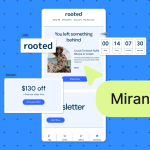
Updating your translated templates with synchronized modules
Synchronized modules can solve the problem of email localization when you need to change something in many emails. Doing it manually takes a long time, and there is a high risk of error. Even when using localized modules created in various ways (master template, translation features, modules with display conditions), you still can have a hard time updating all of them.
Method benefits
For example, you have a link to a specific language version of the site in your CTA, but you translated this block, added it to several templates, and this link needs to be changed to the corresponding language version of the site. This is where synchronized modules come into play. Using the old-fashioned way, you have to replace this link in each module and template manually (avoiding forgetting in what modules this link is present), but synchronized modules allow you to change it in one module and, after that, these changes will be transferred to all templates that have this module. It’s a pretty handy approach that saves you from a big headache.
How to save modules as synchronized for localization
Any module can be saved as synchronized, meaning any change implemented in this module will be applied to all templates with this module. Simply, before saving your module, click on the Synchronized switch to apply this feature to the module and save it to your library.
After that, your module will have this Sync Off label, that shows that the feature is applied, but not activated.
To activate it, click again on your module and then on the Synchronized module switch. After that, this feature will be activated.
If you don’t want to have this feature live in your module anymore, click on the switch again and synchronization will be deactivated, allowing you to make separate changes in this module in all your templates.
This approach is great if you have large email campaigns in many languages but have a fixed design and email types that only differ in content. Making last-minute changes or updating emails is much faster when you only need to do this in one template instead of fifteen.
This is far from all that modules can do. We’ve created full guide, collecting all the features of modules in one place:
Wrapping up
Localizing your email marketing is easy when you have the right tools at your disposal. The master template gives you the freedom to adapt the email design depending on the content size, which changes in different languages. Translation features allow you to quickly create template versions in different languages and connect your third-party partners to help with localization. Dynamic content provides you with an easy process of setting up all language versions in one template and shows them depending on conditions predefined by you. And, last but not least, synchronized modules give you the opportunity for easy last-minute changes and bulk updates of all your email templates in no time.
And all of this works in unison with modules, allowing you to save, use, and repurpose your localization options over and over. Use these tools to make your multilingual email marketing more efficient and easier to handle.