Moving from the old editor to the new one: Where everything is now
Summarize
Stripo has been moving users to the new editor for a while, and by mid-2025, it had already stopped updating the old one, moved all new users to the new editor, and announced the final shutdown of the old editor for the first quarter of 2026. At the same time, Stripo positioned the new editor as a more structured workspace with new AI assistance, a clearer layout, real-time co-editing, built-in version history, and faster switching between desktop and mobile views.
This guide is for people who already know Stripo and do not need basic onboarding. The goal is simpler: show where familiar features live now, what moved, and why the new layout makes day-to-day work easier once you get used to it. The new editor keeps the same core job, building and editing emails, but organizes the workspace differently: content on one side, the email canvas in the middle, and settings in a dedicated area, with extra tools.
How to use this guide
Use it as a quick map, not as a full manual:
- find the feature you used in the old editor;
- see where it is now in the new one;
- check what changed and what became easier;
- compare the old and new screenshots to match your usual workflow.

Editor structure and navigation
Layout and workspace structure
In the old editor, many controls were grouped closely together, and the logic of “where to build” and “where to configure” was not always obvious at first glance.
In the new editor, the workspace is clearly divided into three areas:
- content area on the side, where you pick blocks, structures, and modules;
- template area in the center, where you build the email;
- settings area on the opposite side, where you configure styles and behavior.
This is not just a visual change. Each area now has a single responsibility. You take elements from one place, build in another, and adjust settings in a third.
What changed in practice:
- you no longer search for controls across the interface;
- selecting an element immediately shows the relevant settings in one place;
- global settings and element settings are no longer mixed.
Why it works better:
- navigation becomes predictable after a short time;
- fewer accidental edits because controls are not overlapping;
- easier onboarding for new team members who join existing workflows.
Switching panels and workspace setup
In the old editor, the layout was mostly fixed. You adapted to it. In the new editor it adapts to you.
What changed:
- panels are no longer locked in place;
- you can rearrange the workspace depending on how you build emails.
Why it works better:
- designers who focus on layout can keep the content panel closer;
- those who spend more time in settings can move that panel to the more convenient side;
- it works better on different screen sizes without forcing one layout on everyone.
This is a small change on the surface, but it becomes noticeable during long editing sessions.
Layout and structure building
In the new editor, layout is no longer something that happens “around” content. It is a separate, visible layer that you can control directly.
Stripes, structures, and containers
In the old editor, the layout model was there, but it was not always obvious which level you were working with.
In the new editor, the hierarchy is explicit:
- stripe → structure → container → block.
Each level is visible, selectable, and has its own settings.
What changed:
- layout is clearly separated from content;
- you can see whether you are editing a section, a column layout, or a content block;
- each level has its own controls instead of sharing one mixed panel.
Why it works better:
- easier to understand how the email is built;
- fewer mistakes when adjusting spacing or alignment;
- better control when working with complex layouts.
Working with containers and columns
In the old editor, layout adjustments often meant working around limitations or rebuilding parts of the structure.
In the new editor, containers behave like full layout elements.
You can:
- resize containers by dragging;
- change their order;
- lock their width;
- equalize widths across a structure.
What changed:
- layout editing is visual and interactive;
- container behavior is predictable;
- you can adjust the composition without rebuilding sections.
Why it works better:
- faster layout changes;
- fewer manual fixes;
- easier to maintain consistency across sections.
Separate mobile and desktop editing
In the old editor, mobile adjustments were less direct and often required additional checks or test sends to confirm how the email would actually look.
In the new editor, mobile behavior is controlled directly in the editor with a true WYSIWYG approach. What you see in mobile or desktop mode reflects how the email will appear in the inbox.
You can:
- switch between desktop and mobile views and edit them separately;
- enable responsive stacking for structures;
- change the order of containers on mobile (container inversion);
- adjust spacing and layout settings independently for each device;
- hide elements for specific device views.
Some controls are marked with indicators showing that they support separate values for desktop and mobile, which makes these differences explicit.
What changed:
- mobile and desktop editing are handled side by side inside the editor;
- layout behavior can be adjusted without leaving the workspace;
- no need to rely on repeated test sends to validate changes.
Why it works better:
- fewer post-build corrections;
- more predictable rendering across devices;
- faster iteration when optimizing mobile layouts;
- better confidence in how emails will look before sending.
Content blocks
Once the layout is in place, the next step is filling it with content. In the new editor, this part is faster and requires fewer repetitive actions.
Basic blocks
In the old editor, adding content blocks was mostly a drag-and-drop action from a standard panel.
In the new editor, the same panel is still there, but it is more structured and supports faster insertion.
You can:
- drag blocks into the template with clearer drop zones;
- use keyboard shortcuts to insert blocks directly into the layout.
What changed:
- the editor shows exactly where the block will be placed;
- common actions can be triggered without switching focus.
Why it works better:
- less time spent on repetitive actions;
- fewer misplaced elements;
- smoother building process, especially in large templates.
Modules and reusable content
Reuse is not new, but in the new editor, it is treated as a core part of the workflow rather than an add-on.
Modules and saved elements
In the old editor, modules already allowed saving and reusing containers, structures, and stripes. This core behavior has not changed.
In the new editor, the focus is not on redefining modules, but on improving how they are managed and reused in practice.
The updated modules system makes reusable content far more effective:
- save and organize modules with tags and categories;
- reuse synchronized modules across different campaigns;
- control and edit all modules in the separate module's editor mode.
What changed:
- the Modules tab has been redesigned for clearer navigation;
- custom categories can be created to organize modules;
- the Keep module styles option allows saving modules together with their styling settings;
- synchronized modules continue to update across all emails where they are used.
Why it works better:
- easier to find and manage modules in larger libraries;
- more control over whether styles should be preserved or adapted;
- consistent updates across campaigns through synchronization;
- cleaner workflow when working with reusable sections at scale.
Settings and styles
Settings in the new editor are easier to navigate because they are split into clear layers: global styles and element-specific controls.
Element settings panel
In the old editor, settings were available, but they often felt less structured. Some controls were harder to find, and it was not always obvious which settings applied to which element.
In the new editor, the settings panel is fully contextual. When you select an element, its settings replace the general panel and show only what is relevant.
What changed:
- the panel updates dynamically based on selection;
- controls are grouped by element type (block, container, structure, stripe);
- global styles (like typography in Stripes) are placed in a more visible and structured layout;
- frequently used settings such as font family, line height, and spacing are easier to access and adjust;
- unnecessary options are hidden until they are relevant.
Why it works better:
- less time spent searching for the right control;
- clearer understanding of what exactly you are editing;
- important style controls are now easier to reach and quicker to tweak;
- overall editing feels more direct, especially when working with typography and spacing.
Message-level settings
These are the settings that affect the entire email, not just individual blocks. In the new editor, they are no longer scattered or dependent on external tools.
Subject line and preheader
In the old editor, subject lines and preheaders were often handled outside the main editing flow, depending on the ESP or separate steps.
In the new editor, both are configured directly inside the Message Settings panel.
You can:
- edit subject and preheader in one place;
- insert emojis through a built-in picker;
- generate or refine text using AI prompts.
What changed:
- AI suggestions are built directly into the interface;
- no need to switch between tools to adjust messaging.
Why it works better:
- fewer context switches during campaign setup;
- faster iteration on subject lines;
- easier alignment between email content and inbox preview.
Gmail Promotions annotations
In the old editor, setting up Gmail annotations required manual work with markup or external references.
In the new editor, this is handled through a dedicated panel inside Message Settings.
You can:
- enable annotations with a toggle;
- choose between available types (carousel, deal);
- configure them with a visual preview.
What changed:
- no need to write or insert markup manually;
- annotation setup is guided and structured;
- preview shows how it may appear in Gmail.
Why it works better:
- quicker setup for promotional campaigns;
- lower risk of errors in annotation markup;
- easier to test different promo formats.
Working with images
Images are used in almost every email, so even small changes here affect the overall speed of building campaigns.
Image gallery
In the old editor, image handling was mostly limited to uploading files and reusing them from basic storage.
In the new editor, the Image Gallery becomes a central workspace for everything related to visuals. It opens directly in the settings area when you add or replace an image.
What changed:
- all available stock image folders are visible immediately, without extra steps;
- images can be generated directly in the editor using AI;
- upload, selection, and editing happen in one place;
- the gallery is fully integrated into the editing flow.
Why it works better:
- faster access to visuals without switching tools;
- no need to search for stock images outside the editor;
- AI generation helps create visuals on the fly when assets are missing;
- smoother workflow when working with multiple images in one template.
Code and advanced editing
Not every email is built only with drag-and-drop. The new editor keeps support for custom code but makes it safer to use alongside visual editing.
Code editor and custom HTML
In the old editor, the code editor reflected the actual HTML rendered by the browser. This meant that any browser extension, such as Grammarly or similar tools, could inject its own markup directly into the code and unintentionally break the layout.
In the new editor, the approach is different. The editor is based on an internal model, and the HTML is just a generated representation of that model. External changes to the rendered code no longer affect the underlying structure.
What changed:
- HTML is no longer the source of truth; it is generated from the editor’s internal model;
- browser extensions cannot inject markup that breaks the layout;
- code editing is separated into distinct tabs: HTML, default CSS, and custom CSS;
- default CSS (from General Styles) is read-only to preserve rendering consistency;
- custom CSS is handled in a dedicated tab with full control for the user.
Why it works better:
- layouts are protected from accidental changes caused by browser extensions;
- rendering is more stable across editing sessions;
- users still have flexibility through custom CSS, without risking the core structure;
- safer environment for working with complex or production templates.
Collaboration and teamwork
The new editor is built for teams, not just individual work. Several features that used to require external tools are now part of the editor.
Co-editing
In the old editor, emails were typically edited by one person at a time.
In the new editor, multiple people can work on the same email simultaneously.
What changed:
- edits are reflected in real time;
- no need to wait for someone to finish before making changes.
Why it works better:
- faster production cycles;
- easier collaboration between designers and marketers;
- fewer duplicated versions of the same email.
Commenting
In the old workflow, feedback often happened outside the editor, in chats or documents.
In the new editor, comments can be added directly to the email.
What changed:
- feedback is attached to specific parts of the template;
- discussions happen in context, not separately.
Why it works better:
- fewer misunderstandings;
- faster review and approval process;
- all feedback stays in one place.
Version history
In the old editor, version history existed, but it was hard to understand what exactly changed without opening each version manually.
In the new editor, version history is built into the workflow and presented as a clear timeline of actions.
What changed:
- changes are displayed on a timeline with visible actions;
- each entry shows what was done and who made the change;
- no need to open every version to understand differences;
- previous versions can still be restored at any point.
Why it works better:
- easier to track what happened in the email over time;
- faster debugging when something breaks;
- more transparency in team workflows;
- safer editing without creating duplicate backups.
Accessibility and testing
Accessibility used to depend on manual checks and experience. In the new editor, part of this work is handled directly in the interface.
Accessibility tools
In the old editor, accessibility checks were mostly done manually during QA or after the email was built.
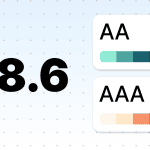
In the new editor, accessibility testing is built directly into the workflow through a dedicated testing mode. The editor highlights potential issues and allows you to review them before. exporting the email.
You can:
- analyze accessibility issues directly in the layout;
- simulate different types of color vision deficiencies;
- hide images to check how the email behaves without visuals;
- preview accessibility in both desktop and mobile modes;
- inspect the HTML if needed through the code editor.
What changed:
- checks are available inside the editor;
- accessibility can be tested during the build, not after;
- testing includes real scenarios, not just static validation.
Why it works better:
- fewer overlooked issues before sending;
- more confidence in how emails are perceived by different recipients;
- better consistency across campaigns;
- no need for separate tools or manual QA steps.
What to expect when switching
Switching to the new editor is mostly about getting used to a different structure, not learning a new product from scratch.
What may feel different at first:
- the layout is more structured and divided into separate areas;
- settings appear only when an element is selected;
- some familiar controls are now grouped in global panels.
What improves after adaptation:
- faster workflow once the layout becomes familiar;
- clearer logic when editing different parts of the email;
- smoother collaboration within a team;
- fewer manual fixes during and after production.
Wrapping up
The new editor does not remove familiar features; it reorganizes them. Once you adjust to the layout, most actions take fewer steps and feel more predictable. The main shift is moving from a mixed interface to a structured one where layout, content, and settings are clearly separated.
If something feels “missing,” it is usually still there, just in a different place, often closer to the element you are working with or grouped into a dedicated panel.