Improving email rendering consistency across devices and browsers
Summarize
Creating an email with compelling copy and a beautiful design that resonates with your audience is only part of the job. The other part is making sure that this email displays correctly in all email clients, regardless of their rendering issues. This article explains email rendering, the problems that can arise across different email clients, and how to fix them.
Key takeaways
- Emails render differently across email clients for a number of reasons: rendering engine, provider-specific settings, device screen size, client operating system, and even individual device preferences. We don’t expect standardization in email rendering anytime soon.
- To avoid most rendering problems, treat testing as part of the email creation process, not as a final step. Consistent testing, along with modular design and proven templates, significantly reduces the risk of rendering issues.
- For years, Outlook caused the most problems for email marketers due to its Microsoft Word rendering engine, which was not designed to work with emails. However, in 2023, a new Outlook was introduced that uses a browser-based engine.
What is email rendering, and why does it break?
Email rendering is the process by which an email client interprets HTML and CSS to display an email to the recipient. It turns code into the message that people actually see in their inbox.
Rendering depends on the ways in which the email client handles the components of an email, including layout, fonts, images, and colors. Each client processes email code in its own way, which can cause problems and inconsistencies for recipients, such as hidden images, changed fonts, broken layouts, and incorrect colors.
How rendering engines interpret HTML and CSS
Apple Mail uses the WebKit rendering engine, which follows modern web standards and supports most HTML and CSS features. Even so, it is not fully consistent across all scenarios.
Gmail uses its own rendering engine, which modifies the email code before displaying it. It often removes embedded CSS and forces the use of inline styles.
All versions of Outlook from Outlook 2007 to Outlook 2021 rely on the Microsoft Word engine, which has limited CSS support and requires table-based layouts to work reliably. However, the new Outlook uses the Chromium/WebView2 engine. We will return to its features a little later.
Why email clients diverge from web browsers
Web browsers follow shared standards. Chrome, Safari, and other browsers interpret HTML and CSS consistently because they rely on modern rendering engines.
Email clients do not have a standardized approach and use their own rendering engines, leading to differences in how emails are displayed.
The role of preprocessors in rendering failures
Each mobile email client uses its own preprocessor, which removes anything that looks unsafe or unsupported.
Preprocessors are tools that take source code and transform it into HTML and CSS before an email is sent. Preprocessors do not break rendering on their own. Problems arise when the output they generate is not compatible with email clients.
So, while emails read on mobile devices will most likely be rendered using WebKit, differences in preprocessing and client behavior can lead to inconsistent rendering across apps, even on the same device.
Outlook’s Word rendering engine: the root cause of most issues
Outlook has always been the one email client with which marketers have had the most trouble.
Why Outlook doesn’t use a browser engine
Outlook was originally part of the Microsoft Office suite, so it used the Microsoft Word rendering engine to display emails. This rendering method, designed primarily for displaying documents, struggled to display emails properly. Rendering problems, unsupported features, and inconsistent display were all part of the life of an email marketer. If part of your audience used Outlook, you had to design around these limitations.
However, the situation has changed. The new Outlook, introduced by Microsoft in 2023, uses a browser-based engine. The company promises that it will officially stop supporting desktop versions that use the Word rendering engine in October 2026.
CSS properties Outlook ignores or partially supports
Outlook versions from 2007–2013 provides limited support for many CSS properties, which often leads to rendering issues:
- no background image support. Outlook versions from 2007–2013 do not support all-text backgrounds, patterns, graphics, or animations;
- Outlook may remove the spacing defined in your code. Margins and padding between paragraphs do not always render as expected;
- Outlook changes the color of the link text in your email by default, regardless of the color you chose when designing the email;
- Outlook tends to enlarge images and text in email templates;
- long emails may be treated like Word documents. Outlook can insert page breaks every 1800 pixels, which disrupts the layout;
- custom fonts are not supported and are replaced with default fonts, such as Times New Roman.
VML and table-based workarounds
As mentioned above, Outlook does not support many CSS properties. Therefore, developers have to resort to various tricks. To make background images work in Outlook, they use the vector markup language (VML).
To prevent content from merging together due to the lack of spacing support, you need to use a table structure.
Versions of Outlook and their rendering differences
Before 2003, Microsoft Outlook used the Internet Explorer engine to render emails. Starting with Outlook 2007, it switched to the Microsoft Word engine.
There were a few problems with Internet Explorer. It blocked images and added a security message before showing the alt text.
We have already talked about Microsoft Word as a rendering engine. Word was designed to work with documents, not with modern HTML emails. As a result, email marketers had to rely on table-based layouts and basic CSS, such as simple padding, background colors, and standard fonts.
This shift introduced several rendering limitations. Background images often do not display, image sizing can break, and more advanced layout techniques do not work reliably in older versions of Outlook.
Thanks to code optimization, emails created with Stripo display properly in various email clients, including Outlook.

How to test email rendering before you send
There are several ways to test an email for rendering issues:
Manual testing: the device matrix approach
Manual testing is the most reliable method of ensuring that your emails will be properly rendered, but only if your mailing list has a small number of recipients. If your email list includes hundreds or more recipients, this approach quickly becomes impractical.
To manually test an email, send it to real mailboxes and open it across different devices to cover the entire matrix of environments: mobile devices, desktop email clients, and webmail interfaces.
Although this approach takes a lot of time and effort, it can reveal real problems that testing tools may miss.
Email rendering tools: how they work and what to look for
One such testing tool is Email on Acid, and is available via integration with Stripo. This tool shows a preview of the email on multiple email clients and devices eliminating the need to manually check each one. In addition to helping identify issues with layout, fonts, spacing, and dark mode, it also simplifies scaling testing as it shows a large number of results on different devices and email clients.
It is definitely worth using this tool ti test key clients, usually Gmail, Outlook, and Apple Mail. However, keep in mind that Email on Acid shows screenshots, not real mailboxes, so the results are not 100% reliable.
Automated testing in your ESP and design workflow
Another handy tool for checking rendering issues is the built-in testing in the email builder itself, which helps catch common rendering and quality issues early, at the creation stage.
This can involve checking for broken links, missing alt text, dark mode previews, and more. Implementing these steps into your daily workflow saves time and reduces the risk of errors. The main thing is to remember to do this step.
Another way to avoid rendering issues is to use saved modules and modular email design. Identify which parts of your email are standardized and used most often, test them in major email clients to ensure they work well, and save them as modules.

Another advantage of modules is that they can be synchronized. You can change some information in an email campaign that has been used in several modules using the “Synchronize” switch.
What to check beyond visual rendering
Because an email may look fine but not work properly, you should also test the following:
- links: correct URLs, no broken or outdated links;
- accessibility: sufficient color contrast, meaningful alt text, clear structure;
- behavior in dark mode;
- loading speed and image weight;
- content issues: typos, personalization errors;
- deliverability signals: spam triggers, authentication, balanced text-to-image ratio, etc.
Dark mode email rendering: the problem no one has fully solved
Although dark mode is becoming increasingly common, problems with email display still occur.
How major email clients implement dark mode differently
Email clients and devices handle dark mode differently: some make no changes, others partially adjust colors, while others fully invert them. This behavior is not standardized and cannot be fully predicted or controlled.
Because rendering behavior changes by email client, operating system, and content type, dark mode introduces real risks that affect readability and brand presentation.
Design strategies for dark mode compatibility
To prevent your email from breaking when opened in dark mode, adjust your design choices early:
- optimize emails for dark mode by default. Avoid pure black or pure white, add outlines to logos and icons, and check color contrast in dark mode;
- use transparent PNG images with light outlines for logos and visuals. Test how they look on both light and dark backgrounds;
- design CTA buttons that remain visible in both themes. The button color and text should be visible and contrast with the background;
- check text colors for readability in light and dark modes. Avoid pure black or white text, as some clients may invert it;
- run tests to find a color set that fits your brand and works across both modes. Save these colors as your internal palette for future emails.
Testing dark mode rendering
Testing rendering in dark mode involves checking text display, since your text may become unreadable due to color inversion. It is also worth checking how images and logos are displayed in the dark theme, as well as color contrast.
The first stage of such testing can be a dark mode preview in Stripo. At the email design stage, switch to dark mode, and check whether your email looks correct in the dark theme.

How email rendering affects deliverability and sender reputation
An email that does not display correctly reduces engagement metrics, such as opens, clicks, and read time, and increases negative signals such as spam complaints and unsubscribes.
Email providers track how recipients interact with emails, which over time affects sender reputation and deliverability. Lower engagement and higher complaint rates can reduce deliverability, even if the technical setup is correct.

The engagement signals inbox providers measure
Inbox providers track how recipients interact with your emails and use these signals to judge sender quality. Opens indicate message relevance and trust in the sender, while clicks show deeper interest in the content and support continued inbox placement.
Replies signal real communication rather than one-sided marketing emails. Reading time also matters. If a recipient deletes an email without reading it, that’s a red flag.
Negative engagement patterns include quickly deleting an email, marking it as spam, and long periods without interaction. In part, these patterns can be caused by rendering issues.
Recipients often skip slow-loading emails or heavy images. Over time, this lowers trust in the sender.
If an email opens on a mobile device and the layout is broken or not optimized for mobile, subscribers are more likely to delete it. Providers may treat this as a spam signal.
Dark mode also plays a role. If an email becomes unreadable in dark mode and is closed or deleted, that interaction affects future placement. Broken links add to the problem and reduce trust.
Why visually broken emails get marked as spam
- if the CTA is hard to find or impossible to click, a dissatisfied recipient may send the email to spam;
- if the main message of your email is in an image and that image is blocked, the email loses its meaning. Many customers will delete it without reading;
- if, instead of a beautifully structured email, the recipient sees a messy canvas of text because the layout is broken, they most likely will not open your next email;
- if the email is not optimized for mobile devices, where a large share of emails are opened, recipients are more likely to ignore or delete it.

The scale of the email rendering problem
How do you understand the scale of a rendering problem and determine where to start solving it?
Desktop, webmail, and mobile rendering environments
If you don’t have data on which devices your emails are opened on most often, it’s a good idea to use a responsive or hybrid design. This will help ensure that all your subscribers have a good experience with your content, whether they open an email on a mobile device, laptop, or tablet. A flexible layout improves readability and interaction in each case.
Subscriber-controlled variables that compound the problem
So, what can a subscriber do that affects how your email renders?
A subscriber can turn off images so their inbox will not display any visuals in your email.
Many recipients keep dark mode enabled by default. This changes how colors, backgrounds, and text appear on their devices.
Subscribers also adjust their mobile settings, such as high-contrast modes or increased text sizes, which can break carefully designed email layouts and override your CSS.
Content blocking and spam filters also play a role. Subscriber-controlled security settings may cause email providers to filter emails as spam or restrict images and links, making the email appear corrupt.
If a subscriber has marked your emails as spam in the past, future emails may stop reaching the inbox altogether.
How to prioritize which clients and environments to support
- Start with your data. Check your email analytics to see which email clients and devices your audience uses the most. These are the ones to focus on.
- A mobile-first approach works well in most cases. Design for smaller screens, then adapt layouts for desktop.
- Use a modular email design. Reusable blocks make it easier to adjust layouts across different clients without rewriting code every time.
- Implement dark mode testing in your workflow. Look at your audience data to understand how many recipients open emails in dark mode, and test accordingly.
- Use email testing tools such as Email on Acid to preview how your emails render across different clients and environments.
The most common email rendering issues and how to fix them
There are quite a few rendering issues. Let’s figure out which ones are important and will affect the results of your email campaign, and which are cosmetic and not worth your effort and time.
Broken layouts and column collapse
A three-column layout built for desktop can turn into a mess on mobile devices. Use a responsive design, so layouts adapt to different screen sizes.
Keep layouts simple. Complex structures or designs are more likely to have rendering issues. A single-column layout is more stable across clients and devices.
Missing and broken background images
Some email clients block images by default, especially large files. Recipients can also disable images in their settings, leaving empty spaces in your email.
Optimize and compress images so that they load quickly. Always add alt text to images and HTML text to buttons, so the message still makes sense without visuals. Avoid placing your main message inside an image. Keep key information in the text and use visuals to support it.
Font rendering and fallback failures
Many email clients do not support custom fonts. When a font is not supported, the client replaces it with a default system font, such as Arial or Times New Roman. Such changes lead to inconsistent typography and violate your brand’s visual identity.
System fonts are a safer choice and reduce the likelihood of rendering issues across clients.
If you use custom fonts, always specify at least one fallback font so the email remains readable and consistent.
CTA buttons losing their styling
If a button is made as an image instead of HTML, it will not appear when images are blocked. The CTA becomes invisible or unusable.
Use bulletproof buttons built with HTML and CSS. Add descriptive text inside the button so it remains clear and clickable, even if styles fail.
GIF and video rendering across clients
Not all email clients support embedded video. In many cases, the video will not play or will not appear at all.
Use a fallback. A static image or GIF with a play button works across more clients and still communicates the idea.
Other common issues: emojis, spacing, and external stylesheets
Spacing can vary depending on how each email client interprets CSS margin and padding properties. This often leads to uneven gaps or broken alignment.
Emojis do not render the same across platforms. Their appearance can change depending on the device or email client, leading to misunderstandings.
Email clients often strip external stylesheets. Inline CSS is more reliable for consistent rendering.
Mobile email rendering: iOS vs. Android
Considering that the majority of emails are opened on mobile devices, rendering emails on mobile devices is essential for engaging with your audience.
CSS and HTML support differences
The main difference between mobile email rendering on iOS and Android lies in their rendering engines and consistency. iOS uses a WebKit engine that supports modern CSS, and emails are rendered predictably. Images on iOS are usually loaded by default, and the platform also supports media queries and web fonts.
In contrast, Android devices have different email clients. These clients may ignore certain CSS properties or modify the code (CSS stripping). Android also supports media queries but not always predictably. Images may be blocked depending on the client, and fallback system fonts are often used instead of custom fonts.
When designing for Android, it’s safer to use a simple, single-column, table-based layout and always define fallbacks for fonts, colors, and other key styles.
Responsive design patterns that work across both
Responsive design and media queries are used to address email rendering issues on mobile devices. Media queries let you create styles based on screen size so your layout adapts to mobile devices, tablets, and computers. Responsive design ensures that emails automatically adjust to the screen on which they are opened, improving readability and usability on smaller screens.
Write short texts and divide content into paragraphs. Small blocks of text are easier to scan on mobile than long, uninterrupted sections. Increase font size so that it remains visible on small screens, with a minimum of 14–16 px. Place the key message and the primary CTA on the first screen of mobile, “above the fold.”

Testing mobile rendering reliably
Test how your emails display on different devices with Email on Acid. Check whether images resize correctly to fit screen sizes, whether fonts remain readable, and whether font sizes are appropriate across mobile views.
Email rendering across Gmail, Apple Mail, and Yahoo Mail
Each email client has its own rendering features, and these are briefly described below. However, remember the one thing that will make life easier for every email marketer: with Stripo, your emails render consistently across major email clients, no extra code tweaks required.
Gmail: the CSS stripping problem
Gmail clips emails that exceed 102 KB. It ignores external stylesheets and relies on inline CSS. Gmail supports mobile-specific media queries but may behave differently on Android and iOS devices.
Apple Mail and iOS Mail: the most permissive renderer
Apple Mail supports modern CSS, interactive elements, and web fonts better than most clients. Be aware of screen size and email width. Use media queries so your email adapts to different devices.
Yahoo Mail and AOL: shared quirks
Since Yahoo Mail and AOL are both owned by Yahoo Inc., they share some common email rendering quirks. Both clients have bugs when displaying background images, so it's important to provide a fallback background color. They are also sensitive to invalid code, which can lead to unpredictable changes in layout.
Rendering should be thoroughly tested because anything that goes beyond the basic inline styling risks being ignored or changed.
Email rendering best practices: developer checklist
Here are some points to keep in mind to ensure that your email renders well across all email clients:
HTML structure
Use <table> tags to make your emails look the same across all email clients. With tables, all your subscribers will receive the same email without unexpected formatting changes.
Images and media
Three rules to follow when working with images:
- Use non-text elements with a clear purpose. Images, GIFs, or videos should be added only when they are truly needed.
- Always add alt text for visuals in emails. If an image is blocked or fails to load, its description is still understandable to the reader.
- Compress and optimize all images and media to reduce file sizes, improve loading speed, and minimize rendering issues.
Typography and fonts
A few rules for email typography:
- Whenever possible, use safe system fonts. Always add a fallback in case of rendering issues.
- Pay attention to font sizes on mobile devices. Text should be at least 14–16 px for readability. Test across different devices and email clients to confirm legibility.
- Control line height and spacing carefully. Email clients may interpret them differently.
Accessibility alongside rendering
You can ensure accessibility by implementing some of the above recommendations. Use semantic HTML and correct headings and always provide alt text for images and buttons.
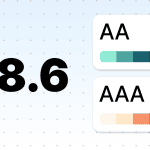
Ensure color contrast (at least 4.5:1) and make font sizes and spacing large enough. Test emails in light and dark modes, as accessibility issues often appear when color schemes are inverted or adjusted by email clients.
Some accessibility requirements can be checked in Stripo.
Wrapping up
Email rendering issues are not going away anytime soon. Only those teams that treat rendering quality control as an ongoing process, rather than a partial check of emails before sending, will have an advantage in email campaign quality, deliverability, and engagement metrics.
Why? Because the recipient will have a better experience with emails that only require them to click the CTA and understand the message to engage with, after which they can move on with their daily lives.
So, start with your top three email clients by audience share, run a rendering test before every send, and treat broken layouts as bugs, not cosmetic issues.
FAQ: Email rendering
What is email rendering?
Email rendering is the process by which different email clients transmit messages to your recipients. Because email providers use different rendering engines, emails are displayed differently across clients.
Why does my email look different in Outlook than in Gmail?
Outlook and Gmail use different rendering engines to display emails, and each has its particular limitations and performance issues.
How do I test email rendering across different clients?
You can use different approaches to testing: manually, using tools like Email on Acid, and by testing during the design workflow.
Does dark mode affect all email clients the same way?
No, because not all email clients support dark mode, and those that do display it differently. So, depending on your recipient’s inbox, recipients may experience different issues with dark mode.
Can broken email rendering hurt deliverability?
An email that does not display correctly reduces engagement metrics. Email providers track how recipients interact with emails, and over time, this affects deliverability.
What is the safest HTML structure for email?
HTML tables created using the <table> tag are the safest and most reliable way to structure emails.
Will AI inbox features change how emails are rendered?
AI is changing the way email marketing is done, shifting the focus from visual design to content that is easy for machines to scan and process. However, traditional approaches to HTML rendering (layouts, images, fonts, colors) are not going anywhere and remain essential.