
Email accessibility checker: Find issues in your emails and fix them faster


According to the World Health Organization, approximately 17% of people, which is 1 in 6, have an impairment that affects how they interact with digital content. At the same time, tests conducted by the Email Markup Consortium indicated that 99.89% of 443,585 real emails still had serious accessibility issues. Only 0.11% of those emails passed all accessibility checks; that’s a total of about 500 emails.
One of the reasons the number of accessibility problems is so high is that creating fully accessible emails is not easy. Designers have to think about color contrast, font size, and layout, while developers need to ensure the HTML works correctly with screen readers and other assistive technologies.
To make this easier, Stripo already generates email HTML that is optimized for accessibility, so your templates work with screen readers and other assistive technologies. Now we are adding one more layer of help: Stripo’s email accessibility checker. The checker scans your email content and design, highlights issues such as missing alt text or low color contrast and helps you fix them right inside the editor.

What Stripo’s accessibility checker looks for
Stripo’s accessibility checker reviews your email in the following three main areas:
1. Content and media accessibility
The checker makes sure that key elements can be announced and understood by assistive technologies and by people who rely on captions or text alternatives. It checks that:
- images have alternative text, so screen readers can describe them;
- buttons, links, and ARIA controls have accessible names or labels;
- inputs and selects, including AMP forms, have labels that describe their purpose;
- link text is discernible and descriptive, not just “Click here”;
- the document has a <title> and at least one level-one heading (<h1>); and
- the <html> element has a lang attribute with a valid language code, and language / direction attributes are applied correctly where needed.
2. Visual presentation
Here the Stripo accessibility checker focuses on things that affect how people see and read the email:
- text, links, and buttons have enough color contrast with their background;
- links are visually distinguishable from the surrounding text (for example, through color and styling); and
- center-aligned or fully justified texts are flagged, because they can make reading harder for many people.
3. HTML structure and ARIA behavior
Finally, the checker validates the technical structure that most marketers never see but that is critical for accessibility. It confirms that:
- lists and tables use proper semantic markup, and table headers are correctly associated with data cells;
- ARIA roles and attributes are valid, not deprecated, and used only where they are allowed;
- required ARIA attributes are present for each role, and elements that require specific children (for example, menus and menu items) actually contain them;
- ARIA IDs are unique and reference real elements;
- hidden elements are not focusable;
- scrollable regions are accessible via keyboard; and
- the <body> element is not incorrectly hidden from assistive technologies.
All these checks are based on key WCAG 2.2 Level AA requirements that are most relevant for email HTML and are powered by modern accessibility testing tools under the hood.
How to use Stripo’s accessibility checker
You can run the accessibility checker at any stage of email production: when you finish a layout, before sending a test, or as a final step before export. The flow is always the same: run the check, review the issues, fix them, and run the check again.
Step 1. Run the checker
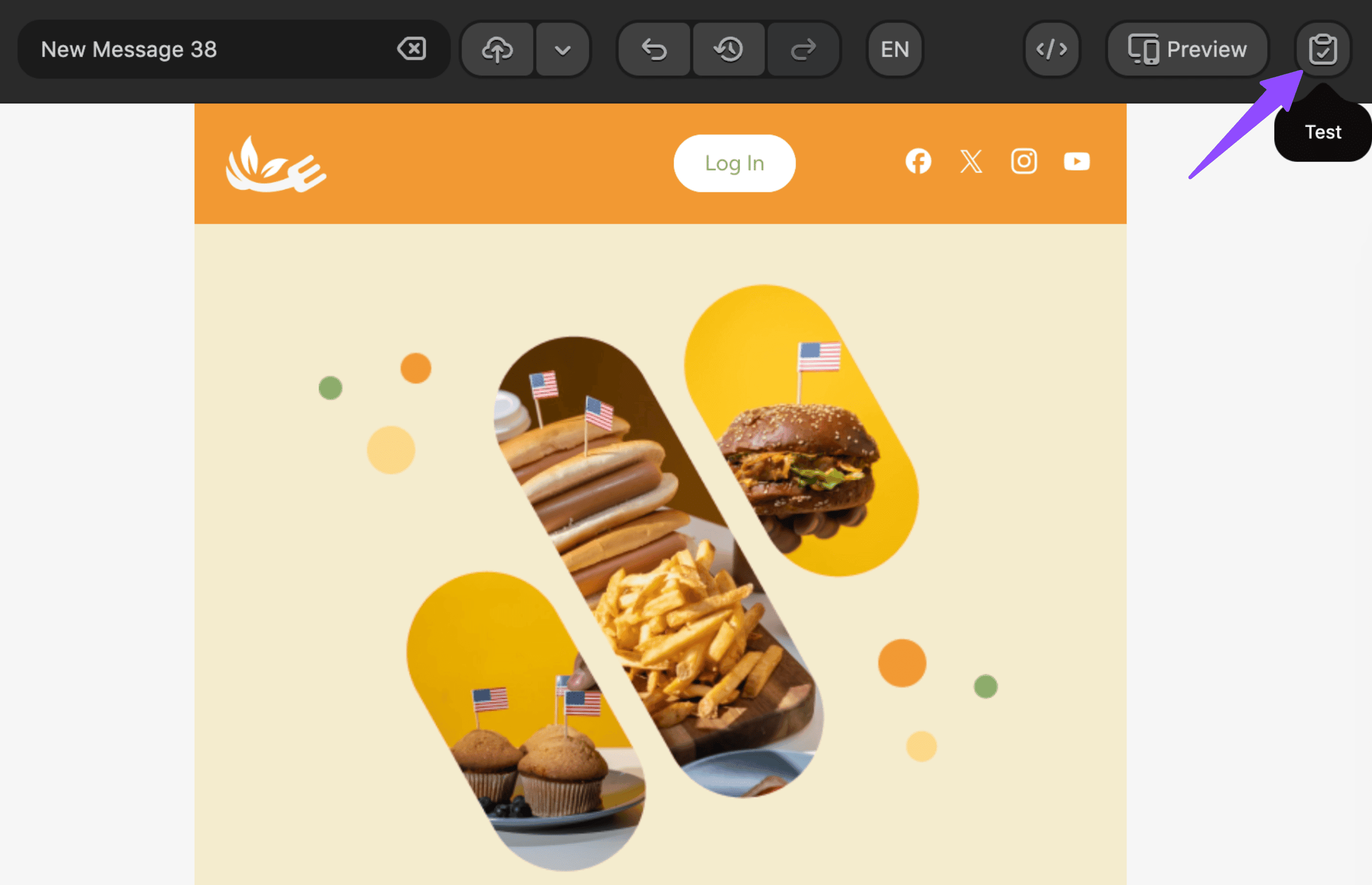
- Click the “Test” button above your template to open the “Testing Email Message” menu;
- go to the “Accessibility” tab and click the “Run a Test” button.
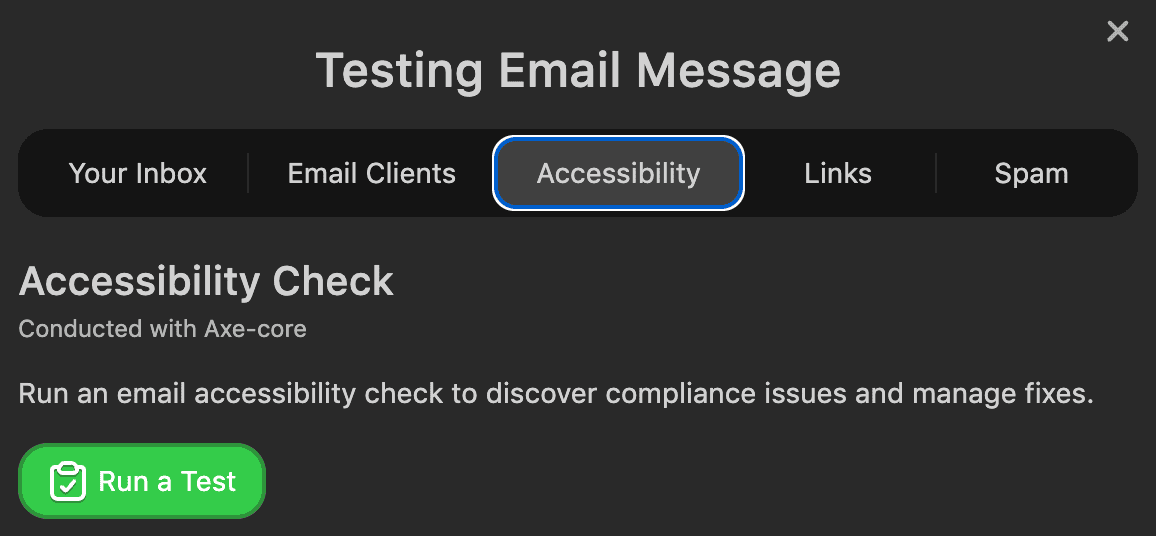


After the scan is complete, you’ll see a list of checks grouped by status:
- Failed: Checks that found accessibility problems in your email and need your attention.
- Passed: Checks that did not find accessibility problems in your email.
- Ignored: Checks that you chose to ignore for now by clicking the “Ignore” button in the results. You can return to them later, restore them, and run the test again.

Step 2. Understand the results
Each issue comes with an explanation, so you can quickly understand what the problem is. When you see an item under the Failed tab, click it to expand the explanation and start fixing it.
Once you expand an issue, Stripo highlights it in the editor so you can immediately see which image, text element, or color is being referred to.

It is important to note that similar issues, such as missing alt text or low color contrast, are grouped together. This means that after fixing one issue, you can move straight to the next issue of the same kind.

Step 3. Fix the issues
Stripo makes accessibility issues much easier to fix: some can be corrected manually, while others can be fixed using the checker’s functions.
Here are a few examples of how you can fix failed checks in Stripo:
- alt texts: You can write alt text for each image yourself or use “Generate” with the AI option. If you like the result, click “Apply” and move on to the next image;
- color contrast: Here, foreground color means text color, and background color means background color. You can adjust the colors manually or use the Auto-tune option. Once you click “Apply," Stripo immediately takes you to the next color issue.
If you use Auto-tune, please note that the system may currently suggest very similar shades of the same color, such as #CE4713 and #D04813. Because of this, we recommend choosing one of the suggested colors and then applying it manually across the entire email for consistency. In the future, Stripo will offer the same color shades across all containers and email elements automatically.
At the moment, the accessibility checker does not check color contrast in dark mode, but we are already working on adding this.
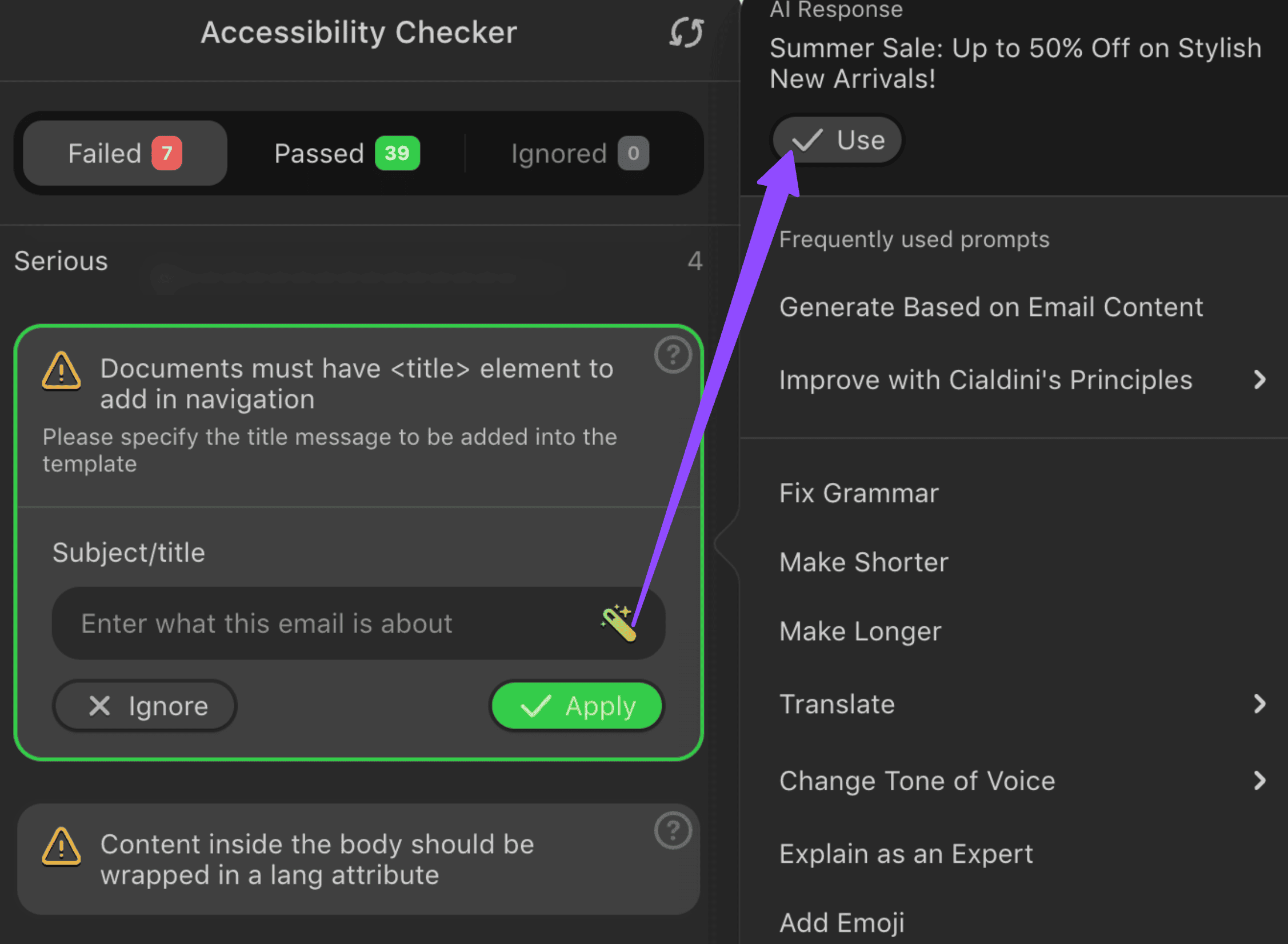
- title: Just like with alt text, you can add the email title manually or generate it with AI. In practice, this title works as your subject line. You will not see it in the email body, because it is stored in the email code;
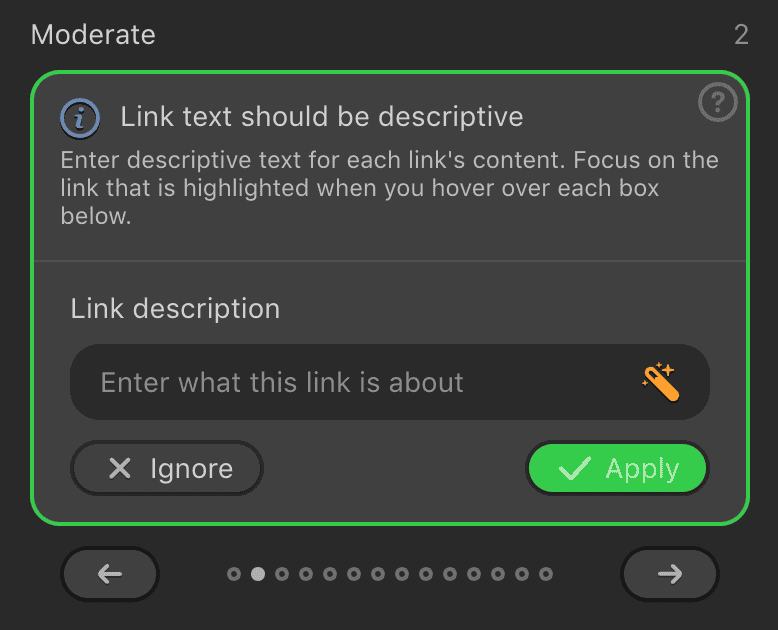
- link text: You can also enter link text manually or generate it with AI based on the email section;


Some issues cannot be fixed directly in the accessibility checker. These include:
- justification and alignment of your copy; and
- video captions.
To fix these, you need to return to the email itself, make the changes there, and then run the accessibility check again.
Step 4. Ignore issues you want to revisit later
At times you may not be able to fix an issue right away. For example, you may need help from a designer or developer, or you may want to finish the rest of the accessibility review first. In this case, you can temporarily ignore a specific issue.

When you ignore an issue, it moves from the Failed tab to the Ignored tab. This helps you keep working on the remaining problems without losing track of the ones you want to revisit later.
Once the other issues are fixed, open the Ignored tab, return the item to active review by clicking the Unignore button, and run the accessibility check again.

This way, you can make sure the issue is not forgotten and gets fixed before the email is finalized.
Step 5. Preview your email for different types of color vision
At this point, you have already fixed color contrast issues, which improves readability for everyone and is especially important for people with poor vision. The next step is to preview your email using emulated views for different types of color vision deficiency. This will help you check whether key elements are still easy to notice, understand, and distinguish when colors are perceived differently.

In the accessibility checker, click the No color deficiency button and choose a type of colorblindness from the dropdown menu. It is best to review all available views. If needed, return to the editor, make the changes, and then check the email again.
How do you know whether the email needs editing? Look at whether the message is still clear when colors are perceived differently. If the meaning depends too much on color alone, or if some colors and shades blend together and make buttons, links, warnings, or other important elements harder to distinguish, you should revise the design.
Step 6. Run the accessibility check again
Once you have fixed the flagged issues, run the accessibility check one more time.

Ideally, you should now see zero items under the Failed tab.
If some checks still fail, review them again, make the necessary changes, and rerun the test. Repeat this process until all critical issues are resolved and the email is ready to send or export. This final check helps you confirm that your latest edits did not introduce new accessibility problems and that the fixes you made were applied correctly.
In my case, the whole review took about 10-15 minutes. That is a small effort for a much more accessible email and much more confidence before sending.
Wrapping up
Making emails more accessible does not have to mean hours of manual review. With Stripo, the code is already optimized for accessibility, and the checker helps you spot and fix many common problems much faster.


0 comments