MCP for email marketing: What you can do with Stripo


Your email workflow may already be well established, but a new campaign still means filling in a template with products, updating copy, or preparing a version in another language. The Stripo MCP server lets an AI assistant, such as Claude, create and edit emails in your Stripo project, as well as help you find old drafts, compare them, and check a brief. Here, we’ll look at the work you can hand over today, with examples of the resulting emails; we’ll add more cases as new capabilities become available.
What MCP changes in your email workflow
Model Context Protocol (MCP) is a standard that enables AI applications to connect to other tools. Through Stripo’s MCP server, the AI assistant can find and read emails, templates, and modules, create and edit emails, and export HTML and screenshots. It works with the permissions of the Stripo account you connect.
Without this connection, you have to manually provide the assistant with the emails you want it to analyze. You find them in Stripo, copy the text into the chat, and specify which email each snippet comes from. If you later want to add another draft, you’ll need to find and copy that one as well. Any suggested copy then needs to be placed back into the email.
With Stripo connected, you can name the emails and ask the AI assistant to read them. The assistant works with the emails, templates, and modules saved in your team’s Stripo library, including content you haven’t pasted into the chat. After a comparison, you can ask it to create a copy of the email you chose and apply the agreed changes. Stripo provides the content and saves the work; the assistant follows your brief, and you review the result.
For example, after comparing two promotions, you might want a closer look at the conditions of one specific offer. The assistant can work with that email in the same conversation. If you want to adapt it to a new campaign, provide the new brief and say which parts of the email it may change.
MCP earns its place when the next step depends on meaning.

Anders Kitson,
Kitson describes using standard automation when the steps are already known, such as adding a new subscriber to a welcome sequence. When reviewing old emails, you may need to read their content before deciding which email to use or what to ask next.

The following four examples use emails created and edited through Stripo MCP. Volteria is a fictional demo store created for eCommerce Talks. The prompts are adapted for reuse unless noted otherwise. Replace the text in brackets with your own details and provide any brief or brand rules mentioned in the request.
Create an email from a brief and a brand template
You have a campaign brief and a template that already uses your brand’s header and footer. The next job is to fill it with the offer and product cards. Instead of copying each name, price, and image into the editor, you can give the assistant the brief and ask it to build the email in your Stripo project.
The team started with a product promotion brief that included campaign copy and 13 products, each with prices, image URLs, and product links. A separate file set the layout rules, including two lines for each product name to keep the cards the same height. The reference was a saved Stripo template with a header, an empty content area, and a footer.
Claude read the brief via Google Drive and created the email using Stripo MCP. If your brief is in another tool, the assistant needs access to that tool, or you can paste the brief into the conversation.
What the brief included
Here is a shortened version of the campaign brief used for this email:
- Audience: Customers who had bought from the demo store in the previous 12 months.
- Campaign and offer: A Halloween promotion with 13 iPhones. Only four products had supplied reference prices and discount badges; the other nine showed regular prices.
- Structure: Existing header, banner, short introduction, one featured product, four rows of three product cards, and the existing footer. No extra sections.
- Copy and data: Approved subject line, preheader, banner copy, introduction, and CTA wording, plus each product’s name, price, image URL, and destination URL.
- Language and tone: Romanian with diacritics; plain and warm, without emoji or exclamation marks.
What the rules file controlled
The separate constraints file contained instructions that could be reused for later campaigns:
- Brand: Use navy for the banner, orange for buttons and badges, and red for prices and product links. Use the specified fonts and sizes.
- Product cards: Keep the same block order: photo, name, badge, information line, price, and link. Product names use exactly two lines; badges and information lines stay on one line.
- Protected content: Keep the base header and footer, including the unsubscribe link. Add only the sections listed in the brief.
- Facts: Use the supplied prices, reference prices, discounts, and URLs. Do not invent or refresh them. Keep the currency in RON.
- Mobile and review: Stack cards in one column on mobile. Check card content against the brief; review the saved email visually before sending.
A short request gives the assistant more freedom. These files gave it specific rules for this campaign. Keeping reusable instructions in one document also means you can refer to them in later requests instead of pasting them into every prompt.
Read [brief] and [brand rules]. Create a new email in [project] using [reference template]. Keep its header and footer, and build the content between them. Use only the products, prices, image URLs, and links in the brief. Follow the supplied copy and layout rules. Do not add extra sections. Tell me where the new email is saved and summarize its sections.
The assistant saved an editable email with a banner, an introduction, one featured product, and four rows of three product cards. The template’s header and footer stayed in place, and the product names followed the two-line rule. The desktop preview shows three cards per row; on mobile, the cards form a single column. The team can open the email in Stripo and continue editing it.

The completed email contains 13 products and retains the template’s header and footer.

The screenshots show the saved email after later updates, not the exact first draft.
What to check: Compare the product details and links with the brief, then review the saved email on desktop and mobile.
Prepare an email variation for an A/B test
You want to test different call-to-action (CTA) wording in an existing promotion. Making the second version by hand means checking every button and product link, then making sure you haven’t changed the offer or layout. The assistant can copy the email and apply the wording you specify.
The hypothesis was that first-person CTA wording would get more clicks than a neutral invitation to view the product. The assistant created a separate version and changed the CTA text in 14 places.
Make a copy of [email name] in [project] for an A/B test. Our hypothesis is that first-person CTA wording will get more clicks than neutral wording that asks recipients to view the offer. Replace the CTA text in the banner, featured product, and product cards with [approved CTA wording]. Keep the destinations, products, prices, images, and layout unchanged. Save the copy as variant B and list the changes.
The assistant saved variant B as a separate email and left the original intact. It changed the banner button, the featured product button, and the links in all 12 product cards. The offer, product details, link destinations, and layout stayed the same.

Original on the left; variant B on the right. The banner, featured product, and first row of product cards show the CTA changes.
Because the new CTAs also differ in length and detail, this compares two sets of wording rather than isolating the effect of grammatical person alone.
These are two prepared emails, not test results. You still set up the audience split and send the test in your ESP, then use its results to choose a winner.
What to check: Compare both versions to confirm that only the intended CTA text changed and that the longer wording fits.
Update an email to match a new campaign brief
The email is ready, but the campaign has changed. You need new copy while keeping the products and design. Tell the assistant what it may rewrite and what must stay the same, then ask it to work on a copy so you can review both versions.
The new brief changed the seasonal promotion to an early-access sale. It allowed the assistant to rewrite the campaign copy while keeping all 13 products, their prices, the layout, the footer, and the brand styles. The rules allowed “the big sale about seven weeks from now” or “early access,” but prohibited the sale’s exact date and commercial name.
Make a copy of [email name] in [project] and follow [new campaign brief] and [brand rules]. Replace the seasonal promotion with early access to the upcoming sale. Update the subject line, preheader, banner label, headline, body copy, introduction, and banner CTA. Remove references to the previous campaign from the copy and product badges. Use only the timing approved in the brief; do not name the sale’s exact date or commercial name. Keep the products, prices, links, images, layout, footer, and brand styles. Keep the original language and list what changed.
The assistant saved the revised email as a separate copy and left the original intact. It changed eight text elements. The changes included:
- subject line and preheader: introduced early access to the sale;
- headline and introduction: explained the new campaign instead of the seasonal promotion;
- banner CTA: invited recipients to view the early-access offers;
- featured product badge: kept the product detail and removed the reference to the previous campaign.

Original on the left; early-access version on the right. The banner and introduction use the new campaign message. The product grid below these sections stayed unchanged.
The saved version no longer contained the previous campaign’s name or date, while the product grid and footer stayed unchanged. The team reviewed the preview afterward; the revised copy still needed a native speaker’s review.
What to check: Check that the copy uses only the timing and offer details approved in the brief. Here, “about seven weeks” was allowed; the sale’s exact date and commercial name were not. Also check that the previous campaign’s name and date have been removed.
Translate an email into English
A second language version usually means translating the copy and placing it back into the same design. Product names, prices, and links need to survive that work, and longer text may change how the email looks. The assistant can create a separate language version while keeping the details you specify.
The team asked Claude to translate the Romanian promotion into English and save it as a separate email. Prices and currency stayed unchanged, so this was a translation of the existing offer rather than a full adaptation for another market. The follow-up request was:
Translate this email to English now (whole email including header and footer), but leave the currency as RON.
The assistant pointed out that the brand rules required the header and footer to stay unchanged. In this run, it followed the explicit request to translate them too and saved a separate English copy. When you need an exception like this, update the conflicting instruction in the rules file so the intended change is clear.

The response confirms that the original email was left unchanged. It also reports that the saved copy could not be checked in preview because the session and email were in different workspaces.

The assistant’s summary lists the subject line, preheader, header text, banner, introduction, buttons, product-card links, and footer among the translated parts. It also changed the product-photo alt-text suffix. Product names, colors, discount labels, prices, and link destinations were reported as unchanged.

The English copy was then opened in Stripo. The screenshot shows the translated banner and introduction on desktop and mobile. The assistant had reported that it could not retrieve those previews, so the visual review still had to be done in the editor.
What to check: Review the full English email, including its header, footer, and alt text. Check line breaks on desktop and mobile, then test the links. Translation alone does not adapt currency, legal text, or other details for a new market.
Find existing content before building another email
You’re launching a reactivation campaign and want to use something the team created earlier. You remember the type of email, but you might not remember its name or folder. Instead of opening every relevant project yourself, you can make the following request: Find all emails with “reactivation” in the name across accessible projects.
The search results provide matching emails for you to review. Other questions include “Do we already have an abandoned-cart template?” and “What do we have for a welcome series?”
If you remember a promo code or a phrase from the copy instead of the email’s name, ask the assistant to find emails containing that text across the projects you can access.
You may only need a saved block, such as a footer, rather than an entire email. Stripo MCP can also find saved modules. For example, ask, “Find the module ‘[module name]’ in ‘[project]’.” You can then open the matching module in Stripo to check it before adding it to the new email.
What to check: Read the email you find before reusing it, and try another term, such as “win-back,” if that’s what your team calls these emails.
Compare two emails to select a starting point
You may find two emails that are suitable for your new campaign: one has a well-written introduction, while the other presents the offer more clearly. To compare them on your own, you’ll need to switch back and forth between them and note which parts you want to retain. An AI assistant that can read both emails can place these parts side by side for you.
Compare the offers and CTA wording in “[email A]” and “[email B]” in “[project].” Quote the passages that differ and identify which email each passage comes from.
You can request both the original wording and the assistant’s comments. This enables you to review both offers in one place and understand the action that each call to action asks the recipient to take. It is also helpful when the emails appear very similar but use different terms. For example, one may offer a discount on selected items, while the other offers a discount on the entire order.
Explain what the new email needs to achieve. For a campaign aimed at people who don’t yet know the product, ask how well each introduction explains it. For a promotion, focus on whether the offer’s terms are clear. The same two emails can lead to different choices depending on the task.
You could use one email with a new offer, or take its introduction and rewrite the remainder. Make the changes in Stripo or ask the assistant to apply them to a copy.
What to check: Check the quoted text against the two emails before deciding which one to use.
Check an email against the campaign brief
Before approving a draft, you need to check that it meets the requirements provided in the brief. You may be reading the requirements in one window and the email in another, taking notes as you go. Even if a detail is present in the email, it may still be wrong for this campaign.
Paste the current brief into the conversation and tell the assistant which Stripo email to read. It can then compare the email with the requirements you’ve provided.
Read “[email name]” in “[project]” and check it against the brief below. For each requirement, quote the relevant wording and explain whether it matches. If you cannot find the information, say so.
Brief: [paste the current campaign requirements].
The assistant can go through the requirements one by one and show the text it found for each. If the email says something different, it can point to the wording you need to review. If a detail is missing, you’ll have a specific question for the brief’s author or the colleague who prepared the email.
Suppose the brief specifies a discount that expires on a certain date. An earlier promotion may already mention a discount and its expiration date. Both must match the new brief. Ask the assistant to compare the actual offer and date rather than merely confirm whether a discount and deadline are present.
For a requirement such as “friendly tone,” provide an approved example and explain what you want to retain from it. Ask the assistant to indicate where the draft differs from this example. You can then review the wording it points out and decide whether to change it.
What to check: Confirm the findings in the email, then complete your usual visual and link checks before approval.
Catch up on a project after time away
When you return to a project, you may need to find out what your colleagues have been working on while you were away. Reviewing the activity records can help, but you’ll still have to put the updates together and decide which emails to open. An AI assistant can review the Workspace activity available through Stripo MCP and prepare a summary for you.
Summarize the available activity in “[project]” from “[start date]” to “[end date]”. Group the updates by affected item and identify any missing information that prevents you from answering.
This summary can help you compile a list of emails to review before the next team meeting. If there are multiple entries for the same email, the assistant can group them in its answer. You’ll be able to review the updates for that email in one place and decide whether to open it or ask a colleague about the work.
If the summary is long, ask the assistant to show only emails with more than one recorded update during that period. You can begin with these emails when deciding what to review before the next meeting.
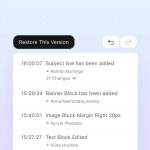
What to check: Use Version History to review changes inside the email, and confirm approval with your team.
Get the reviewed email ready for a developer
You’ve just reviewed an email using the assistant, and a developer needs the HTML code to continue working. The email is already identified in the conversation. You can request the code right there, without having to go back to the project and search for the email again.
Export the HTML of “[email name]” in “[project]”, the email we just reviewed.
Stripo MCP supports exporting a selected email or email template to HTML. You can send this code to the developer along with your notes. If you’ve been discussing multiple drafts, specify the name of the one you’ve selected in the export request.
The developer may also need images as separate files. For this, use the HTML archive export in the editor. Exports through MCP count toward your applicable export quota.
What to check: Ensure the exported HTML comes from the email you selected for handoff.
Keep the final decision with your team
Stripo MCP does not schedule or send campaigns. After creating or editing an email, follow your team’s approval and sending process. To compare campaign performance, you also need results from the system that records it; the email’s content alone cannot tell the assistant how the campaign performed. Deletion should remain a separate request, requiring your confirmation before anything is removed.
Stripo MCP can retrieve desktop and mobile previews of a saved email. Ask the assistant for both after making changes so you can review the layout. These are Stripo renders, not screenshots from recipients’ inboxes; you still need to check the copy and links and run your usual email client tests.
For a large change to the layout, start a new email from the required template. During the team’s tests, rebuilding the structure of an email with an editing history could fail to save reliably. Smaller copy changes were applied to the existing content without rebuilding the whole design.
Ask the assistant to show you where its answer came from. When reviewing an email, it can point to the relevant sentence in the copy. If it cannot find a detail, ask it to say so.
Every factual statement must come from a source the agent has read, and an unsuccessful lookup must be marked as unknown.

Wrapping up
Start with a task you do often and content you know. John Gruber, who deploys Microsoft Copilot in enterprise environments, recommends beginning with a single task and adding new functions and access only after the assistant handles it well. A copy of a familiar promotion is a useful starting point: give the assistant one change, ask it to save the result, and compare that copy with the original before moving on to a larger brief.
Claude is one option; Stripo also connects to other MCP-compatible tools, including Claude Code, Cursor, VS Code, and Codex. Stripo’s connection guide covers supported assistants, access requirements, and the Medium, Pro, and Prime plans that include MCP. Once connected, try your chosen task and review the saved result in Stripo.
0 comments