Bullet points in email: The complete guide to writing, adding, and coding lists


When digital marketers launch email campaigns, they go the extra mile to maximize the readability of their messages, highlight core information in them, and prevent reader fatigue. Bullet points are second-to-none instruments for achieving these goals.
This article explains what bullet points in email are, describes their types, provides ground rules for writing them, teaches how to create them across various email clients and email builders, discusses HTML bullet points, and offers accessibility and dark mode recommendations relevant to using them.
Key takeaways
- Bulleted points are vertical lists introduced with various markers (circles, squares, hyphens, etc.) and containing items whose sequence or rank doesn’t matter.
- In emails, bulleted lists draw the reader’s attention, structure information, and highlight the message’s main ideas.
- Bulleted lists should be avoided in personal messages and cold sales emails.
- To maximize their effectiveness in emails, keep bulleted lists short (up to five items), properly organized, capitalized, and punctuated, and frame them with an introduction and a next step.
- Bulleted lists have specific creation rules across different email clients, builders, and formats (especially HTML).
- When using bulleted lists in emails, you should consider their accessibility and dark-mode behavior.
What are bullet points in email?
Modern people read multiple texts daily. This fact is both a boon and a scourge for marketers, whose job is to reach out to their customers through numerous emails. Why? On the one hand, consumers are used to this kind of mental activity; on the other hand, they have neither the time nor the desire to dig into every little detail of such texts.
That is why email creators employ various typographical and design means to organize information into scannable chunks, avoid text walls, highlight key items, and improve overall message comprehension. This is what bullet points are for. And they come in different guises.
Bulleted vs. numbered lists
Both types of lists organize information clearly, but there’s a slight difference between them. Bulleted lists are more versatile, as they contain items whose rank, order, or sequence is irrelevant (for instance, product features or data entries). In numbered lists, the step-by-step process or priority is critical. That’s why numbered lists are employed for assembly steps, product rankings, etc.
Types of bullet markers
Typographical symbols used in bulleted lists may differ. You can choose among filled/open circles, diamonds, squares, triangles pointing to the right, asterisks, hyphens, checkmarks, and more. To make your list more expressive and engaging, you can also use emojis as markers.

(Source: Stripo template)
Why use bullet points in emails?
In marketing and promotional emails, bullet points serve functions similar to those of other text types: They act as visual anchors, drawing the viewer’s attention to the main ideas and highlighting actions and/or deadlines. They help the reader learn concisely what to do next while avoiding the risk of skipping crucial details, which can happen with text formatted in long paragraphs.
When not to use bullets
Despite their universality, bulleted lists aren’t for any use case. When you want to establish personal rapport with the recipient, bullets are out of place, as they may look overly formal. If you still feel bullets suit the purpose of your message perfectly, at least avoid bulleting each sentence because the reader will be confused and won’t know what information matters most. In addition, bulleted lists look bad when wrapped around images: They break alignment and render poorly across different devices.
How to write bullet points for emails
They may seem like simple tools, but you should follow some mission-critical principles when writing bullet points in emails.
Keep items parallel
Each line should start with the same grammatical form and pattern (gerund, noun, imperative verb, etc.) to accelerate reading, prevent mismatches with the introductory sentence, and give the list a tidy, professional look.

(Source: Email from Atlassian)
Keep the list to 3-5 items
Shorter lists retain the reader’s attention, are easy to remember, and create the impression that they contain only vital elements.

(Source: Email from FabFitFun)
Frame the list with an intro line and a next step
Framed in this way, the list doesn’t look like an intimidating command and is instead perceived as a cooperative message. The introduction establishes the list’s purpose and provides human context. A next step removes the reader’s guesswork about what to do with the information and acts as a call to action by specifying the desired behavior.

(Source: Email from MarketingProfs)
Punctuation and capitalization
These aspects serve as indicators of the types of items in the list (complete thoughts, continuations of one another, disconnected fragments, etc.). Use uppercase for the first letter of each point regardless of whether they’re full sentences or phrases. Proper nouns must also be capitalized. At the end of the item, use a period after full sentences but not after phrases or words.

(Source: Email from Morning Brew)
Bullets in sales and cold emails
Try to avoid them altogether. They not only feel too formal but may also trigger spam alerts and create information overload. In cold emails and sales messages, short sentences, a single focus, and a simple question at the end work better.

How to add bullet points in email clients
When marketers use bulleted lists in their messages, each email client should be approached differently.
Outlook
If you’re using the classic desktop version, Outlook automatically converts your sentences into a bulleted list when you start a new line. Alternatively, you can use the ribbon menu.
To create a new list or convert the existing text into bullets through the ribbon menu, go to the Message tab and click the Bullets icon in the Paragraph group while the cursor is in the message body. When the list is complete, press Enter at the end of the last item.
In the new Outlook, you should first open a new email draft, click inside the email body to see the toolbar, choose the Bullets icon, and type your text. Pressing Enter once at the end of an item takes you to the next point; pressing it twice allows you to exit the list.
In Outlook on the web, the formatting toolbar works a bit differently. Start by opening a new email and clicking the A icon with a pencil. Then, choose the Bullets icon and type your text. The Enter key works similarly here as it does in New Outlook.

Gmail
In the formatting toolbar, click Compose to open a new email window, choose the underlined A icon (aka Formatting options) at the bottom of the window, and then click the Bulleted list item (list with dots). Now you can type your items, pressing Enter after each to add the next bullet. When you’re done, press the Enter key twice or click the Bulleted list icon again.

Gmail and Outlook mobile apps
Both Android and iOS Outlook mobile apps have a native bulleted list button on their formatting toolbars above the on-screen keyboard. To start an email or reply to a received one, tap the Compose icon and then tap inside the message body. Now you can access the icon with formatting options (A with a pencil), which shows a menu when tapped. Choose the Bulleted list icon from it, type your text, and press Enter to generate the next bullet. By pressing Enter twice, you’ll exit the list.

The iOS-based Gmail app also has a native bullet list option in it. Creating a list here starts with the Compose button, too. After you have typed the desired text, go to the pop-up menu above it, scroll right, and choose Format. Now the Bulleted list option appears as one of the choices that turn the text into a list.

The Android version of the Gmail app doesn’t provide the bulleted list option directly in the toolbar, so you have to resort to workarounds. The first is to tap a bullet character on the keyboard and then type the text you need. The second boils down to creating a bulleted list in Google Docs and then copying it into the email.
Apple Mail and Yahoo Mail
These email clients work differently depending on the device you use.
For Apple Mail:
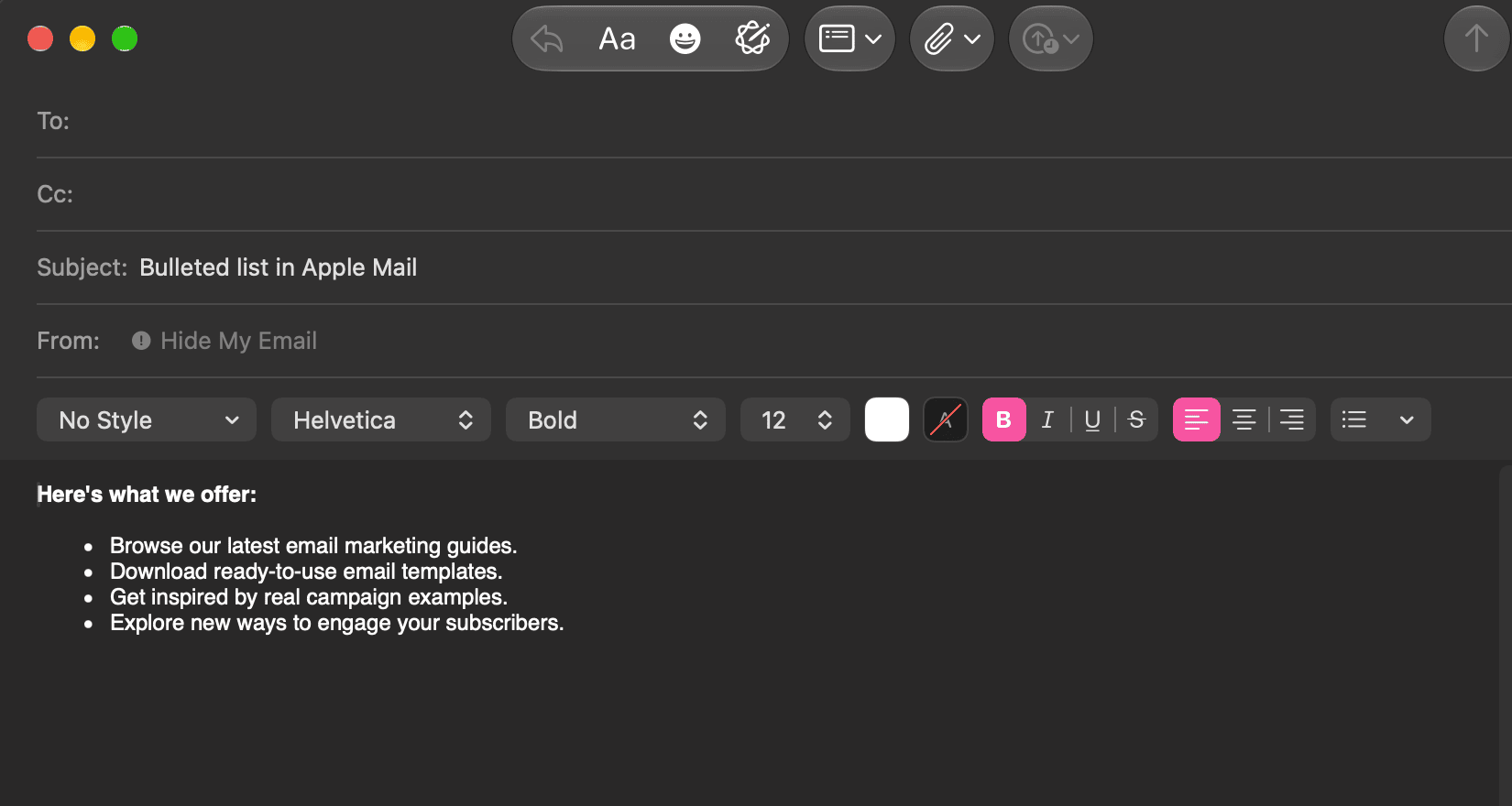
- to add a bullet list on Mac, choose Format in the menu bar on top, go to Lists, and click Insert Bulleted List. Alternatively, you can click the format bar icon while writing an email, select the Bullet point icon, and then click Insert Bulleted List;
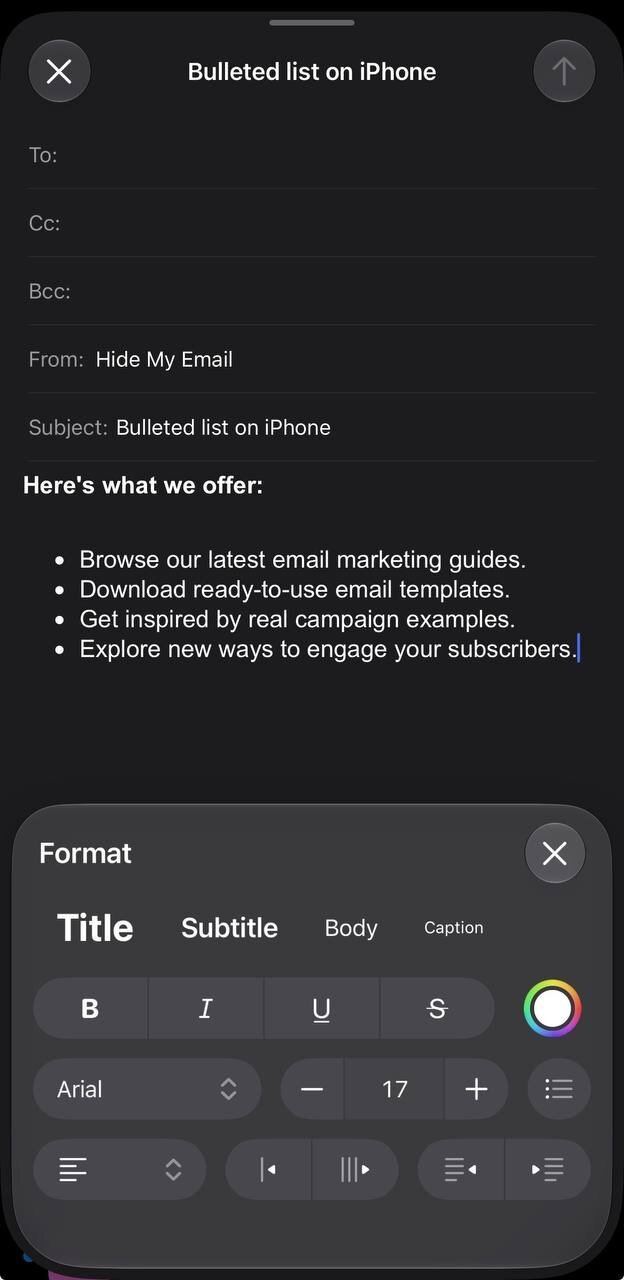
- on iPhone and iPad, create a message with the Compose button. At any stage of writing it, you can tap the Format button and then choose the Bullet point icon from the options to turn the text into a list.


For Yahoo Mail:
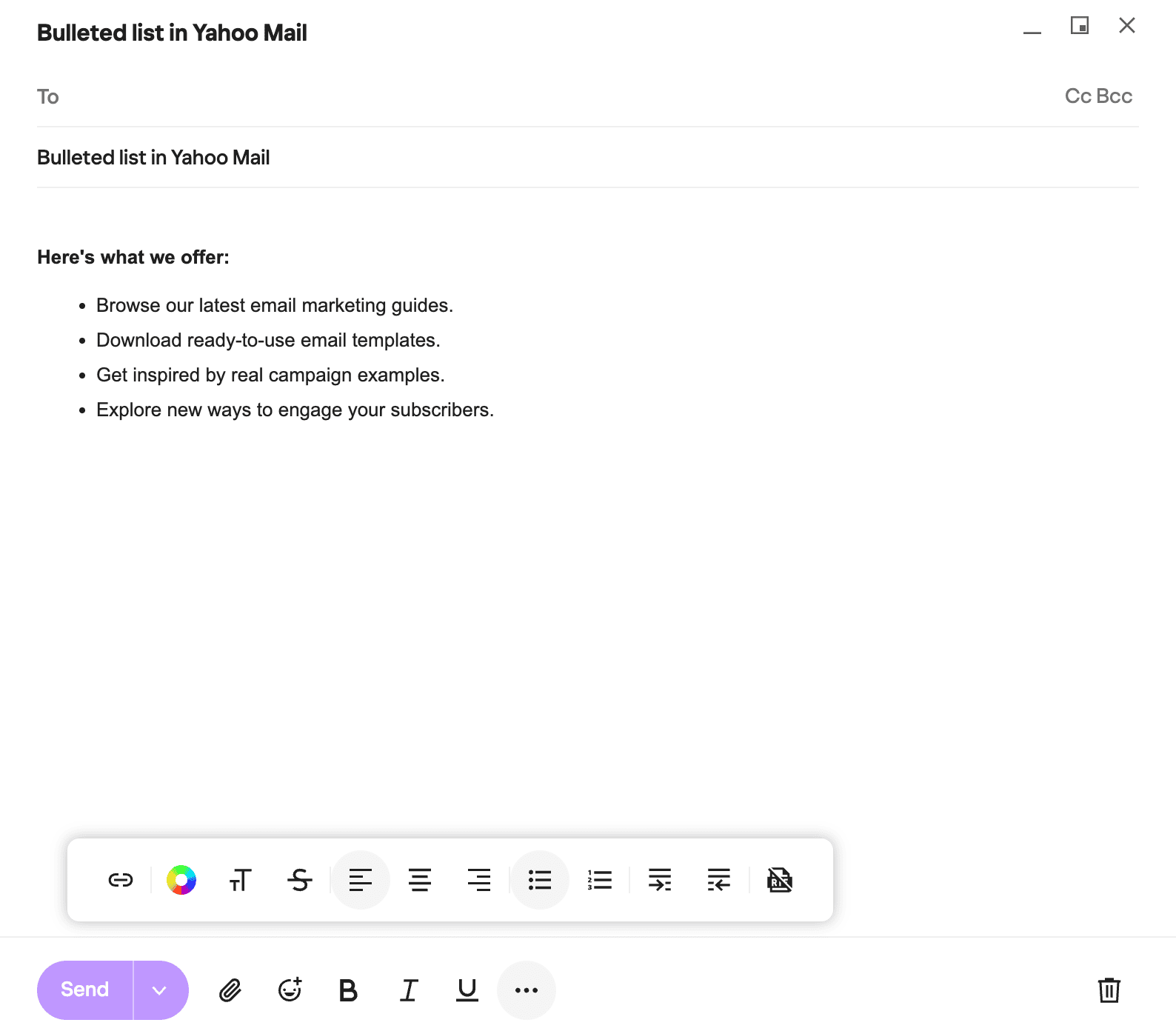
- when using a desktop, click on the Compose button, select the text you want to convert into a list, and click on the More options icon (three vertical or horizontal dots). The menu that you see after that contains a bulleted list icon;
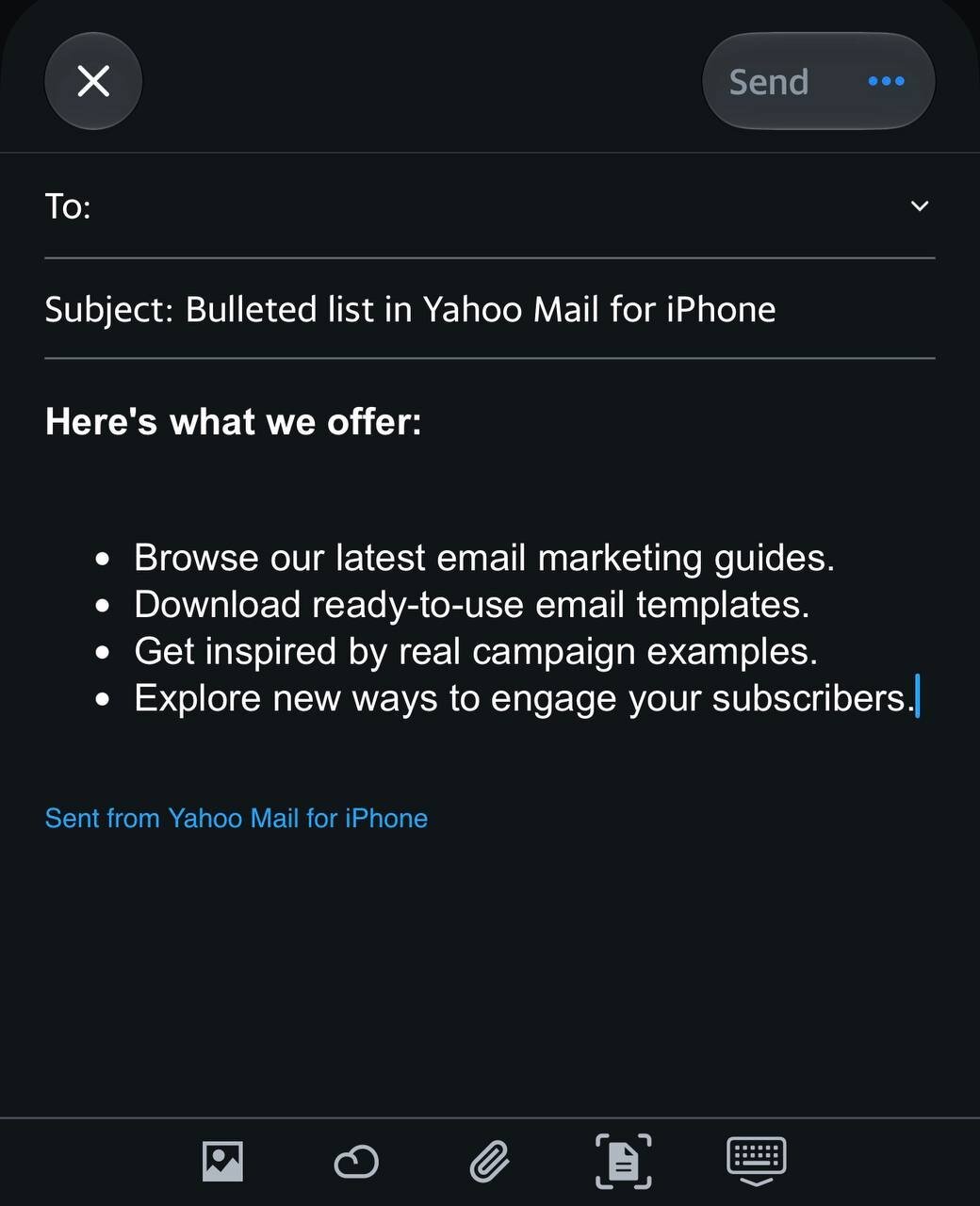
- in the mobile version, you start with Compose as well. The formatting toolbar at the top has a bulleted list button that lets you insert a bullet point.


Keyboard shortcuts cheat sheet
They work faster than a sequence of button presses.
In Outlook, the combination Ctrl + Shift + L lets you start a bulleted list in one go. After typing a hyphen or an asterisk and hitting space, you can type the text you need. By pressing Enter at the end of it, you automatically convert it.
To use shortcuts in Gmail, you first need to enable them in your account. You do this in Settings, where you choose the General section and move the toggle switch to On. Now you can press Ctrl + Shift + 8 to start a bulleted list. On iOS-powered devices, the shortcut is Cmd + Shift + 8.
Fixing bullet points in Outlook and Gmail
When you work in popular email clients like Outlook and Gmail, you may encounter bottlenecks when creating bulleted lists. Here’s a brief troubleshooting guide for the most typical issues.
Outlook: Bullets disappear or multiply after sending
The reason for bullets (and also colors, indents, and more) disappearing is that your email format is set to Plain Text instead of HTML. Fixing it is easy: Just make sure HTML is selected in the Format text section.
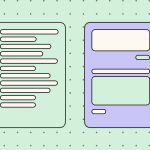
Bullet multiplication is caused by accidentally placing one list inside another (aka list nesting) or by splitting a single list item into multiple broken blocks when you press Enter or Tab. To avoid multiplication, you should turn off automatic bullet conversion in the AutoCorrect Options section.
Outlook: Large indents and mso- fixes
Large indents are excessive horizontal spaces between bulleted lines. They appear either because of the way Outlook renders text in the desktop version or because of the display and reply-chain settings in the mobile app. You can adjust the list level by using the ribbon or by setting smaller values in the Indentation section of the Paragraph tab (you can find the Paragraph tab in the Format text section of the top ribbon).

Mso- properties control the rendering of bulleted lists, spacing, and symbols. Since Outlook doesn’t use a standard web browser to display HTML emails but relies on the Microsoft rendering engine, mso-level text properties can break and turn bullet points into invisible characters or question marks. To avoid this, never copy and paste bulleted lists directly from Microsoft Word into Outlook. Instead, build your lists in Outlook by employing the native Bullets button on the ribbon.
New Outlook for Windows: What changes
The new version offers fewer of the advanced customization and formatting features that Classic Outlook provided. Now, you can’t change bullet symbols (say, from a square to a diamond) or define custom symbols. In addition, there’s no longer a specialized formatting dialog box for precisely adjusting bullet-to-text spacing or the space after list elements. Finally, you can use only basic indentation levels for bulleted lists.

Gmail: Margin and rogue-bullet issues
Unlike web browsers and other email clients that automatically inject left margins, left padding, and block indents into <ul> and <ol> tags, Gmail applies its own default left indentation and spacing rules. As a result, extra left margins are rendered inconsistently across devices. To eliminate the problem, you should strip default styles or override them by adding CSS boundary resets.
Rogue bullets are another endemic problem with Gmail. They’re misplaced or duplicate bullet characters that float out of alignment with the item they’re supposed to precede or pop up unexpectedly in the middle of a text. The problem is caused by improper HTML nesting or copy-pasting lists from external sources. The issue is fixed by enclosing each nested list with an <li> element or stripping out all styling before formatting.
Bullet points in email builders
Digital agencies with thousands of customers to reach out to rely on high-end email-building software for creating their messages. How do you add a bulleted list there?
Add a list in a drag-n-drop editor
There are two distinct approaches for editors with and without a standalone list block.
If the email builder provides such a block, find the List tile in the content sidebar (on either the left or the right of the canvas), drag it onto your layout, select the Bulleted list type from the settings, and type the text you need. Pressing Enter (or Return) at the end of the line allows you to move on to the next bullet point.
One of the main challenges in email marketing today is making the most of precious moments of your reader’s attention. Readers are frequently overwhelmed, overworked, or cognitively exhausted, and seeing another generic block of text or boring bullet list can just make their brains skip it to save energy.
That’s where Stripo’s widget for lists comes to the rescue: You can assemble visually appealing and easily readable checklists, feature comparisons, or simply lists in a variety of ways. By reusing, redesigning, and rearranging structural elements, to effectively pack the information for a reader in a limited field of vision within a single screen.

Email builders that don’t have a dedicated list block enable list building inside text boxes. To do it, you should drag a text/paragraph block from the content panel onto the canvas, click inside it to see the formatting toolbar, choose the Bulleted List icon, and type the text. By pressing Enter once, you generate the next bullet; by pressing it twice, you exit list mode.

Paste lists from Google Docs or Word
At first sight, pasting a list looks simple. You highlight the list in Google Docs or Word, press Ctrl + C (on Mac, it’s Cmd + C) to copy it, and press Ctrl/Cmd + V inside the editor’s text block to paste the list there.
However, such direct pasting often breaks lists because of the custom CSS and complex XML tags used in Word and Google Docs. In addition, Outlook and Gmail may ignore pasted spacing, resulting in overlapping text or huge gaps on mobile screens. That’s why it’s better to strip list formatting after pasting by using the Clear Formatting icon (sometimes a clipboard with a W icon), and then apply the builder’s native bullets along the lines described above.
Control spacing and line height
These parameters are vital for obtaining a clean look of the email with a bulleted list.
The distance between lines within a bullet (aka line height) is easier to handle because some platforms have a dedicated field with the same name (sometimes called Letter spacing) in the design sidebar on the right. If your tool doesn’t offer it, find the Line Height icon on the formatting toolbar on top, select the value (1.0, 1.2, or 1.5-2.0), and apply it to the highlighted bullet list inside the text block.
Spacing between bullets is trickier to manage because most drag-n-drop editors don’t offer this option. To achieve the desired gaps between bullets, you can place each item within a separate text block or adjust the block’s bottom padding.
How to code bullet points in HTML email
A bullet point in HTML emails is a hard row to hoe because it requires some basic coding competence from email creators. Let's find out how it is done.
The basic semantic list (<ul>, <ol>, <li>)
There are three tags used to code bulleted lists in HTML: the container tags <ul> and <ol> for unordered and ordered lists, respectively, and the <li> tag for each bulleted item inside <ul> and <ol>.
<ul style="margin:0; margin-left: 25px; padding:0; font-family: Arial, sans-serif;
color:#495055; font-size:16px; line-height:22px;" align="left" type="disc">
<li>
Unordered Disc Bullet
</li>
</ul>
List types and the type attribute
The type attribute is used for unordered bulleted lists to define the shape of the bullet marker (filled or open circle, square, diamond, hyphen, etc.). It comes after the first <ul> tag.
<ul type=”disc”>
<ul type=”square”>
Reset margins and padding
Many email clients delete CSS styling code from the top section of an HTML email, so you have to do it manually by applying inline styles directly after <ul> and <li> tags. Zero out the margin and padding inside both tags and add the size of the left margin (usually 20-25px) to let bullets stay visible inside the email container.
<ul style="margin: 0 0 0 25px; padding: 0; list-style-type: circle;">
  <li style="margin: 0; padding: 0;">First bullet point</li>
  <li style="margin: 0; padding: 0;">Second bullet point</li>
</ul>
In this case, “padding: 0” removes the default left indentation and “margin: 0 0 0 25px” resets other margins (top, bottom, and right) to zero, leaving sufficient space for bullet markers to be visible.
Nested lists without rogue bullets
Rogue bullets appear because of email client behavior. Some of them (like the desktop version of Outlook) ignore CSS list nesting rules and flatten indentation, while others (Gmail and Yahoo) override custom spacing by applying their own user-agent style sheets. To prevent it, place the nested list not outside, but inside a <li> tag.
<ul style-"margin:0; margin-left: 25px; padding:0; font-family: Arial, sans-serif;" align="left” type="disc">
<li style="color: #F1736A; font-size:22px; line-height:22px;“>
<span style="color:#495055; font-size:16px; line-height:22px;">
Unordered, Colored, Enlarged Disc Bullet
</span>
<ul type-"square">
<li style="color: #F1736A; font-size:22px; line-height:22px;"> <span 3tyle-”color:4495055; font-size:16px; line-height:22px;">
Unordered, Colored, Enlarged Square Bullet
</span>
</li>
</ul>
</li>
</ul>
<ol style="margin: 0; margin-left: 25px; padding:0; color: #495055; font-size:16px; line-height:22px;" align="left" type="A">
<li style="font-family: Times, serif; font-weight:bold; font-style: italic;">
<span style="font-family: Arial, sans-serif; font-weight: normal; fontstyle: normal;">
Ordered, Uppercase, Serif, Bold, Italicized Alphabet Bullet
</span>
<ol type=“1">
<li style="font-family: Times, serif; font-weight:bold; font-style: italic;">
<span style="font-family: Arial, sans-serif; font-weight: normal; font-style: normal;">
Ordered, Uppercase, Serif, Bold, Italicized Numeric Bullet
</span>
</li>
</ol>
</li>
</ol>
Style bullet color, size, and font
Because of the above-mentioned "allergy" of some email clients to CSS elements in emails, you should apply them directly to the <li> tag to be able to define the marker’s color, size, and font. Plus, you should wrap a bullet item’s text in an inner <span> tag to style the text separately.
<ul style="margin: 0 0 0 25px; padding: 0;" align="left" type="disc">
  <li style="color: #F1736A; font-size: 14px; font-family: Georgia, serif; line-height: 16px;">
    <span style="color: #333333; font-size: 16px; font-family: Arial, sans-serif;">
      Text
    </span>
  </li>
</ul>
Custom bullets: Unicode, emoji, and images
You can insert those as bullet list markers in two ways.
In the first, you turn off a native marker and place a Unicode character or emoji instead, eliminating reliance on CSS elements that Outlook and Gmail ignore.
<ul style="margin: 0; padding: 0; list-style-type: none;">
<li style="margin: 0 0 8px 0; padding-left: 20px; text-indent: -20px; line-height: 1.5; font-family: Arial, sans-serif; font-size: 14px; color: #333333;">
<span style="display: inline-block; width: 20px; color: #007bff; font-weight: bold;">★</span>
Your first bullet point with a Unicode star.
</li>
<li style="margin: 0 0 8px 0; padding-left: 20px; text-indent: -20px; line-height: 1.5; font-family: Arial, sans-serif; font-size: 14px; color: #333333;">
<span style="display: inline-block; width: 20px;">🔥</span>
Your second bullet point with an emoji.
</li>
</ul>
The second method enables custom image icons by using the <img> tag, wrapped in a float-like or flex-like inline structure.
<ul style="margin: 0; padding: 0; list-style-type: none;">
  <li style="margin: 0 0 10px 0; padding-left: 0; font-family: Arial, sans-serif; font-size: 14px; color: #333333;">
    <Bullet Image>
    <span style="display: inline-block; width: 16px; vertical-align: middle; margin-right: 8px;">
      <img src="https://via.placeholder.com/16" width="16" height="16" alt="" style="display: block; border: 0;" />
    </span>
    <Bullet Text>
    <span style="display: inline; vertical-align: middle; line-height: 1.4;">
      Custom image bullet point with proper vertical alignment.
    </span>
  </li>
  <li style="margin: 0 0 10px 0; padding-left: 0; font-family: Arial, sans-serif; font-size: 14px; color: #333333;">
    <span style="display: inline-block; width: 16px; vertical-align: middle; margin-right: 8px;">
      <img src="https://via.placeholder.com/16" width="16" height="16" alt="" style="display: block; border: 0;" />
    </span>
    <span style="display: inline; vertical-align: middle; line-height: 1.4;">
      Second item aligned cleanly beside the graphic.
    </span>
  </li>
</ul>
Just don’t forget to set explicit image dimensions (width and height attributes) to avoid broken layouts and unwanted gaps.
Table-based lists and when to avoid them
Table-based lists in HTML emails are created in a two-column <table>, where the left cell (the <td> tag) is filled with the bullet character and the right cell holds the text. Items are arranged in rows introduced by the <tr> tag.
<table role="presentation" border="0" cellpadding="0" cellspacing="0" width="100%">
<Bullet Item 1>
<tr>
<td width="20" valign="top" style="font-family: Arial, sans-serif; font-size: 16px; line-height: 24px; color: #333333; padding-bottom: 8px;">
First bullet point item.
•
</td>
<td valign="top" style="font-family: Arial, sans-serif; font-size: 16px; line-height: 24px; color: #333333; padding-bottom: 8px;">
</td>
</tr>
<Bullet Item 2>
<tr>
<td width="20" valign="top" style="font-family: Arial, sans-serif; font-size: 16px; line-height: 24px; color: #333333;">
•
</td>
<td valign="top" style="font-family: Arial, sans-serif; font-size: 16px; line-height: 24px; color: #333333;">
Second bullet point item.
</td>
</tr>
</table>
However, table-based bullet lists aren’t the optimal choice when screen reader accessibility is required, mobile responsiveness of the email is a priority, message content is dynamic, multi-level lists are involved, or email file size is close to clipping limits (102 KB).
Accessible bullet lists
As accessibility has become nonnegotiable for all digital products, you should learn to manage it in bulleted email lists.
Why semantic lists matter for screen readers
As soon as a screen reader encounters a list built with <ul> (unordered), <ol> (ordered), or <dl> (description list) tags, it announces its presence, type, and number of items to the recipient. The recipient can skip the list or jump from one list to another by pressing the L key. But if a list is built with <div> or <p> tags, the shortcut described above doesn’t work. So, make sure you apply the proper tags.
ARIA roles for table-based lists
If a table introduced with the nested <table> element is used in an email to structure its design and layout, you don’t want the screen reader to announce the number of its rows and columns. To prevent this, strip away its semantics by setting the role to “presentation” or “none” on the <table> element.
If the data in the table matters (scheduled lists, inventories, etc.), native semantic HTML tags (<table>, <thead>, <tbody>, <td>, and others) are vital.
Alt text for emoji and image bullets
Decorative image bullets and emojis should be marked with empty alt text (alt = “ “) so as not to distract a screen reader user. This is especially true for emoji, since people don’t like to hear “sparkles bullet number one” or other emoji descriptions before every item on the list. Alt text describing the image’s meaning makes sense only if the image bullet carries information (for instance, a green checkmark or a red warning icon). Otherwise, it’s best to avoid images and emojis as list markers altogether for accessibility reasons.

Bullets in dark mode and plain-text emails
Two more use cases of bulleted lists in emails are worth considering.
Dark mode: Bullet colors and image bullets
Different email clients handle dark mode differently, so use special image and HTML techniques to ensure high contrast and prevent icons from disappearing.
For bullet colors in dark mode, opt for mid-tone brand colors, avoid the CSS ::marker, and isolate bullet and text colors by setting the bullet color on the <li> tag and wrapping the copy in a <span> tag.
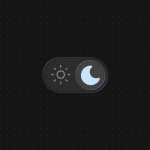
Unlike colors, images aren’t inverted in dark mode, so dark custom icons vanish against the dark background. That’s why you should use only transparent PNG images with a subtle stroke or glow and swap light and dark icons via CSS. By the way, you can instantly check how it looks in dark mode with just one click.
In Stripo, you can check how your email will look in dark mode right inside the editor.

Plain text version: What bullets turn into
Since plain-text emails contain no CSS or HTML styling, bullets don’t change, no matter what mode the device is set to. They simply invert their color when you switch to dark mode.
Wrapping up
Bulleted lists in emails are highly instrumental in improving readability, highlighting important points, and presenting large volumes of information concisely. However, in personal communications and cold sales, avoid bulleted lists. To let them function effectively, keep items grammatically parallel, use no more than five points in them, pay attention to capitalization and punctuation, and frame the list with an intro and a next step.
Bullet points can look different when created in different email clients, email builders, and HTML formats. It’s also vital to follow accessibility guidelines and consider dark mode when using bulleted lists in your email.
FAQ
1. How do I insert bullet points in an Outlook email?
In the classic version, all your sentences are automatically converted into a bulleted list once you start a new line. If you’re working with the existing text, you can use the ribbon menu (Message tab, Paragraph group, Bullets icon) to turn it into a list.
The new Outlook and Outlook on the web let you create bullet points using the Bullets icon in the formatting toolbar. Press it, and all the text you type will be transformed into a bulleted list after you press Enter at the end of each sentence.
2. How do I add bullet points in Gmail?
Click Compose in the formatting toolbar to open a new email window, at the bottom of which you’ll see the underlined A icon in the formatting toolbar. From the formatting options, select the list with dots, and start typing the text you need. Pressing Enter at the end of each item will take you to the next bullet. After finishing, press Enter twice.
3. How can I use bullet points in my email writing?
Bullet points in emails are highly recommended for improving readability and scannability, presenting unordered information, highlighting action items and deadlines, and replacing long paragraphs with concise lists.
4. Should I use bullet points in a professional email?
It depends on the nature and purpose of the email. If you need to communicate complex updates, separate tasks, deadlines, or action items, or replace multi-paragraph explanations, bulleted lists suit perfectly. In cold sales outreach or personal correspondence, bullet points aren’t the best choice because they can feel too detached and formal.
5. Why do my bullet points disappear in Outlook?
Most frequently, one of the following causes is at play. Either your message format is set to plain text, which strips the bullets, or your “Style for Following Paragraph” automatically switches the paragraph to a nonbulleted format when you press Enter at the end of the bullet point. To fix the first, set the Compose format to HTML. To fix the second, modify the “Style for the Following Paragraph.”
6. Can I use emoji or checkmarks as bullets?
You can do so if you have expertise in building HTML emails and dealing with various email clients. But their use raises questions about message accessibility for screen reader users, cross-device rendering, and the professional look of emails with these list markers.
0 comments