Making your Pardot email design process easier with Stripo


Although Pardot is tightly integrated with Salesforce CRM, boasts powerful analytics, and offers extensive marketing automation capabilities, it presents certain inconveniences that cause headaches for marketers, specifically regarding email design. Many marketers we have spoken to have struggled with the complex, time-consuming, and manual nature of email design in Pardot, and they are eager to simplify the process. In this article, we will discuss the pitfalls of email design in Pardot, explain how Stripo can make life easier, and outline what the integration of Stripo into your Pardot workflows looks like.
It is also worth noting that Pardot’s official name is Marketing Cloud Account Engagement; however, for the sake of convenience, we will continue to use the familiar name "Pardot" throughout this article.
Pitfalls of designing emails with Pardot
Complaints about the cumbersome email design process in Pardot didn't come out of nowhere. We have spoken with many marketers, both through case studies and our support department, and for many of them and their companies, the main issue with Pardot is its built-in email editor; it is quite limited in functionality and generally clunky for designing emails quickly and smoothly.

(Source: Reddit)
For example, Fingercheck, with whom we recently spoke about their experience with Pardot, told us that creating Pardot emails was time-consuming because it required manually writing HTML and CSS code, given that their audience uses a wide variety of email clients, including Gmail, Apple Mail, and Outlook.
Furthermore, one of our client cases highlighted that templates created in Pardot are quite rigid, offering limited control over design and customization. This not only hinders the creation of complex, unique emails but also creates obstacles when trying to ensure mobile responsiveness without reworking the email content itself. It is also worth noting that the extra design hassle extends the production time marketers reported spending anywhere from two to three days on each email.
Most edits had to be made directly in the HTML code, which made the email creation process cumbersome. At times, the code would break, requiring us to redo our work.

Another aspect of working with Pardot involves other, more specific issues. One of the companies we spoke with highlighted problems that throw a wrench in their work during the email design process in Pardot:
- font link issue. Simply put, Pardot counts every font link containing the "@import" directive as a click, which skews analytics if links are not fixed. Consequently, to gather accurate data, marketers must manually remove all font links from the HTML code of every email and its variations;
- title tag issue. This problem concerns the title tag in the HTML code. If left in place, the tag's content appears in the incoming email preview window instead of the preheader text. A complicating factor is that even leaving the Title field blank or inserting a space does not resolve the issue; marketers must manually remove the tag from the HTML code of every email and its versions.
Alternatively, consider a scenario where you already have pre-coded templates. Editing them in Pardot can require hours of coding and testing. Exclaimer faced this exact situation: preparing each email, making edits, and generating test versions took hours, yet the emails still didn't always display perfectly across all email clients.
All these problems create inconveniences and push marketers to seek alternative solutions for their email design process.
How Stripo can make your life easier with Pardot
The list of shortcomings we described above is extensive, but the upside is that we have already come up with solutions to these problems.
Pardot-tailored template code and export features
One of the key advantages of using Stripo with Pardot is that all Stripo templates come with clean code, free of the hidden characters that can cause conflicts with the Pardot email editor. There are no misaligned elements and no need for manual code adjustments. You can seamlessly use them in both the Pardot editor and other email service providers (ESPs).
The brightest moment of using Stripo was the first time I copied the HTML code and pasted it into Pardot. I ran a preview test. Pardot has a built-in Litmus preview tool that works great, and after the results came in, I couldn’t believe that the email looked exactly like I created it on all the screens and mail tools.

Let’s return to the previously mentioned issues regarding font link tracking and title tags, as we resolved both thanks to ongoing user feedback, and both solutions are now built into the export functionality.
Font link tracking resolved
Since October 2023, when exporting to Pardot via the Stripo integration, the system automatically replaces font connections using `<link>` tags with `@import` rules within the `<style>` block. This is because Pardot counts `<link>` tags as clicks, whereas it does not track `@import` rules. In short, the integration automatically resolves this issue for everyone.
However, there is a caveat: if a user manually copies and pastes the HTML into Pardot, the automatic replacement does not occur. To address this scenario, you can now select the font connection method (link/@import/@font-face) in the project settings. More about this feature in our support team article.
Title tag issue fixed
We have upgraded the export process, and the Pardot export window now includes a "Leave Title empty" checkbox, which is enabled by default. Upon export, the `<title>` tag remains empty, ensuring the preheader is displayed in the inbox. We released this update a month after encountering an issue with Optimal Business Consulting, who had been struggling with this specific problem.

Email design flexibility
Stripo offers email-creation flexibility you can leverage to streamline your design workflows. For instance, it simplifies adding and resizing columns to fit specific layouts and allows for easy integration of blog content via the data module; you can then simply transfer these templates to Pardot for further processing.
According to Jeff Kemp, a certified consultant and owner of Optimal Business Consulting, Stripo works exceptionally well with the Pardot Classic email builder as Stripo handles the front-end design aspects, while the Pardot Classic builder is used to manage audience lists and send the emails.
Faster email creation
Even though this benefit appears last on the list, it is still incredibly important. By integrating Pardot and Stripo, you can speed up the email creation process by up to 60%.
This is achieved in several ways. This includes a streamlined, user-friendly editor that lets you create emails without coding, advanced features like real-time co-editing for the joint email creation, and modular email design that enables you to save content and reuse it in future campaigns and email designs.
Modular email design is important because it helps us maintain consistency across campaigns while allowing designs to be tailored to specific brands, products, and color themes across our digital and non-digital marketing initiatives.

It is also worth remembering that speeding up email design isn't limited to the design phase itself. The approval process is significantly faster when the tool includes convenient features for previewing and sharing created templates among colleagues.
Stripo has helped streamline approvals and revisions by allowing us to share the initial draft directly from Stripo and to make edits within the platform.
Leena Jamal,

Steps for adopting Stripo email design in your Pardot workflows
Implementing Stripo in your Pardot workflows is much easier than you think. We have real cases of how companies adopted Stripo to boost their processes and make Pardot email marketing smoother. The following steps compile our user stories that already enhanced their email design process with Stripo.
Step 1: Design your email in Stripo
It all starts with your email. Previously, bringing a design concept to life meant wrestling with the clunky Pardot editor and manually coding the email from scratch. Stripo changes the game.
Now, the entire email creation process takes place within Stripo. You can drag and drop blocks, edit each element, build your own email structure, and incorporate custom fonts, interactive features, and much more, all without writing a single line of code. Yet, we don’t deny you the chance to look under the hood; a code editor is available if you have the expertise and want a fully customized design.
We have a video tutorial that shows how you can create a full-fledged email with Stripo in under 7 minutes.

Step 2: Test your template
Once your template is done, it’s important to test it to ensure everything works and looks as intended. Stripo offers you four ways of how you can test your template on all levels.
-
Preview option
The first way you can test your email is simply to preview it. Here you can see how your template will look both on desktop and mobile. You also have options to preview the template in both light and dark themes, as well as change the mobile device model to make sure that your template is adapted for different screen sizes.

-
Email on Acid integration
However, a simple preview is often insufficient to ensure the template is in good shape. This is where integration with Email on Acid comes in handy, as it allows you to see how the template appears across hundreds of different mobile devices, email clients, applications, and so on. This provides the most extensive view possible of how your template might look under various conditions.

-
Test newsletter
Don't forget that you can always send a test email using your created template to various email addresses to see your creation in a near-live environment.

-
Accessibility checker
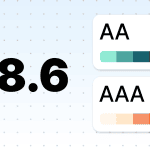
Last but not least is our recent addition: Accessibility checker. It is important not only to ensure your template looks good everywhere but also that it is readable by people with visual impairments. This checker scans your template for design flaws that could hinder accessibility for such recipients. It also provides helpful suggestions on how to resolve these issues, ensuring maximum accessibility so you don’t have to puzzle over how to fix specific design elements yourself.

Step 3: Export to Pardot
So, your Stripo template is ready, and it’s time to export it for use in Pardot. You have a few export options here. The first and simplest method is to use our direct integration with Pardot: simply enter your Pardot account details, click the "Export" button, and the template will appear in the "Folders" menu in Pardot.

Another option is to copy the template code from Stripo and paste it directly into the Pardot editor. This method is ideal for more tech-savvy marketers and those who plan to further customize the template using Pardot’s own tools.

Our support unit described Pardot export in more detail in this Help Center article.
Step 4: Generate and add necessary links
Links in Pardot require special attention, as merge tags and system links (unsubscribe, preference center, web version) require specific handling. The exported template must contain all links in plain-text format.
Once the template is exported, all plain-text links (both standard links and merge tags) must be replaced with functional links using one of two formats (it is important to use a consistent format throughout):
- PML (tag is enclosed in percent signs like %%tag%%);
- HML (tag is enclosed in curly brackets, e.g., {{tag}}).
Step 5: Test template in Pardot
Now, run another test from Pardot. Just send a test newsletter to make sure that your transformed links work properly and the overall exported template looks as it’s supposed to.
I trained a couple of email campaign managers at the client over the last two years. One person now handles all the email creation. They were able to be fully trained in about two weeks from start to finish. Now, I only jump in occasionally on rare occasions to help if required based on their workload.

Wrapping up
Pardot and Stripo are a great union if you need a smooth email design process tied with powerful automation and analytics capabilities.
The teams we spoke with all landed on the same split: Stripo builds the email, Pardot keeps the audience lists and sends it. Each tool stays in the part of the process it was built for, and the handoff takes a couple of minutes. Syngenta Canada went from two to three days per email to one day or less. Optimal Business Consulting reports up to 60% faster production for its client. In both cases, the shift came from the same move: email design left the HTML code and went into a drag-n-drop editor, making the overall email design process a breeze.
0 comments