Email signature alignment: How to fix it and get it right across clients


An email signature is your digital calling card, and how you design it can shape the first impression of you and your services. We're not just talking about choosing the fonts, colors, and composition of elements. We're also talking about the alignment of your email signature.
Sometimes, different alignment options are a design decision, while other times, they're the result of a broken email. In this article, we'll explore various signature alignment options, how to ensure your signature is positioned consistently across all email clients, and how you can easily do this in Stripo.
Key takeaways
- Left alignment is the safest choice for most email signatures because it keeps contact information easy to scan. Centered alignment works better for short signatures, while right alignment is mainly useful for RTL languages or specific design purposes.
- Use email-safe HTML to prevent alignment issues across clients. Table-based layouts, inline CSS, defined cell widths, web-safe fonts, and dedicated cells for logos provide more consistent results than flexbox, grid, margins, or positioning.
- Always test signatures across clients and screen sizes. Outlook, Gmail, and Apple Mail can process the same HTML differently, while mobile screens can introduce additional wrapping and alignment problems. Testing before reuse helps catch these issues early.
What email signature alignment means
Email signature alignment is all about where your signature elements are positioned in relation to one another and to other elements in your template. This applies to both commercial newsletters and personal emails.
Proper alignment is not only about style; it also affects the scanability of the elements within your signature and the overall readability of important information.

Left, center, or right: Which alignment to use
There are several ways to align your signature elements, each with distinct characteristics you should keep in mind.
Left alignment (default, scannable)
This is the most common way to create your email signature alignment, with all elements starting from the left side of the email. You can see it in almost every type of email, both commercial and personal, because it makes the information easy for recipients to scan and read. It can also be applied to any industry and for any purpose, making it the go-to solution when you need a perfect email signature.

(Source: Stripo template)
Center alignment (when it works)
This type of alignment can also be found in various commercial emails, as it works well for simpler email signatures or those with less focus in the overall email. It’s a great option for creative industries or when promoting a personal brand.

(Source: Stripo template)
Right alignment (why to avoid it)
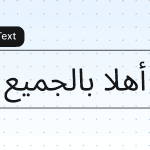
This type of alignment is less common and is driven more by the creative vision during email design than perfect scanability. Since people typically read from left to right, right-aligned text may feel less natural and can make important information, such as contact details and links, harder to scan. However, this type of alignment is common in Arabic-, Hebrew-, and Urdu-language emails because it supports the natural RTL direction of writing and reading in these languages.

(Source: Stripo template)
Why your email signature keeps centering across clients
You can be 100% sure you aligned your email signature exactly how you wanted during the design process, yet it may still render incorrectly when your email is opened in different email clients. It’s not your fault. The issue comes down to how different email clients handle HTML and CSS code.
Outlook and the Word rendering engine
Desktop versions of Outlook use the Microsoft Word rendering engine to display HTML emails. This engine supports a relatively limited set of HTML and CSS compared with modern email clients.
As a result, alignment styles applied through CSS may be ignored or interpreted differently. For example, a parent table or a centered <td> tag may cause several signature elements to be centered, even when individual elements are intended to be left-aligned.
Gmail paste behavior
This is a fairly common issue, especially with personal emails. Gmail may change the formatting when you paste a signature into its signature editor. Depending on where the signature was copied from, Gmail may remove, simplify, or inherit certain HTML and CSS styles.
If the copied content contains centered formatting from the parent element, Gmail may preserve that property while removing some of the styles that control the alignment of individual elements. As a result, text, images, or the entire signature layout may appear unexpectedly centered.
Apple Mail and the iPhone-to-desktop shift
Signatures in Apple Mail may behave differently on macOS and iOS. A signature that displays correctly on a Mac may appear differently on an iPhone because of the smaller screen size and differences in how HTML is processed.
An iPhone may also resize content to fit the available width. If the signature is based on a fixed width, margins, or positioning rather than a flexible table-based structure, this change may cause elements to shift or become centered.
How to fix email signature alignment (step by step)
This problem may seem minor, but it requires the right approach for every email client. We’ve prepared a simple guide on how to make your email signature align the way you need in Gmail, Outlook, Apple Mail, and HTML code.
Fix it in Gmail
To make sure your email signature is aligned correctly in Gmail, go to Settings and click See all settings.

Then, under the General tab, scroll down to the Signature section. Check whether your text or other elements have center alignment applied using the built-in editor option.

If the signature alignment issue appeared after you pasted it into the editor, Gmail may have applied the formatting from the original file where you copied the signature. The ideal solution is to delete the existing signature and paste in a clean version.
If you coded the HTML manually, make sure the formatting preferences are specified directly in the code and not dependent on formatting that is not visible on another page or document.
Fix it in Outlook
The first way to fix your signature alignment in Outlook is similar to the process in Gmail. Click Settings.

Then, go to Account and click the Signature section.

Once there, check the alignment controls in the Outlook signature editor and make sure the content is set to left alignment.

For more complex signatures, use a table-based structure. Outlook can handle modern CSS styles inconsistently, especially in versions that use the Word rendering engine. Inline styles and HTML attributes are generally more reliable than external stylesheets, flexbox, or grid.
And one of the most important things to remember with Outlook is to test your signature in a real email rather than relying solely on the preview in the signature editor.

Fix it in Apple Mail
To resolve this issue in Apple Mail, first open Settings and go to the Signatures section. Make sure that unnecessary formatting hasn't been inherited from the original file where you copied the signature.
Also, check how your signature displays on an iPhone. If the alignment changes, check the signature's overall width. Wide, fixed layouts can display poorly on small screens. A simple structure without unnecessary margins, padding, or positioning will make your signature more consistent across desktop and mobile devices.

Fix it in the HTML (text alignment and cell widths)
When coding your own email signature from scratch in HTML, define alignment directly on the elements that control the layout. For example:
<td align="left" style="text-align: left;">
Your email signature goes here
</td>
You should also pay attention to the parent <table>, <tr>, and <td> elements, as a parent cell with text-align: center can cause child content to appear centered unexpectedly.
Cell width is also important. To keep your email signature aligned just right, define predictable table and cell widths. For example, here’s the code with a defined width for the logo and content cells:
<table role="presentation" width="500" cellpadding="0" cellspacing="0" border="0">
  <tr>
    <td width="120" align="left">
      <!-- Your logo goes here -->
    </td>
    <td width="380" align="left" style="text-align: left;">
      <!-- Your contact details go here -->
    </td>
  </tr>
</table>
As you can see, the logo cell has a fixed width of 120 px, while the content has a width of 380 px. Defined dimensions help keep these cells intact across different email clients.
Copy-paste artifacts that break alignment and how to troubleshoot them
Pasting your email signature can introduce various artifacts that may affect its appearance. Unwanted inherited styles, extra wrappers in the code that break the alignment, retained font styles, and other formatting can cause your signature to display incorrectly. Here are some issues that can break your signature, along with tips on how to fix them.
Paste as plain text
As we mentioned earlier, pasting your email signature from different sources can import the source's signature features into your signature code. If you're not very familiar with code and your signature is broken, one solution is to copy and paste the signature as plain text. This removes most formatting from the copied content, including fonts, colors, links, spacing, and alignment. This can help when unwanted formatting is causing alignment issues, but keep in mind that it can also remove formatting you actually need.
A useful approach is to paste the text without formatting first and then apply the required styles directly in the email client or signature editor.
Stray inline styles
Copied content can contain hidden inline styles such as text-align: center, margin: auto, fixed widths, or unexpected padding. These styles may remain even when the signature looks correct in the editor.
When you copy content, it may contain hidden inline styles that can alter your signature, add fixed sizing values, or cause unexpected margins. These styles may persist even if the signature initially appears correct in the editor.
For example, after copying a signature, it may retain a style such as:
<div style="text-align: center; margin: 0 auto;">
This causes the text to be centered. The top and bottom margins of the text container itself will be 0, while the side margins will be calculated automatically.
The best solution is to inspect your signature code and edit or completely remove any unnecessary styles that could be affecting its alignment.
Signature generator leftovers
Using signature generators can also introduce hidden styles and code remnants, including unnecessary nested tables, fixed widths, spacer elements, empty cells, characters, and inline alignment rules. As we've already mentioned, different email clients interpret this markup differently, which may affect signature alignment.
One solution to this problem is to check the code after creating the signature in the generator and test it across different email clients before using it in your email campaigns.
HTML best practices for alignment that hold
When creating your own email signature from scratch using code, it’s important to follow several best practices in mind to ensure your signature alignment remains consistent across email clients.
Use a table-based layout, not flexbox or grid
Tables are the go-to solution for email signatures because email clients widely support them. Flexbox and grid are partially supported by popular browsers, so they may not work flawlessly for email signatures. A table-based layout is still a clockwork solution.
For example, you can place different signature elements in their own table cells and set specific dimensions for each one. This makes the alignment more predictable across email clients.
Keep CSS inline
This tip pairs well with the previous one. Specify styles directly on your HTML elements whenever possible. While separate stylesheets and complex CSS selectors are common, inconsistent support across email clients can lead to rendering issues, misalignment, and other problems. Some email clients can modify or remove your CSS completely, which may prevent your email and signature from appearing as intended.
To ensure your styles and alignment remain consistent, combine inline CSS with HTML attributes for added compatibility.
Stick to web-safe fonts
Using common fonts is a reliable way to keep your email signature design intact across email clients. Good choices include Arial, Helvetica, Georgia, Times New Roman, and Verdana, which have broad support across various email clients and platforms.
Although email fonts are not directly related to email signature alignment, custom fonts may be replaced with default ones. This can change text sizes, line breaks, and element widths, making your email signature look misaligned.

Logo placement
The best way to keep your signature logo in place is to place it within its own <td> cell with defined dimensions. This helps prevent unwanted size changes or gaps. If your design requires space between the logo and other signature elements, use cell paddings or dedicated spacing cells.
Mobile and vertical signature layouts
Making your emails readable on mobile devices is important, but it comes with its own challenges. Email signatures with their content arranged horizontally may look good on large screens and desktop devices, but mobile screens can turn a structured signature into a mess because they have limited screen space. As a result, a horizontal email signature can lead to misalignment issues and other problems with the entire email, such as horizontal scrolling.

(Source: Stripo template)
The best way to make your email signature look perfect is to adjust the email signature code specifically for mobile devices. One of the most reliable ways is to place the content directly below each one by simply stacking them.
For example, a simple email signature cell with this type of content placement can look like this:
<td align="left" style="padding-top:10px;">
      Your name<br>
      Your job title<br>
      Phone<br>
      Website
</td>
Each piece of content within a defined cell is followed by a <br> tag at the end, which creates a simple line break without creating a new paragraph.
However, if you don’t want to compromise your design with changes to the signature layout, you can still use a horizontal layout. Just be sure to keep your signature width small and test what happens when the screen size decreases.

Plain-text fallback
A plain-text fallback for your email signature and the email itself is a reliable way to ensure your email content remains accessible across all email clients and platforms. Even if a recipient opens it in the most obscure email client, they can still access the most important information. A plain-text fallback is a simplified version of your signature with no HTML formatting, images, tables, colors, or custom fonts.
Creating it is also easy: just add a separate MIME part with the fallback text to your email code. It can look like this:
MIME-Version: 1.0
Content-Type: multipart/alternative; boundary="boundary123"

--boundary123
Content-Type: text/plain; charset="UTF-8"

Hi John Doe,
Check out our latest collection.
https://example.com

--boundary123
Content-Type: text/html; charset="UTF-8"

<html>
<body>
<h2>Hi John Doe,</h2>
<p>Check out our latest collection.</p>
<a href="https://example.com">Shop now</a>
</body>
</html>

--boundary123--
MIME, which stands for Multipurpose Internet Mail Extensions, is your main tool for creating a plain-text fallback. You can implement this as plain text in your full email code file, and email clients will show the plain-text version if the other part is not supported.
Several important parts should be understood:
- multipart/alternative indicates to the email client that the message contains different versions of the same content, allowing the client to select which version to display;
- text/plain contains the plain-text version of the email;
- text/html contains the HTML version of the same email;
- a boundary separates these versions within the email so the email client knows where each part begins and ends.
Accessibility of alignment choices
As we mentioned earlier, signature alignment is not only a way to show your creativity, but it is also a tool that can affect the accessibility of your emails.
Left alignment is the most common and accessible way to display your signature in languages that are read from left to right. By choosing this approach, you can place the content where it belongs and make it easier to scan. Center alignment is ideal for short signatures, while right alignment is only suited for RTL languages and may be harder to read.
Misalignment can also affect accessibility. Misplaced or overlapping elements can make content difficult to read for people with low vision or those who use magnification features.
Screen readers can also encounter problems not only with incorrect alignment, but also with the code elements used to create it. For example, use of non-breaking spaces ( ) or empty elements can create awkward pauses because screen readers may misunderstand what space means in your context.
Important note: Before sending an email with your signature, it’s wise to run an accessibility check to ensure all accessibility issues are addressed. For example, Stripo offers a dedicated Accessibility checker that scans your template for imperfections and provides tips on how to fix them.
Email accessibility is a whole world in itself, so we’ve described it in more detail in our dedicated material to help you make every element of your email accessible to everyone.

Keep signatures aligned everywhere with Stripo
Using Stripo is an easy way to ensure your email signature stays aligned correctly across different email clients and email templates.
Create using built-in tools
Stripo provides many options for controlling your email signature alignment. First, each element you create can have its own alignment settings. For example, here are alignment options for the Text block.

The same applies to the Image block, where you can also choose how the image is aligned within its container.

You can also combine these alignment settings with the overall structure of your email. You can place each signature element in its own container and adjust its alignment individually. Or you can place all the elements in a single container and position them on different sides of the email template.
For example, you can create:
- an email signature with the image in the left container, center-aligned, while all text content is in the right container and left-aligned;
- a signature with every element placed in a single container and center-aligned;
- a signature with every element placed in a single container and left-aligned.

On top of that, if you have technical skills, you can customize each email element in our code editor. This gives you full freedom to align your email signature the way you want and to make it suitable for different email clients.

Test your email signature alignment
Once you’ve created your email signature, you should test its alignment and appearance across various environments. Stripo integrates directly with the Email on Acid email testing service. Just click the Test button.

Then select the Email Clients tab and click on Run a Test.

You’ll see how your email undergoes tests across different devices, email clients, applications, and other environments. This allows you to see how your email signature renders in different conditions.

It’s a good idea to send a test email with your email signature to your own inbox and check how it looks in a live environment. This allows you to test the signature with different email providers and make sure the alignment looks flawless.

Save your signature as a module and use it across all email templates
After you test your email signature, it’s a good idea to save it as a module. Modules allow you to save email elements and reuse them across other templates. Click the Save as Module button near your email signature.

You’ll see a window where you can enter the details for your module. Name it, assign it a category, and add a description to make it easier to find it in your module library. Once you’ve done that, click Save.

And that’s it. Your tested email signature is now saved and can be used in other email campaigns. By using the same module, you can maintain a consistent design and don’t need to worry about signature alignment problems anymore.

Wrapping up
Email signature alignment may be easy to create, but maintaining it consistently across different email clients can be challenging. You need to consider the capabilities of various email clients and how to adapt your signature accordingly. Some alignment issues can be fixed directly using the email client tools, while others require you to plan ahead and make the necessary adjustments to your code during the initial design stage. However, Stripo allows you to handle both, from making easy fixes to deep under-the-hood work on your emails and signatures to help you prepare your signature and its alignment across different email clients and devices.
FAQ
1. Why is my email signature centered instead of left-aligned?
This can happen because different email clients handle HTML and CSS differently. Some email clients may misinterpret or ignore your CSS styles responsible for alignment, causing elements to appear on the wrong side of the email.
2. How do I fix email signature alignment in Gmail?
You can use Gmail’s built-in email signature editor to adjust the alignment and specify the element dimension in your code for your email signature.
3. Should an email signature be left-, center-, or right-aligned?
It depends on your design choices and scanability needs. Left alignment is the most common option and allows for placement of a large amount of information that is easy to scan. Center-aligned signatures work well for simple email signatures and look great on mobile devices, while right-aligned signatures are more appropriate for RTL languages or specific design requirements.
4. Why does my signature look different in Outlook than in Gmail?
Outlook has limited support for modern HTML and CSS compared with other email clients, so what works well in Gmail can be completely broken in Outlook.
5. Why does my signature align correctly on iPhone but center on desktop?
Both iOS and macOS have different ways of processing HTML, and their screen sizes also differ. This can lead to misalignment of your email signature.
6. How do I keep signature alignment consistent across email clients?
Use a table-based layout in which each element is placed in a cell with specified dimensions. You should also specify styles that need to be placed directly in the HTML code.
0 comments