Translate emails right in the editor: Localized campaigns without copy-paste


When a marketer launches a campaign across several markets at once, all language versions need to go out at the same time as the original, with the same content, design, links, and images.
Translating the text is the smallest part of the job. If marketers translate it manually, paste it back into the email block by block, duplicate the email for each language, and verify that the images and their alt text are correct, the process requires a lot of manual effort. It is easy to forget to update one of the language versions or leave something untranslated, whether it is a CTA or an image alt text.
Then comes the testing. You need to make sure merge tags, buttons, and layouts still work as planned. A single mistake can reach thousands of recipients and damage trust in your brand.
And if anything changes in the approved original email, all localized versions need to be updated as well. Managing one email in several languages can take hours of repetitive work. When you are deploying dozens of campaigns, it can take days.
According to a 2023 Bynder study, 30% of marketers consider translation the most time-consuming part of the content-creation process.
This article explores how to solve common email translation challenges and select the option that works best for your team.
Key takeaways
- When translating emails, the actual translation of the text is only a small part of the work. The rest involves manually inserting text blocks, checking layouts and merge tags in localized emails, and keeping all language versions in sync.
- Common problems that may occur during email translation include the loss or alteration of dynamic content, layout changes caused by varying word lengths across languages, and untranslated preheaders, subject lines, footers, or image alt text.
- The main approaches to email translation include machine translation or ChatGPT, professional translators or localization agencies, translation management systems, and built-in translation features in email editors or ESPs.
- Stripo helps reduce manual work in email translation by allowing teams to translate emails directly in the editor and preserve important elements of the original email.
- The right approach depends on a team’s workflow, the number of languages it supports, its budget, and how often it runs multilingual campaigns. Comparing the available options helps teams find a solution that fits their localization needs.
What breaks when you translate an email
Translating an email is not the same as copying text into a translator and pasting it back. Emails contain technical elements and design constraints that are easy to overlook during translation. Changes to merge tags can lead to incorrect translations, while buttons that no longer fit can affect the email’s layout.
Merge tags and dynamic content
Manual translation can damage merge tags and dynamic content. For example, if you delete or change a personalization tag, the recipient may see the tag itself instead of their name. Check these elements in every translated email, especially when the email uses recipient data to personalize its content.
Layout and text expansion
Text length often changes between languages. A longer version may wrap onto extra lines or make a button wider. A shorter one can leave awkward gaps in the layout. Preview the translated email in the editor and adjust block sizes, button dimensions, and spacing if needed.
Text outside the main canvas
Some email elements sit outside the main body. The subject line may have separate editing fields, alt text is often stored in image settings, and the footer and unsubscribe link sit at the bottom of the email. Make sure your translation checklist covers these elements as well as the main copy.
Right-to-left languages
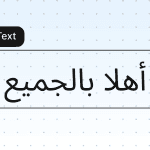
Emails in right-to-left languages such as Arabic and Hebrew need a few extra layout checks. Review the text direction and the placement of headers, buttons, and images. English brand names, numbers, and URLs can be tricky in Arabic or Hebrew sentences because their direction may differ from that of the surrounding text.
How to compare translation approaches: 6 criteria
Translating the email copy is usually the easy part. The real challenge is saving the email’s structure and functionality, keeping all language versions in sync, and checking each one before sending.
Use these six criteria to compare the translation methods your team currently uses:
- Email integrity after translation: Are merge tags preserved? Does the layout remain intact? Are links unchanged? Do all blocks still work?
- Text outside the main canvas: Does the translation cover the subject line, preheader, alt text, footer, and unsubscribe link text?
- Handling changes to the original after translation: Are design changes applied to all language versions? Can you see which text has changed and requires retranslation?
- Control over translation: Can you edit the translation in the email? Can you translate the entire email or only individual blocks? Can you review each language version and send a test email?
- Translation source: Are you limited to one translation provider, or can you choose between different options?
- Speed, ease of setup, and cost: How long does the translation take? How much does the solution cost? Is developer assistance required? Do you need to configure a TMS?
How email teams translate emails today
Let’s examine how different translation methods meet these criteria.
Approach 1. Copy-paste into a machine translator or AI chat
One simple option is to translate the email using Google Translate or AI-based chat. You can use it without any extra configuration. The process can take from ten minutes to an hour, depending on the email’s length, the amount of copying and pasting, and the final editing of the translated email. Each language adds time for copy-pasting and editing.
Getting the translated copy back into the email is where more manual work begins. Google Translate and ChatGPT only process the text you provide, so you’ll have to collect the subject line, alt text, and footer separately. After pasting the translation into the editor, check the layout, links, and merge tags.
This option works best for small tasks, when the marketer knows the target language well enough to review the translation and paste it into the editor.
Approach 2. A translator or a localization agency
Another option is to hire a professional translator or a localization agency. This approach can provide higher-quality translations, but if you forget to include the preheader or footer in the source file, you will need to send these elements for translation separately.
The translator returns the copy without the original email layout, so you’ll have to place it back into the email yourself. Once the text is in place, check that links, merge tags, and other elements still work as expected.
Working with a translator requires a separate budget and can add days or weeks to your campaign schedule.
Consider hiring a professional translator when the campaign relies on accurate terminology or a distinctive brand voice. You’ll need additional time to paste the translation back into the email.

Approach 3. Sending emails to a translation management system (TMS)
If you use a TMS, you have control over the translation process. Usually, you can review and edit each language version. You can send a file for translation in minutes, but a person must complete or verify the translation, which can take a few hours or several days.
Using a TMS may require a paid plan for the email editor and a separate subscription to the TMS itself.
How much of the original email layout is preserved depends on the TMS integration. Some integrations lock the email during translation and return it with the layout, blocks, and links intact. If you make changes to the original email after translation, you may need to send it for translation again.
A TMS is a good fit for teams that regularly run multilingual campaigns and want to do so in a structured way.
Approach 4. Built-in translation in ESPs and builders
Built-in translation lets you translate an email directly in your email builder or ESP, often in just a few steps. In most of the tools we examined, translation was available on paid plans.
Most tools automatically apply design changes to all language versions when you update the original email. Only one tool issues a warning that changes to the original may require you to translate the content again.
The tools also differ in how they handle elements outside the main email body. One translates the full email, including links and alt text. Another leaves the preheader and subject line untranslated. A third covers the subject line, alt text, and button text, while dynamic content requires separate configuration.
All the tools we examined let you review and edit translations. They also offer various translation options. These include AI translation, file uploads, and external translation services. Some tools support all three options, and others offer two.
Built-in translation features make sense when you want to translate emails in your editor without the extra step of copying and pasting text.
Table 1. Email integrity and version maintenance
|
Approach |
Email integrity |
Text outside the main canvas |
Changes to the original |
|
Machine translator or AI chat |
⚠️ Depends on what you paste: Check merge tags and layouts manually in every email |
⚠️ Translates only what you paste: Collect the subject line, alt text, and footer separately |
❌ Every change must be copied and translated again |
|
Translator or agency |
⚠️ The translator gets the text without the layout, so errors can appear when you paste it back |
⚠️ Translates only what’s in the source file |
❌ Every change means a new translation request |
|
TMS integration |
⚠️ Depends on the integration: Some lock the email and return the translation automatically |
⚠️ Partially translated, depending on TMS settings |
⚠️ Changes to an approved email must be sent for translation again |
|
Built-in translation in ESPs and builders |
⚠️ Main canvas only in most tools; links and images are set per language or each item is translated individually |
⚠️ Alt text is usually translated; links and images may need to be set for each language. Subject lines, preheaders, and buttons depend on the tool |
⚠️ Design changes are automatically applied to all languages. In some tools, a warning is flagged |
|
Stripo |
✅ The layout is preserved |
✅ The subject line, preheader, footer, alt text, and unsubscribe link are translated along with the email content |
⚠️ Design changes made to the original email are not applied to translated versions, but Stripo notifies you when it detects differences between the original and translated versions |
Table 2. Translation process
|
Approach |
Control over translation |
Translation source |
Effort (Speed (1 language → 5 languages) + Ease of setup and cost) |
|
Machine translator or AI chat |
⚠️ You can add instructions, but you see the result only after pasting it into the editor |
⚠️ AI chat |
⚠️ 10-15 minutes → about an hour: each language is copied, pasted, and checked separately ✅ Available right away, no setup |
|
Translator or agency |
⚠️ High quality and a glossary, but every edit goes through the translator |
⚠️Human translation only |
❌ Days or weeks; each extra language adds cost and coordination ❌ Requires a budget and a contractor |
|
TMS integration |
✅ Glossary, review, and preview of each language |
✅ AI translation and human translators inside the TMS; file import depends on the TMS |
⚠️ Sending takes a few clicks, but translation takes hours to days. Languages can run in parallel, but each one needs a translator ❌ Usually requires a paid plan and a separate TMS subscription/API key |
|
Built-in translation in ESPs and builders |
✅ Usually you can review and edit each language version; some offer a “do not translate” list |
✅ Mostly the tool’s own machine translation; some also connect a TMS or import files |
✅ Most tools translate into several languages at once (15 minutes for setup and waiting, then review and edits for each language); others go language by language or block by block ⚠️ Often requires a paid plan |
|
Stripo |
✅ Edit the translation in the editor and send a test email for each language |
✅ Any source (built-in machine translation, uploaded file from DeepL/agency/your own AI) |
✅ Six steps inside the editor and about 10 minutes → about 15 minutes: each language is translated in a few steps ✅ No setup; available from the Basic plan |

How translations work directly in the Stripo editor
In Stripo, users can translate email content directly in the editor while preserving the layout. Currently, you can translate emails using Google Translate or by uploading a translation file.
The second option means you are not tied to one translation service. You can use DeepL, ChatGPT with your own glossary, a translator, or a localization provider, such as Crowdin. Prepare the translation and upload the file to Stripo.

This approach gives you control over translation quality while Stripo handles the email layout. All additional text elements, including the subject line, preheader, footer, alt text, and unsubscribe link, are translated with the text of the email. This helps keep the email intact and saves marketers extra work.
Stripo also preserves merge tags during translation. When translating email copy manually, it's easy to accidentally delete or change a tag. For example, *|FNAME|* might be replaced with a regular word like "name". In this case, your ESP won't recognize it as a dynamic field, and the recipient may see the word "name" instead of their actual first name. In Stripo, merge tags remain intact, so your ESP can replace them with the corresponding recipient data when the email is sent.

Design changes made to the original email are not automatically applied to translated versions. However, Stripo notifies you when it detects differences between versions. You can learn more in Stripo’s help center. These notifications help you keep track of changes across language versions. You don't have to rely on your memory to remember whether you’ve changed a sentence or added a different image. Stripo will remind you.

Stripo also saves time when you need to prepare several language versions of the same campaign. For example, translating one email into five languages in Stripo takes about 15 minutes. With manual copy-and-paste, preparing the same five versions can take around an hour, including transferring the text, pasting it back block by block, and checking each email.
Another advantage is that you can review and edit all translated versions directly in the editor. You can even send a test email for all language versions or a specific one. The built-in translation feature translates the entire email, so you cannot select an individual block to translate. But you can use the AI Assistant to generate alternative translations for specific parts of an email, including blocks, the preheader, and alt text.

You can use this feature starting with the Basic plan. The only additional step is to enable localization in your account settings.
The feature has a limit of 2,000 translations per user per month. Note that each language version counts as one translation. For example, if you translate one email into five languages, five translations will be deducted from your monthly limit.
How to translate an email in Stripo
The entire email translation process in Stripo takes about ten minutes and involves six steps:
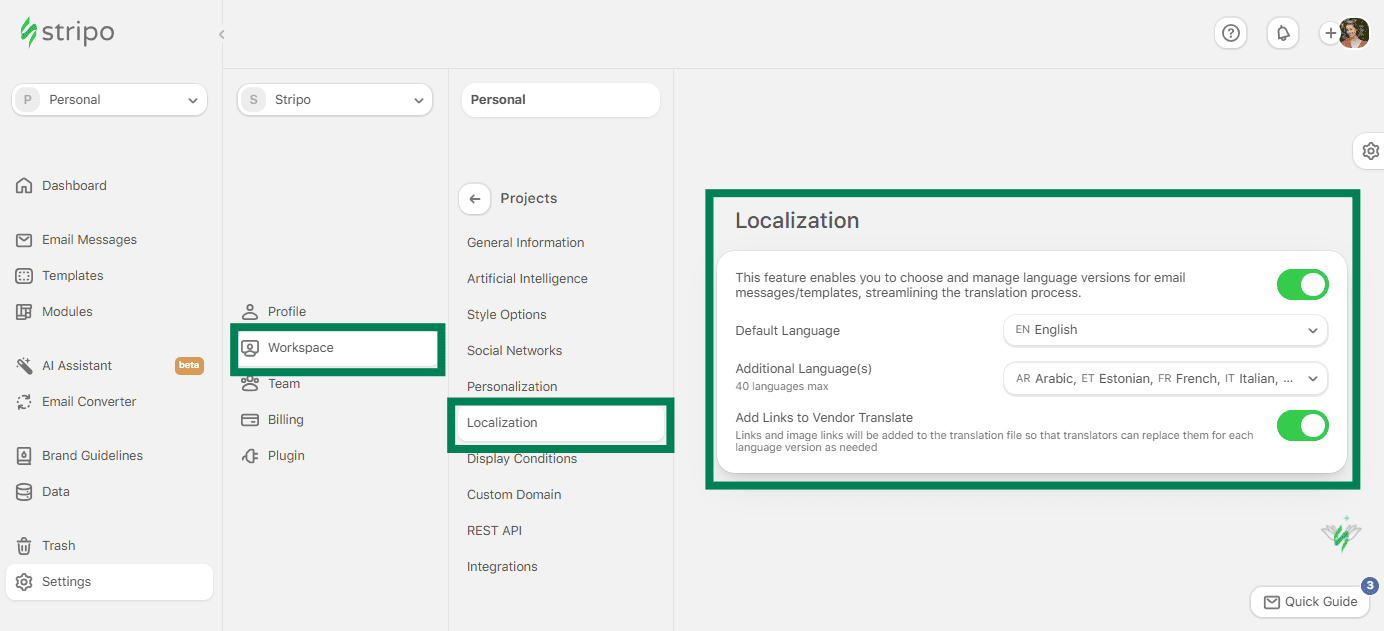
- Enable localization in your account settings.
- Click the button in the editor’s top toolbar to open the translation menu.
- In the drop-down menu, select the languages you want to translate your email into. Then click the checkmark button to confirm your selection.
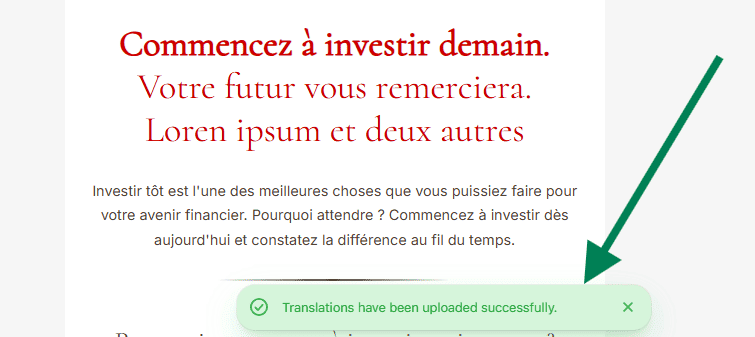
- Once you have selected the languages, click the Translate button to start the translation. Within a few seconds, a notification will appear at the bottom of the screen confirming that the translation is complete.
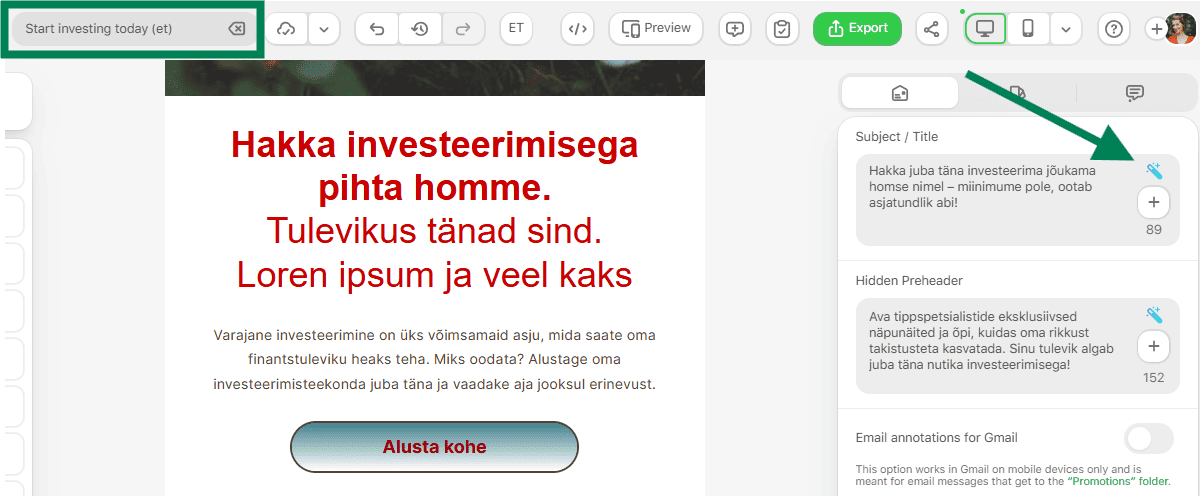
- To view a translation, click the corresponding language version in the top menu.
- Now that you have opened the translated email, you can edit the text as needed, check button lengths, and adjust the translated subject line or preheader.


Before sending the email, review each language version to make sure the text, links, merge tags, and layout are correct.
To have a native speaker review the email, you can use Stripo’s collaboration feature if they are part of your team and have access to your account. Alternatively, you can share the template preview link with an external contractor.
To ensure quality and minimize risks, we implement a double-check process: Once translations are completed, they go through native-speaking employees for proofreading in each of our 22 supported languages.

After reviewing the translations, you can prepare the language versions for export. For a detailed guide to managing language versions and exporting emails, see our article about Stripo’s translation features.
Wrapping up
Translating an email involves more than converting the text into another language. After translation, you still need to check that the layout displays correctly and that nothing has been left out, such as the subject line or footer. These extra steps take up marketers’ time.
The best option varies according to how often a team runs multilingual campaigns, its budget and timeline, and how its email production process is set up.
With Stripo, you can translate an entire email directly in the editor. You can also review and edit different language versions in the same tool with minimal manual work. Before sending, you should still check each version against the original to make sure everything is accurate and complete. However, you can do this without rebuilding each language version from scratch.
0 comments