Email design best practices: The complete guide (2026)


When email marketers talk about visually appealing email campaigns, they mean different things. Some focus on the email structure, others on visual content and animated GIFs. You might also hear the opinion that the best email design is one that displays perfectly across all email clients and devices and drives conversions. Because of this diversity of factors, beginning email marketers often wonder what's really important in email design.
In this article, we will dive into best practices for email design and discuss tips for email subject lines, call-to-action buttons, mobile responsiveness, web-safe fonts, and other effective email campaign techniques to make your emails more attractive and boost conversions.
Key takeaways
- Email design goes beyond simply creating attractive emails and impacts the entire communication process: whether the email reaches the recipient, is opened, and results in the desired action.
- The subject line and preheader determine whether the recipient opens the email and sees your offer.
- Using a single primary call to action (CTA) in an email allows the recipient to focus on a single conversion action.
- A master template and modular block library are the foundation of brand consistency, reducing email production time and preventing deviations from a common style.
- Mobile-friendly email design is essential; it ensures higher click-through rates and a better subscriber experience, as more than half of emails are now opened on phones.
- Personalization in email marketing should go beyond names and embrace behavior-based segmentation and dynamic content blocks.
- Compliance with accessibility standards such as WCAG AA contrast ratio standards, descriptive alternative text, and a logical heading structure benefits all recipients, not just those using assistive technologies.
What is email design, and why does it matter
Email design is the practice of arranging copy, visuals, and interactive elements within an email so subscribers can read, scan, and act on it on any device, in any inbox. It covers layout, typography, color, imagery, CTA placement, accessibility, and rendering across email clients.
The business case in numbers
Email remains at the top of the marketing ROI table. According to Omnisend's 2026 ROI benchmark, email marketing delivers $36 to $42 for every $1 spent across industries, with the highest returns in retail and eCommerce. Litmus's State of Email 2025 report, published by Validity in June 2025, adds the budget angle: Companies that dedicate more than 15% of their marketing budget to email are 2× more likely to hit open rates above 40% than the average sender.
A few more numbers worth knowing as you plan your email campaign design:
- the global median open rate across industries reached 43.46% in 2025, up from 42.35% in 2024. The median click rate sits at 2.09%, and the click-to-open rate (CTOR) at 6.81%. Apple's Mail Privacy Protection inflates open numbers, so pair them with click and conversion data when measuring real engagement;
- in e-commerce, 93% of orders are attributed to campaign sends rather than automated flows, though automated emails hit an average 47.82% open rate and 16.88% click rate, making automation a strong nurture channel alongside campaign blasts;
- mobile-responsive design delivers up to 15% higher click rates than non-optimized templates. With 55% of emails now opened on mobile devices, responsive design has shifted from a competitive edge to a baseline requirement;
- dynamic email content can boost revenue by up to 22%, and targeted e-commerce emails show 267.21% higher click rates than non-targeted ones;
- personalized emails deliver 6× higher transaction rates, and brands excelling at personalization generate 17% more revenue from email than average marketers.
Every percentage point of open, click, and conversion lift sits on top of an already high baseline ROI. Investing in email template design is one of the cheapest ways to widen that gap.
How email design differs from web design
Web designers rely on modern browsers, JavaScript, and CSS Grid. Email designers work with email clients, most of which still remove JavaScript, ignore modern CSS, and display the same code differently in Gmail, Outlook, and Apple Mail.
Perhaps this is why email template design has evolved more slowly, relying on a wide range of email production tools and constantly testing new elements. And this is the main reason why all the design innovations applied to the brand's website cannot be immediately implemented in emails.
What this guide covers
This guide has 17 sections structured so you can read top to bottom for a full mental model or jump straight to the part you need. Each section gives you the best practices of email design, the reason they exist, and examples of how they play out in production.
Email design fundamentals: Layout and visual hierarchy
Before you pick fonts or colors, you make two decisions: how the email is laid out and how the eye moves through it. Both decide whether subscribers read past the first scroll.
The three layout patterns and when to use each
Based on the specifics of how the email is laid out, there are three types:
- Single-column layout is the default for most marketing emails. Works on mobile without modification, renders the same across clients. Use for newsletters, welcome series, promotional sends, and most transactional emails.
- Hybrid layout (single-column on mobile, multi-column on desktop) built with media queries that collapse columns at narrow breakpoints. Use when you have side-by-side comparisons (product features, plan tiers) that need to be readable on small screens.
- Modular layout is a stack of independent content blocks you can rearrange per send. Use for newsletter-style emails where you ship different content to different segments.
When building an email in Stripo, you assemble layouts from stripes, structures, and containers. Each structure can have one, two, three, or four columns and collapse responsively on mobile. In addition, you can use prebuilt modules representing ready-made structural blocks.

Designing the reading flow: F-pattern, Z-pattern, inverted triangle
Designing reading flow aligns your layout with natural eye-tracking habits to guide readers' attention.
Eye-tracking research consistently shows three reading patterns:
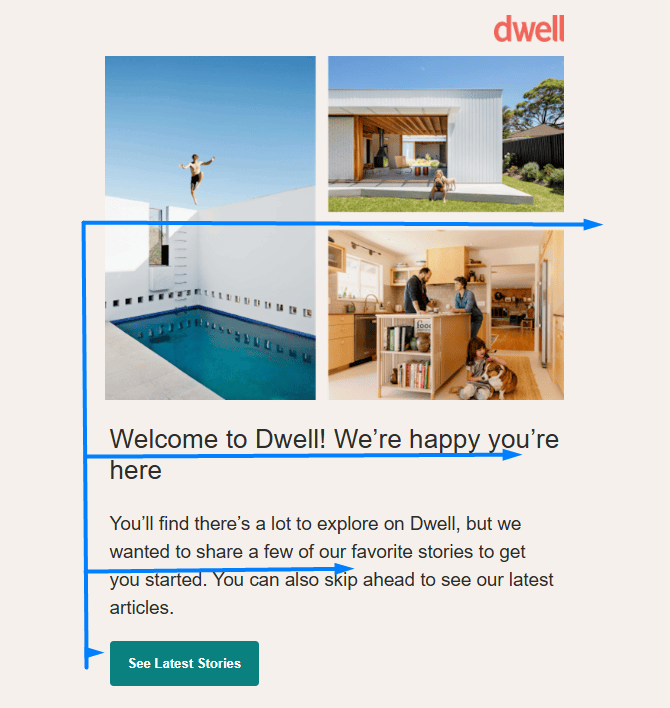
- F-pattern: Horizontal scan across the top, then a shorter scan a few rows down, then a vertical scan down the left. Use for text-dense newsletters where readers skim.
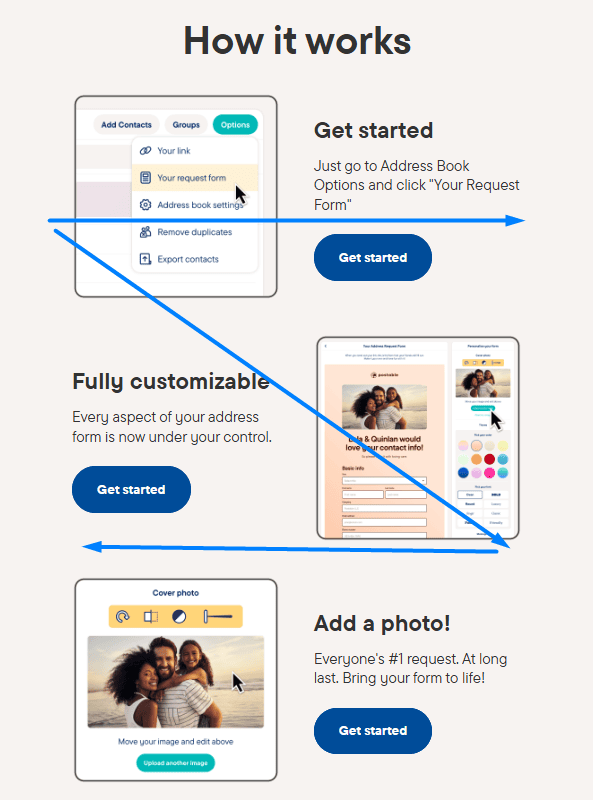
(Source: Email Love) - Z-pattern: Diagonal sweep from top-left to top-right, then down to bottom-left, then across to bottom-right. Use for short promotional emails with one hero, one supporting block, and one CTA.
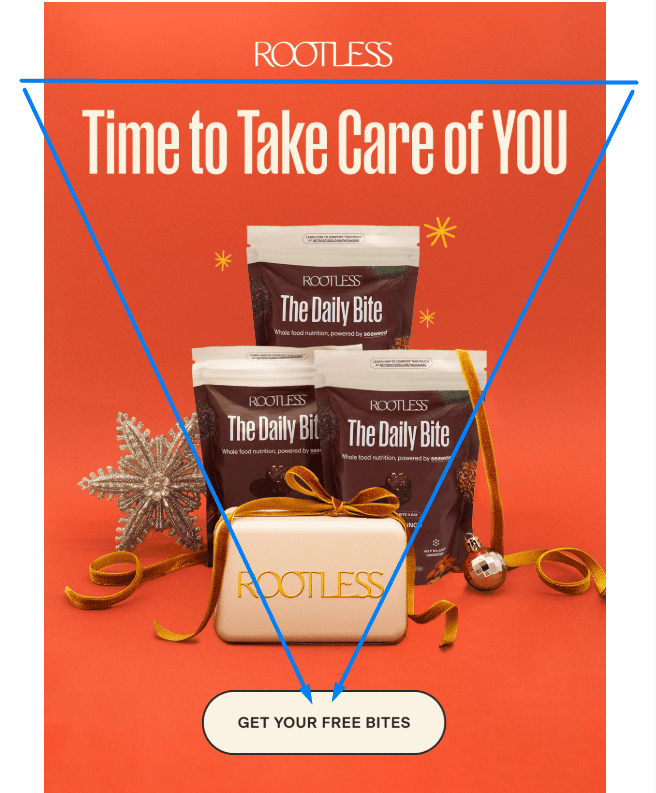
(Source: Email Love) - Inverted triangle: Wide attention-grabbing top (headline, hero image), narrowing middle (benefit copy), single focal point at the bottom (CTA). Use when you want everything to funnel into a single click.
(Source: Email Love)


Pick the pattern before you pick the visuals. Layout decisions made backward from a design idea rarely hold up under A/B testing.
White space as a design tool, not empty space
Crammed emails read as cheap, while generous spacing reads as premium. White space is doing three jobs at once: separating elements so the eye can rest, signaling hierarchy through proximity, and giving touch targets room on mobile.
A starting recommendation for white space is to make 20–30 px between content blocks, 12–16 px between paragraphs, and at least 24 px around buttons.
Cognitive load: How to reduce it in every email
Every extra element costs the reader a fraction of a second. Three tactics keep cognitive load low:
- one job per email. Promote one thing. Recommend one action. If you need to promote five things, send five emails;
- predictable structure. Use the same layout pattern for the same email type every time so subscribers don't relearn the rules with each send;
- visual chunking. Group related information together with shared backgrounds, borders, or spacing. Don't make readers do the grouping themselves.
Crafting the email header
A solid email header does two jobs: It identifies the sender, and it gives subscribers a way to escape to the full website or browser version of the email. Keep it visually clean and minimalist so it doesn't eat into the hero space below.
Build your header with:
- сompany name and logo: help subscribers recognize the sender at a glance and differentiate your sends from those of competitors;
- navigation menu: link to the main website sections, current sales, or store finder. Keep it to 3–5 items so it doesn't crowd the layout;
- "view in browser" link: not every email client renders interactive elements or GIFs correctly, so give subscribers a way to see the full version online;
- unsubscribe link: usually lives in the footer, but some brands include it in the header too. Either placement works as long as it's visible and one click away.

(Source: Email from Pandora)
The email footer: Structure and compliance
The email footer is the endpoint of your email, but it's still an opportunity to engage subscribers and reinforce your brand. Use it for social media icons, links to your most important pages, contact details, and the unsubscribe link.
To comply with CAN-SPAM in the US and GDPR in the EU, your footer must include:
- an unsubscribe link or button that works in one click;
- a reason why the recipient received your email (for example, "You signed up at example.com");
- a physical address for the sending company.

(Source: Email from Stripo)
Subject line and preheader: The first design decision
Most articles treat subject lines as copywriting. They're also a design decision, because they decide whether the rest of your email marketing design ever gets seen. Studies show that 47% of email recipients decide whether to open an email based solely on the subject line. Moreover, 69% of recipients move offers straight to the spam folder when the email subject lines appear commercial.
Character limits by email client (Gmail, Apple Mail, Outlook)
Keep in mind that subject line length isn't just aesthetics; it's a key factor in ensuring recipients are interested in your email and open it. The length of the subject line displayed varies slightly between email clients.
|
Client |
Subject line (chars visible) |
Preheader (chars visible) |
|---|---|---|
|
Gmail mobile |
~30-40 |
~40-80 |
|
Gmail desktop |
70-80 |
80-100 |
|
Apple Mail iPhone |
35-40 |
85-90 |
|
Apple Mail desktop |
90-100 |
130 |
|
Outlook desktop |
55-70 |
50-70 |
Design for the shortest viewport (Gmail mobile, 30–40 characters), and let longer clients show more. Top-performing subject lines average 43.85 characters.
Subject line formulas that drive opens
There are countless copywriting formulas for writing subject lines and headlines. Only testing will reveal the most effective ones for your business and your audience.
Here are five of the most commonly used approaches that consistently outperform generic ones:
- Curiosity gap: "What we learned from sending 1.8M emails in Q4".
- Specific benefit: "Cut your email production time by 3.7×".
- Question: "Is your dark mode rendering breaking on Outlook?"
- Number-led: "12 email design examples worth stealing".
- Personal: "{First name}, your monthly report is ready".

If you're a small business looking to test the effectiveness of your email subject lines without manual analysis, you can use A/B testing integrated directly into the sending process on platforms like Flodesk. Write two variations, send both to a portion of your list, and the platform automatically delivers the winning subject line to the remaining recipients after 24 hours based on open rate.
Writing the preheader as a second subject line
An attention-grabbing preheader is the final point between an opened and an ignored email. The preheader is typically a continuation of the email subject line and thus another chance to spark your target audience's curiosity or trigger an emotion. Why? Custom preheaders push open rates to 44.67%, compared to 39.28% without one.
A few rules:
- don't repeat the subject line; use the preheader to add detail, not duplicate;

- don't let the preheader default to the first line of the email ("View in browser…");
- use a Hidden Preheader when you want subscribers to see one thing in the inbox but read another in the open email.
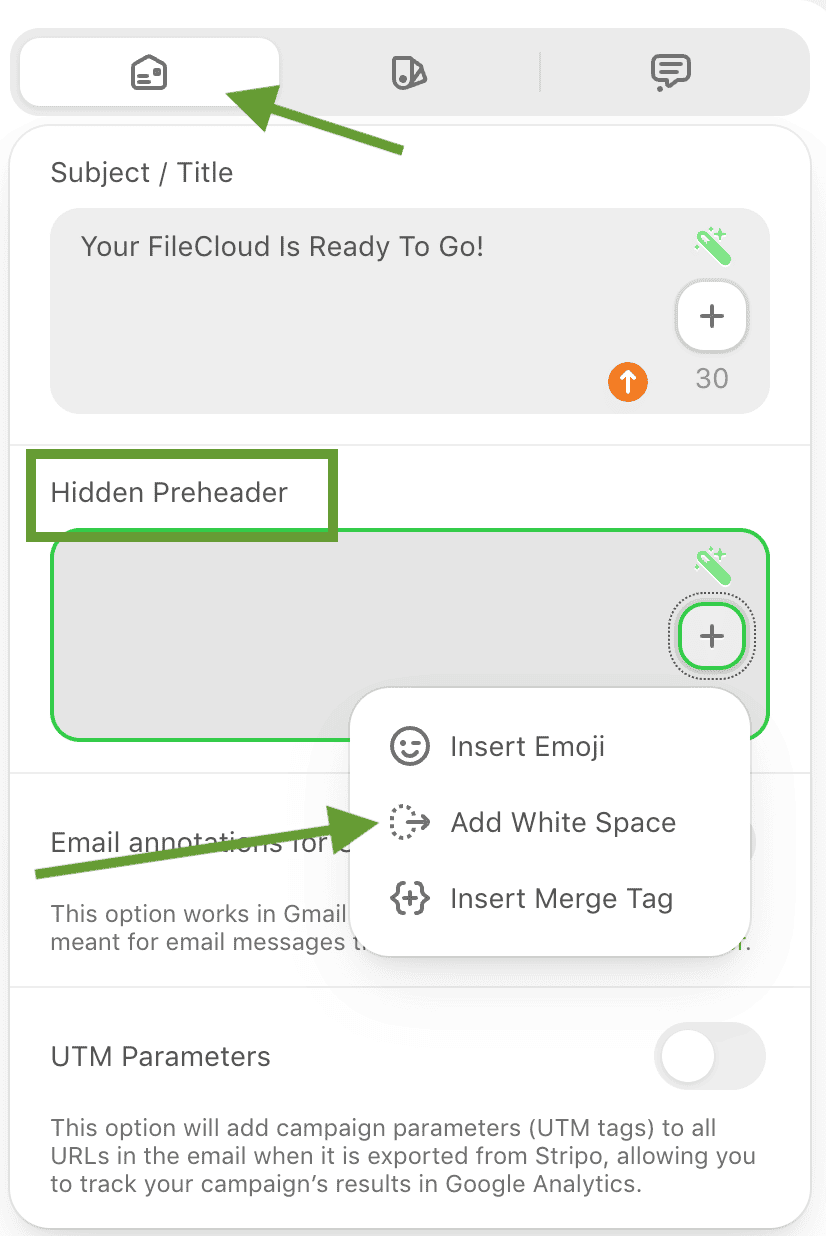


Important note: Using Stripo, you can improve subject lines and hidden preheaders using AI. To activate this feature, go to Settings> Workspace> Projects, select your project, and ensure that the AI assistant for Subject Lines and Hidden Preheader is enabled. You can also provide a brief description of your business specialization to help the AI generate the best texts for you.

Dynamic subject lines: Personalization at scale
Static subject lines treat every subscriber the same. Dynamic ones swap variables based on segment data, behavior, or location.
Three examples that work:
- geo-personalized: "Free same-day delivery in {city}";
- behavioral: "You left {product} in your cart";
- lifecycle: "{First name}, year one of {brand} is on us".
Personalized emails deliver 6× higher transaction rates than generic campaigns, and brands excelling at personalization generate 17% more revenue. Subject line personalization is the entry point to that lift.
Mobile-first email design
55% of emails are now opened on mobile devices, making responsive design a baseline expectation rather than a bonus.
Why mobile-first, not mobile-friendly
Mobile-friendly means you designed for desktop and made sure it doesn't break on mobile. Mobile-first email design means you design for the mobile screen first, with the desktop version inheriting from it.
The difference shows up in three places:
- hierarchy: mobile-first emails start with the most important block at the top because there's no sidebar to lean on;
- tap targets: buttons are sized for fingers (44 × 44 px minimum) from the start, not shrunk down from a desktop hover state;
- word count: mobile-first emails are shorter because reading 500 words on a phone is a burden.

(Source: Email from Gucci)
Even if you choose responsive design over mobile-first, use these best practices:
- use a one-column layout for optimization. Multi-column layouts are not the best choice for mobile devices;
- add larger fonts. The text should be readable and noticeable without zooming in;
- remove from the mobile version some of the design elements to free up space and avoid clutter.

Single-column vs. multi-column: Rules for each breakpoint
Designing responsive emails requires adjusting your layout at specific breakpoints to ensure optimal readability. The golden rule is that multi-column layouts work well on wide screens but must stack into a single, mobile-friendly column on narrow screens to prevent unnatural zooming and horizontal scrolling.
Here are the three main email layout size groups:
- below 480 px (most phones): Single column, full-width images, stacked CTAs. Single-column layouts consistently outperform multi-column layouts on mobile because they eliminate horizontal scrolling and pinch-to-zoom, which kill conversions;
- 481-768 px (large phones, small tablets): Single column still wins. Bump font size to 16 px minimum;
- 769 px and up (tablets, desktop): Two-column layouts work for product grids, feature comparisons, and content modules where side-by-side reading adds value.
Touch target sizing and tap-friendly CTAs
Apple's HIG recommends a minimum tap target size of 44 × 44 px. Google's Material guidelines say 48 × 48 dp. Take the larger of the two, and add padding around it. Besides that, any button should have at least 8–12 px of space around it on every side so subscribers don't tap it by accident.
And one more rule for mobile devices: Extend the CTA button to the entire mobile screen length to make it easier to tap on.
Now, let’s compare the email design for desktops:

(Source: Email from Ryanair)
Here is the same email template on a mobile device:

(Source: Email from Ryanair)
Testing across devices: Tools and workflow
A baseline testing workflow covers Apple Mail iOS (light + dark), Gmail Android (light + dark), Gmail web (Chrome + Firefox), Outlook desktop (Windows), and Outlook web. Build that as your minimum coverage matrix.
Stripo's built-in email client testing runs your template against 90+ clients in one workflow. That replaces what used to be three or four separate QA passes.

Here's the result. You can immediately see how your email is displayed across different devices, by various email clients, and in dark mode.

CTA design: Driving clicks with intention
CTA buttons never go out of style and are among the email design best practices that still drive conversions. They motivate the audience to check out your website or learn more about your services.
How do you make the buttons stand out in your email campaigns?
Let’s have a look:
- use contrasting colors to separate CTA buttons from the rest of the written and visual content;
- attach links to forward recipients to particular web pages;
- adjust the size to ensure the button is clickable on desktop and mobile devices.

(Source: Email from Baublebar)
Live text vs. image-based CTAs: Why it matters
Image-only CTAs disappear when subscribers block images. Outlook for Windows still blocks images by default, and many corporate firewalls strip remote images altogether. If your only CTA is in a PNG, a meaningful slice of your audience sees nothing actionable.
Live text CTAs (HTML buttons with CSS background colors) render every time, look right in dark mode, and stay clickable when images fail. Use them as the default. Reserve image-based CTAs for stylized one-off campaigns where the visual is the message.
Primary vs. secondary CTA hierarchy
Each email should have one job, meaning one primary CTA. If you need a secondary action ("Learn more", "Browse the collection"), style it as a text link or a ghost button so it visually defers to the primary.
The hierarchy logic:
- primary CTA: Solid background, brand color, 16–18 px text, full-width on mobile;
- secondary CTA: Outlined or text-only, smaller, placed below or to the side;
- tertiary actions: Inline text links inside body copy.
If your primary and secondary buttons look identical, neither is primary.

(Source: Email from Stripo)
Button copy: The 6-word rule
The best CTAs are 1–4 words. Anything past 6 words is a sentence pretending to be a button.
Compare:
- ❌ "Click here to claim your free trial today" (9 words, generic);
- ✅ "Start free trial" (3 words, specific verb).
Verb-first beats noun-first. Specific beats generic. "Get the report" beats "Click here". "Activate your discount" beats "Submit".
CTA placement: Above the fold and scroll depth
Place your primary CTA above the fold on mobile, which means within the first 480 px of vertical space. Repeat it at the bottom of long emails so subscribers who read all the way through don't have to scroll back up.
Position CTAs in thumb-reach zones on mobile, typically in the middle or bottom half of the screen.

(Source: Stripo template)
Personalization and dynamic content in email design
Generic blasts are losing ground every quarter. In 2025, 97% of marketers incorporated at least one interactive element into their marketing emails, and 49% used generative AI to create static copy.
Levels of personalization: From name to behavioral blocks
Personalization runs on a spectrum, not a switch:
- token-based: First name in the subject line or greeting, table stakes;
- segment-based: Different content for different lists (new vs. returning, free vs. paid, geo);
- behavior-based: Content that reacts to what the subscriber did (or didn't do) recently;
- predictive: Content driven by ML signals (next-best-product, churn risk, send-time optimization).
Most teams implement personalization at the first two levels. Only a few go further and implement it at all levels.
Designing dynamic content blocks that adapt by segment
A dynamic content block has three parts: a default version (for subscribers without segment data), variant content, and a rule that determines which version to show.
In Stripo, you build dynamic blocks with Display conditions: set rules on any Structure or Container so it shows or hides based on subscriber data passed from your ESP. Example: Hide the "new customer welcome" block for anyone who's been a customer for more than 30 days.

Personalized subject lines, banners, and product recommendations
Three personalization placements that consistently move metrics:
- subject line variables: Name, city, last-viewed product;
- hero banner: Different image per segment (men's vs. women's, beginner vs. advanced);
- product recommendations: Pulled from a recommendation engine, refreshed at open time using Smart elements.
Smart elements in Stripo pull live product data (price, stock, image) when the subscriber opens the email, so a promo never shows a sold-out item.

How to build a personalized email template in Stripo
A quick recipe for a segmented promo:
- Build the master layout with two or three content blocks marked for segmentation.
- Add a Smart element product card linked to your Data Source.
- Set Display conditions on each block (e.g., "show only if segment = returning_customer").
- Map merge tags ({first_name}, {city}, {last_product}) in the subject line and body.
- Test in Preview mode using sample subscriber profiles before sending.
This approach allows the entire email template to be generated in a single file rather than five separate versions. This allows for scalable personalization.
Brand consistency across email campaigns
Consistent brand identity builds trust. 78% of marketers can now track ROI from their email programs, and the brands seeing the strongest results are those running data-driven, on-brand programs that respond to individual customer needs.
The master template: Your brand's single source of truth
A master template is the locked-down version of your brand inside an email file: header, footer, color tokens, type scale, button styles, and default spacing. Every campaign email starts as a copy of it.
The discipline isn't "use the master template." The discipline is "never edit the master template inside a campaign." If something needs to change, change it in the master and re-sync.
Color palette, typography, and logo rules for email
Email isn't web; colors render differently, fonts fall back, and logos break in dark mode.
Lock down the following elements:
- brand palette with 2–3 colors with hex values, plus light/dark variants for each;
- type scale with web-safe fallbacks (more on this in the typography section);
- logo treatment for light and dark backgrounds: a single PNG with a transparent background and a 1–2 px outline works in both modes.

Using Stripo's brand guidelines kit
Stripo offers the Brand Guidelines kit, a tool that integrates brand rules directly into email workflows to simplify the creation and use of email-specific brand guidelines. With this kit, you can generate a brand guideline based on email templates built right into the Stripo builder. The system automatically creates a branded guide that includes all the essential elements, which you can export as a PDF or store inside the editor. This means that your whole team can access it at any time, without leaving the platform.

Consistency across channels: Email, web, social
Email design doesn't live alone. A subscriber who clicks through to a landing page expects the same colors, type, and tone. A subscriber who sees your Instagram story should recognize you in the inbox.
Audit consistency by laying out three things side by side: a hero email, a landing page, and a social post. If the visual identity doesn't match within two seconds, the brand system has a gap.
Email template system: Building for scale
When you send more than 4–5 campaigns per month, ad hoc design stops working. You need an email design system that will standardize and speed up the email design process.
Master templates vs. modular block libraries
To achieve this standardization, you can use two approaches: master templates and a library of modular blocks containing reusable email elements.
Here's how you can distribute tasks:
- use a master template for transactional emails, newsletters, and any high-volume send with a stable structure;
- use a module library for promotional campaigns where structure changes but components (hero, product card, testimonial, footer) repeat.
Designing reusable content blocks
Reusable content blocks are responsive and tokenized, and they can be used in any position in the email. For example, Stripo's Modules are saved, shareable, named blocks that any team member can drop into any template.
Synchronized modules solve the problem of updates: You can update a module once, and all email templates that include it update automatically. Instead of repeating the same update sequence many times, you do it just once. This is how you cut review cycles in half.

Template naming conventions and team governance
A naming convention every team needs:
{campaign type}_{audience}_{variant}_{date}
Examples:
- promo_returning-customer_summer-sale-A_2026-05
- newsletter_all-subscribers_weekly_2026-05-12
- transactional_all_password-reset_master
Pair it with role-based access: Designers edit Modules, marketers assemble templates from them, approvers sign off. Stripo's Custom roles make this enforceable.
How Stripo's template catalog accelerates production
1,650+ prebuilt templates cover most send types: welcome, abandoned cart, newsletter, holiday, product launch, and reengagement. Starting from a vetted template and adapting it cuts production by roughly 3.7× compared to building from scratch.

Typography in email: Fonts, sizing, and readability
You should experiment with fonts when creating emails. Some web fonts are tricky because not all email providers display them correctly.
Web-safe fonts vs. custom fonts: Trade-offs and fallbacks
Web-safe fonts (Arial, Tahoma, Verdana, Trebuchet, Georgia, Times New Roman, Helvetica, Courier) render in every email client. They're not exciting, but they ship.
Custom fonts (Inter, Roboto, Poppins, Open Sans, anything from Google Fonts) render in Apple Mail, iOS Mail, Gmail web, and some Outlook versions. They fall back to the default in Outlook desktop and several other clients.
Pick a custom font for the hero typography if you want it, but stack it correctly:

If the custom font fails, the fallback should look as close as possible to it.

Font size hierarchy: Headers, body, captions
A workable type scale for marketing email:
- hero/H1: 28-36 px;
- section/H2: 22-26 px;
- subsection/H3: 18-20 px;
- body: 16 px minimum on mobile (14 px legal/footer only);
- caption/fine print: 12-13 px.
Body copy below 14 px on mobile is one of the most common readability failures. Anything smaller forces subscribers to pinch-zoom, and most don't.
Line height, letter spacing, and paragraph width
Optimizing email typography is crucial for readability.
These standards will help you design emails without the risk of text overlapping:
- line height: 1.4-1.6× the font size for the body. Tighter than that strains the eye; looser feels airy;
- letter spacing: Leave default unless you're styling all-caps headings (where +0.5 to +1 px helps);
- paragraph width: 50-75 characters per line is the readable range. On mobile, that's automatic. On desktop, constrain content sections to ~600 px wide.
Typography and accessibility: What to avoid
Best practices for email typography and accessibility include the following:
- italics are an accessibility issue, since they reduce legibility for recipients with dyslexia and low vision;
- limit yourself to two font families per email; three is the ceiling;
- all-caps body copy is harder to read than mixed-case body copy;
- don't justify body text; left-aligned reads better and avoids ragged spacing.
Email accessibility: Designing for every subscriber
Accessible email marketing design isn't just about complying with legal requirements. It demonstrates, first and foremost, that people care about people, especially those who use screen readers, those with low vision, those viewing content in low-light conditions, and those who have disabled images.
The WCAG checklist for email designers
WCAG checklist for designers breaks down actionable steps to make your HTML emails intuitive and compliant across all major email clients.
WCAG 2.2 AA, condensed for email:
- contrast: At least 4.5:1 for body text, 3:1 for large text (18 px+) and UI components;
- text resizing: Content stays readable when subscribers zoom to 200%;
- alt text: Every meaningful image has descriptive alternative text; decorative images use empty alt (alt="");
- semantic structure: Use real heading tags (H1, H2, H3) in the correct order, not styled text;
- keyboard navigation: Every interactive element is reachable and operable without a mouse;
- color independence: Never use color alone to convey meaning (add icons, labels, or text).
Color contrast ratios: Tools and minimum standards
WCAG Level AA requires a minimum contrast ratio of 4.5:1 for normal text and 3:1 for large text.
Tools that check this for you:
- WebAIM Contrast Checker (free, web-based);
- Stark (Figma plugin);
- Adobe Color Contrast Analyzer (built into Adobe XD).
Run every color combination in your master template through one of these before locking the design. Color contrast is the main accessibility violation on the web, affecting 79.1% of all home pages.
Screen reader compatibility: Semantic structure
Screen readers parse HTML structure, not visual layout. That means:
- use <h1>, <h2>, <h3> for actual headings, in order. Don't skip levels for styling;
- use <table role="presentation"> for layout tables so screen readers ignore them as structure;
- set lang="en" (or your sending language) on the <html> tag;
- add a meaningful <title> to the email so screen readers announce its purpose.
Alt text best practices for images and GIFs
Alt text exists for two audiences: assistive technology and subscribers with images blocked.
This is how alt texts should be written:
- decorative images: alt="" (empty, not missing);
- informational images: Describe what the image conveys, not what it looks like ("Spring collection: lightweight raincoats and waterproof boots", not "Photo of a yellow coat");
- CTA images: Describe the action ("Shop the spring collection");
- GIFs: Describe what happens; if the GIF doesn't load, the first frame plus the alt text should still communicate the message.
The Stripo email accessibility checker scans your email content and design, highlights issues such as missing alt text or low color contrast, and helps you fix them right in the editor.


Imagery, GIFs, and interactive visuals
Using images, GIFs, and interactive visuals in emails also requires following certain guidelines to ensure your emails look appealing across different email clients and that your subscribers see the visuals.
Image sizing and optimization specs by device
The first thing to pay attention to is the size of images.
Basic guidelines for image sizes are the following:
- width: 600-640 px for the main email body, 1200-1280 px for Retina (use both width attribute and CSS);
- file format: JPG for photos, PNG for logos and graphics with transparency, GIF for animations, WebP only if you've confirmed it renders in your audience's email clients;
- file size: Keep total email weight under 100 KB and each individual image under 50 KB;
- compression: TinyPNG or Squoosh strips metadata and compresses without visible quality loss.
Banners or hero images: Best practices for email
Think of the banners as a sweet addition to your email, and try not to overwhelm it. A good banner strategy involves engaging the target audience with on-brand images, links, or GIFs that convey the email message.
The key here is to tell a story rather than just sell. Overly promotional banners may look suspicious, so it is best to stick to storytelling instead.
Tips to consider for banners:
- while most go for images with a standard size of 600–700 px on desktops, you can try other dimensions. Just keep mobile responsiveness in mind;
- try using carousels, videos, and GIFs;
- add transparent custom images or collages to refresh your email template.

(Source: Email from Chanel)
GIF rules: Load time, flash limits, first-frame fallback
GIFs can make emails feel more dynamic and engaging, but they need to be used carefully. To avoid slow load times and rendering issues, keep GIFs under 1 MB, as larger files may get stripped or fail to load in some email clients. It's also important to place the most important frame first, because some versions of Outlook on Windows display only the first frame rather than the full animation. And if the GIF doesn't load at all, clear alt text should still communicate the main message or CTA.
Avoid excessive flashing and limit animations to no more than two flashes per second to reduce the risk of triggering photosensitive seizures. It's also best not to overload the email with motion. Using more than one GIF per email screen can quickly become distracting and visually overwhelming for readers.
(Source: Email from Tiffany)
When to use carousels, video, and interactive modules
Interactive modules and video help email marketers make their emails memorable for readers whose inboxes are overflowing with promotional campaigns and increase engagement, which positively impacts email marketing results.
Here are the best recommendations for this content type:
- Use carousels (AMP) when you have 4+ products to showcase and the email is sent to Gmail-heavy audiences. Fall back to a static grid for non-AMP clients.
- Embed the video as the poster image with a play button overlay linking to the hosted video. True inline video playback works in some clients but inconsistently.
- Use interactive modules such as polls, quizzes, and image hotspots to collect engagement data without sending subscribers to a landing page.
(Source: Email from Stripo)
With Stripo's interactive module generator and new Stripo widgets, you can create any type of interactive and gamified modules without hassle.
Dark mode image handling: Transparent PNGs vs. solid backgrounds
Around 35% of email opens happen in dark mode, and roughly 82% of smartphone users have dark mode enabled.
Most dark-mode rendering bugs come from images:
- A logo with dark text on a white background disappears or inverts in dark mode.
Fix: export logos as transparent PNGs with a thin light-colored outline so they're visible against both light and dark backgrounds. - Photos with white edges get a visible white box around them.
Fix: crop with no white margin, or set the email background color to match.
Stripo lets you preview emails in dark mode in the builder, so you catch rendering issues before sending, not after.

Email types and when to use each format
Not every email needs to be designed. Some need to be plain, fast, and unmistakable.
Plain-text email: When simplicity outperforms design
Plain text bypasses image blocking, renders identically across email clients, and signals "this isn't marketing" in a way that lifts response rates for personal-sounding emails.
A plain-text email (or one styled to look that way) wins in three scenarios:
- From a real person to a real person: Sales follow-ups, account check-ins, founder notes.
- High-stakes deliverability: When you've had spam issues and need to rebuild sender reputation.
- Authentic narratives: Newsletters that read like an email, not a brochure.
Rich HTML email: The mini landing page approach
Most marketing emails live here. Hero, copy, CTA, supporting blocks, footer. Use rich HTML when you need branding, hierarchy, and visual storytelling, which is most promotional sends, newsletters, and product announcements.
AMP/interactive email: Capabilities and trade-offs
AMP for Email lets recipients interact without leaving the inbox: fill out forms, browse carousels, RSVP to events, and see live inventory. Stripo's own A/B test found that AMP-based interactive feedback forms generated 520% more responses than external forms.
Trade-offs:
- support: Gmail and Yahoo fully support AMP; Apple Mail and Outlook don't support it;
- fallback: Always ship an HTML fallback for non-supporting clients. AMP isn't a substitute for HTML, it's an enhancement;
- setup: You need to whitelist your sender with Google before AMP emails will render in Gmail.
Transactional vs. marketing email: Different design rules
Marketing and transactional emails have different goals, so their approaches to creation differ.
|
Transactional |
Marketing |
|
|---|---|---|
|
Goal |
Confirm an action |
Drive a new action |
|
Design |
Minimal, fast, scannable |
Visual, branded, layered |
|
Frequency |
Triggered (per event) |
Scheduled (per campaign) |
|
Personalization |
Required (order ID, account info) |
Strategic (segment, behavior) |
|
CTA |
One, contextual ("View order") |
One primary, optional secondary |
Don't dress up transactional emails like marketing emails. Receipts that look like promos lose trust fast.
Gamification and interactive elements
Interactive elements separate good email design from great. Gamified email campaigns see up to 48% higher recipient engagement, and email gamification can increase open rates by 30%.
Polls, surveys, and quizzes embedded in email
Single-tap polls (AMP-based) work best for low-friction feedback ("How was your experience? 👍/👎"). Quizzes work for product recommendations and persona segmentation. Surveys with 3+ open questions belong on a landing page, not in the email.

(Source: Stripo template)
Games and scratch cards: Conversion data
Gamified emails boost email conversion rates by 2.5% on average, and interactive content can increase the average purchase value by 15%. The global gamification market is projected to reach $30.7 billion by 2025.
Mechanics that consistently perform:
- spin-to-win wheels for discount reveals (works for first purchases);
- scratch cards for surprise rewards (works for loyalty programs);
- memory and matching games for engagement spikes (works for reengagement);
- quiz-based personalization for finding the right product (works for new product launches).
(Source: Stripo template)
AMP vs. CSS-only interactivity: Compatibility matrix
Email AMP and CSS-only interactivity represent two distinct approaches to in-inbox engagement. AMP provides app-like, real-time data functionality but requires strict client support and whitelisting. Conversely, CSS-only interactivity works across most modern clients but is limited to static, visual toggles and animations.
|
Technique |
Gmail/Yahoo |
Apple Mail |
Outlook |
|---|---|---|---|
|
AMP carousel |
✅ |
❌ |
❌ |
|
AMP form |
✅ |
❌ |
❌ |
|
CSS hover state |
Partial |
✅ |
❌ |
|
CSS-only accordion |
✅ |
✅ |
❌ |
|
GIF animation |
✅ |
✅ |
First frame only |
Build with AMP when your audience skews Gmail. Build with CSS when you need Apple Mail support. Always ship an HTML fallback.

A/B testing email design decisions
Most "best practices" are averages. The best design for your audience is the one you've actually tested.
What to test: A prioritized list of design variables
Test in this order, from highest to lowest expected impact:
- Subject line (biggest open-rate lever).
- Hero image/banner (sets the first impression).
- CTA copy (one verb change can move click rate 10%–30%).
- CTA color (only when other things are dialed in; smaller lift than expected).
- Sender name (more impact than people realize).
- Layout pattern (single column vs. hybrid).
- Personalization depth (token-based vs. behavioral).
Structuring a valid test: Sample size, duration, single variable
Three rules that catch most testing mistakes:
- one variable per test: If you change the subject line and hero image at the same time, you don't know which one moved the metric;
- sample size matters: For a 95% confidence interval on a small lift (5%–10%), you typically need 1,000+ recipients per variant. Smaller tests will mislead you;
- duration covers a full open window: Most opens happen within 24 hours, but B2B audiences open over 48–72 hours. End tests too early, and you measure the wrong cohort.
Reading results: Which metrics to trust for design decisions
Not all email metrics are equally reliable, so it's important to understand what each one actually tells you.
Open rate is still useful for spotting general trends, but Apple Mail Privacy Protection has made it less accurate, so it should be treated as directional rather than absolute. Click rate is a stronger metric for evaluating CTA performance and layout effectiveness, while CTOR helps isolate how well the email content and design performed independently of the subject line.
For business impact, conversion rate remains the most important metric because it directly connects email performance to revenue or desired actions. And for promotional campaigns, revenue per email (RPE) is often the best long-term indicator of overall campaign profitability.
Open rates have become less reliable with Apple Mail Privacy Protection now affecting roughly 50%-60% of recorded email opens. Smart marketers emphasize click-through rates, conversions, and RPE as primary KPIs.
Gmail annotations and inbox preview strategy
While many email marketers want their campaigns in the Inbox tab, the Promotions tab isn't the enemy.
How Gmail promotions tab annotations work
Gmail annotations are structured data (JSON-LD or microdata) you add to the email's <head> that Gmail uses to render a preview card above the subject line on mobile and as a carousel at the top of the Promotions tab.

Three annotation types matter:
- promo code, surfaces a discount code in the inbox preview;
- deal badge, adds an offer label ("20% off", "Free shipping");
- expiry date shows when the offer ends, creating urgency in the preview itself.
Adding deal badges, expiry dates, and promo images
A minimal Gmail annotation includes a promo image (580 × 400 px), a discount label, an expiration timestamp, and a logo. Build it once, save it as a module, and reuse in every promotional send.
Stripo includes a Gmail promo annotations builder so you don't have to handwrite the JSON.
Measuring annotation performance
Gmail doesn't expose annotation-specific click data, so measurement happens through UTMs:
- add a unique UTM source/medium for annotated sends (e.g., utm_source=gmail&utm_medium=annotation);
- compare CTR on annotated vs. non-annotated campaigns;
- watch for a lift in mobile-specific click rates, which is where annotations show first.
Wrapping up
Email is one of the few channels where good email design tips still move metrics in measurable ways. Mobile-first layouts, a strong CTA hierarchy, accessibility, dark mode handling, and a real email design system are what differentiate an email that delivers results from one that subscribers simply delete.
Build with the basics first, then layer in interactivity and personalization. Test the variables that matter (subject line, hero, CTA), not the ones that don't (button corner radius). And put the production work into a system so the next campaign starts from a template that already knows your brand.
Email design FAQs
1. What is the ideal email width?
600 px is the standard for desktop email body, with 320–480 px the standard mobile rendering. Most templates use a 600 px wrapper with internal content sections that collapse on mobile. Stripo templates default to this width.
2. How many images should an email have?
There's no fixed rule, but a working target is a 60/40 text-to-image ratio. Too many images: spam filters get suspicious, and image-blocked clients show nothing. Too few: the email feels flat. Three to five well-chosen images cover most marketing emails.
3. Should I use a no-code email builder or code from scratch?
A no-code builder if you ship more than two emails per month and need cross-client rendering you can trust. Hand-coding works for one-off bespoke campaigns or for developers who maintain an email codebase. For everyone else, building in a no-code editor cuts production time by roughly 3.7× without sacrificing render quality.
4. What makes an email mobile-friendly?
Single-column layout below 480 px, body text at 16 px minimum, tap targets of at least 44 × 44 px, full-width CTAs, image widths set as percentages or with max-width: 100%, and tested rendering on at least Gmail Android and Apple Mail iOS. The full breakdown is in the mobile-first section above.
5. How do I test email rendering across clients?
Three options, in increasing order of coverage: Send to your own test accounts (free, limited), use a free tool like PutsMail (basic preview), or use a paid testing platform like Litmus, Email on Acid, or Stripo's built-in email client testing (90+ clients in one workflow).
6. What is the difference between email design and email marketing?
Email marketing is the strategy: who you send to, when, why, and what you measure. Email design is how the message is built so that the strategy actually lands in the inbox. You can have a great strategy with bad design (high open rates, low click-through rates). You can have a great design with a bad strategy (looks beautiful, nobody opens). They're separate skills, and the best campaigns invest in both.
0 comments