Email signature dark mode: How to design one that looks right in every client


You sent an email to a colleague who always uses dark mode, and they replied with a screenshot and short question: “Have you seen your signature in dark mode?”
Even though the design was carefully thought out and the logo had a transparent background, something still wasn’t right. Dark mode is unpredictable and therefore dangerous.
A signature should fulfill its role of providing contact information and remain visible and readable regardless of how the email is viewed, whether on a mobile device, in dark mode, or using a screen reader. How is an email signature created to look correct across all email clients and devices? We will find out in this article.
Key takeaways
Three assets to keep handy: Matrix, checklist, and playbook
- The inversion matrix. You don’t need to memorize how each email client handles dark mode. Just keep in mind that your signature should be designed to withstand the most aggressive email client used by your audience. Check this matrix periodically, as email clients are updated and their behavior changes over time.
- The design checklist. Before saving an email signature, verify that it meets the key requirements in the checklist: a transparent logo with a stroke or glow, if needed; midtones instead of pure white or black; a text-forward layout; and clickable links. If every item is checked off, your signature should survive all three inversion models.
- The rollout playbook. The process of adding a signature is an algorithm of actions for a team with a responsible person, not a one-time task. Lock the signature template, run a QA test, choose between client and server-side deployment, launch a pilot in one department before scaling, and assign a person responsible for ongoing maintenance.
What to do this week vs. this quarter
Within a week, with zero budget and a few minutes of work, you can identify and fix issues in your own email signature by doing the following:
- Run a quick signature QA test: Send yourself an email; enable dark mode in Apple Mail, Gmail, and Outlook; and check how the signature appears, including in reply chains.
- Fix obvious problems, if any: Resave the logo with a transparent background and stroke, adjust the colors to midtones, and remove the fixed light background.
- Take a screenshot of the light/dark pair as proof that the signature has been tested and as a reference for future comparisons.
During the quarter, you need to build a system for the entire team as follows:
- Choose a single template designed to be dark-mode resilient.
- Decide on a deployment method (client-side vs. server-side/managed platform) based on your team size.
- Test a pilot signature in one department to catch errors before scaling. Choose a responsible person and the review and verification frequencies.
Why your email signature looks broken in dark mode
Dark mode typically inverts black text on a white background into white text on a black background. If it’s a plain-text email signature, this usually isn’t a major issue. The signature may look different, but it remains readable in most cases.
The situation is more complicated with HTML email signatures in dark mode because these signatures often include CSS styling, icons, logos, and graphics that unexpectedly change in dark mode. This is where the problems arise.
The reason why email signatures break in dark mode is simple: Signatures are usually designed with light mode in mind, and few people consider how (terrible) they will look in dark mode. In this article, we’ll examine the specific dark mode behaviors that affect email signatures and the key factors that must be considered when designing for both light and dark themes.

Who this guide is for: Designers, marketers, and IT teams
Creating email signatures is usually a collaborative effort involving multiple specialist groups. Designers develop how the signature will look visually. Developers and IT teams handle the coding and technical setup. Marketers understand the value of email signatures as a branding and communication tool, so they are often the stakeholders requesting signatures and the strongest advocates for using them consistently across email campaigns.
This article is written for all three groups. Its goal is to help you understand how dark mode can affect email signatures, avoid common display issues, and fix the problems that may still arise across email clients.
What you’ll get: A per-client matrix, fixes that work, and a rollout playbook
We’ll examine where and why email signatures can break in dark mode across email clients. We’ll also look at the fixes available for the most common dark mode issues and provide step-by-step instructions for installing your email signature in each email client.
How dark mode actually works in email clients
Even though the adoption of dark mode is now widespread and popular among customers, issues with how emails are displayed in dark mode have not disappeared. The SQ Magazine report “B2B Email Marketing Statistics 2026: Trends, Benchmarks & ROI Insights” shows that around 40% of B2B subscribers view emails in dark mode, while only 11% of marketers always design their emails with dark mode in mind.
Three rendering models: No change, partial invert, and full invert
Email clients and devices handle dark mode differently. Some make no changes, others partially adjust colors, and some fully invert them.
It’s almost impossible to predict and control how this happens:
- no change: By default, the email is rendered largely as designed rather than automatically inverted for dark mode. Example: Apple Mail (macOS or iOS);
- partial inversion: Light backgrounds are inverted to dark ones. Examples: Gmail Android, and Outlook apps (Android and IOS);
- full inversion: Both light and dark backgrounds can be inverted. Examples: Gmail iOS, Outlook for Windows, and Office 365 on Windows.

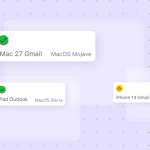
Per-client behavior matrix (Gmail, Outlook, Apple Mail, mobile)
Based on data from the “Can I email?” website, we compiled the table below that shows which dark mode CSS styles are supported by different email clients.
|
CSS style |
Gmail |
Outlook |
Apple Mail |
|
@media (prefers-color-scheme) |
not supported |
partially supported |
partially supported |
|
color-scheme CSS property |
not supported |
not supported |
fully supported |
|
light-dark() |
not supported |
not supported |
fully supported |
|
color-scheme meta tag |
not supported |
not supported |
partially supported |
|
dark mode support |
fully inverted |
partially inverted |
no change |
The data are valid as of June 2026. Keep in mind that email client behavior changes over time.
Yet all these styles are cut off when a signature is inserted into an email.
Why @media (prefers-color-scheme: dark) doesn’t work in signatures
Email signatures behave differently from regular emails in dark mode because they are typically inserted through a signature generator. During this process, elements such as <style> and <head> are often stripped out. That’s why CSS styles commonly used for dark mode support, including @media prefers-color-scheme: dark and color-scheme meta tags, do not survive.
For a signature to display correctly in dark mode across email clients and devices, its design must be resilient and not rely on CSS rules.
What breaks: The seven things that go wrong in dark mode
Despite its popularity, dark mode remains difficult to get right. It is not always a rendering issue. Sometimes, there is a need for emails that are intentionally designed with a dark appearance. In such cases, dark email templates, such as those available in Stripo, can be a good design choice. Some elements tend to break specifically because of unpredictable dark mode behaviors.
1. White boxes around logos
A logo saved with a white background may look fine in light mode because it blends into the email’s background. In dark mode, that white box becomes visible.
For this reason, it’s important to check all images and logos for visual integrity in dark mode to avoid flaws, such as poor image cropping, that were smoothed out in light mode.

2. Disappearing logos and text
A dark or transparent logo will disappear on a dark background. The same can happen to dark text in a signature or dark lettering inside a logo because, as we already know, inversion occurs unpredictably and uncontrollably.
To prevent this, you can use a light stroke or soft glow around the logo. On a light background, this stroke or glow is invisible, but on a dark background, it saves the day.

3. Brand colors that get hijacked
If your brand colors weren’t tested in dark mode when you created them, they can also appear distorted or lose contrast on a dark background.
To avoid these issues, ensure that your brand colors are evaluated on both light and dark backgrounds. The colors used should maintain sufficient contrast and remain recognizable whether the signature is displayed in light or dark mode.

4. Distorted icon shapes
Icons in email signatures that are not adapted for dark mode may change shape or disappear completely on a dark background. The shape often changes when the icons are used on a white background rather than a transparent one. The extra white fields are not visible in light mode, but in dark mode, everything hidden will be visible.

5. Background rectangles appearing out of nowhere
The same problem can be observed here. If your images, icons, or logos are saved on a white background, that white background will appear as an unsightly spot on the signature in dark mode.

6. Links that lose visibility
We are used to links being highlighted in blue, which serves as a visual cue that the text is clickable. In dark mode, colors change and often lose contrast against the background.
If a link in your email signature relies solely on color, it may become difficult to distinguish it from regular text. As a result, recipients may overlook important contact information, website URLs, or social media links.
7. Disclaimers and legal text becoming illegible
Certain industries require email signatures to include legal disclaimers, regulatory notices, or other compliance-related information. It is important that the disclaimer is clearly visible so that recipients can easily notice and read it.
If an email signature is not tested in dark mode, legally important information may be difficult to read owing to low contrast, color changes, or other dark-mode rendering behaviors.

How to design a dark mode-safe email signature
We examined the mistakes that often occur when email signatures are not tested in dark mode during creation. The best practices below will help you avoid them and keep your signature working in both light and dark modes.
The first recommendation is to build your signature using a signature generator. Once you’ve created and installed the signature, test how it appears in dark mode immediately. Stripo lets you check the appearance in dark mode right in the preview. This makes it much easier to spot issues, such as disappearing logos, low-contrast text, and unwanted background elements, before they reach recipients.
The second recommendation is to prioritize readability above everything else.
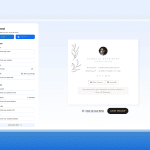
Image assets: Logos, icons, banners
Use images with transparent backgrounds. Avoid assets with white backgrounds because they can create white rectangles around logos and icons in dark mode.
When testing your signature, make sure that all visual elements remain visible, including logos, text within logos, icons, and links.
Do not save the entire email signature as a single image. While this may seem like a simple solution, it creates several usability issues:
- you lose the ability to add more than one link to the elements of the signature;
- this image may still have a white box around it in dark mode;
- recipients won’t be able to click a phone number to call directly;
- contact details can’t be easily copied;
- some email clients block images or add them as attachments, so the recipient may not see your contact information at all.
If your logo contains dark elements that may disappear in dark mode, there are four common approaches:
- You can leave the logo unchanged, or as-is, if testing shows that it remains visible and maintains sufficient contrast.
- A stroke is a thin white outline around the logo’s dark elements. It will separate the logo from the dark background in dark mode while remaining nearly invisible in light mode.
- An outer glow is a slight glow around the logo. This option is suitable for symbol-based logos, icons, and marks that need a little extra contrast.
- A drop shadow is a solid shadow that adds contrast between the logo and the dark background. This variant is less visually intrusive than a glow, but it is not ideal for logos with thin lettering.
The best solution depends on your logo’s structure, but in all cases, testing in both light and dark modes is essential before deploying the signature.
Color palette: Hex codes that survive both modes
Pay attention to your brand colors, as dark mode settings can significantly change them. Instead of pure white and black, use shades that are neither too bright nor too dark.
Because many dark mode algorithms make decisions based on contrast levels, it’s important to evaluate color contrast separately for both light and dark versions of your signature. You can test color combinations using Accessible Colors or any other tool.
Layout: HTML tables, no fixed backgrounds, single-column for mobile
Keep your email signature layout simple. Complex design elements, such as overlapping layers, gradients, and decorative background effects, can behave unpredictably in dark mode. A simple structure helps ensure consistent display, regardless of theme settings, across email clients and devices.
It’s also a good idea to favor templates that adapt well to small screens. A single-column structure is easier to read on mobile devices and less prone to rendering issues than a complex multi-column design.

Typography and links: Legibility without color dependence
Typography plays an important role in dark mode compatibility. Some email clients can change the font weight to improve readability, which can affect the appearance of your signature. Depending on the font you choose, the text can become either too thick or too thin. In both cases, it is unreadable, so test the fonts before using them.
Decorative fonts look good in light mode, but can completely disappear or lose clarity in dark mode. For large text elements, you can use the same stroke, shadow, and glow options as those for logos.
Links should not rely solely on color to indicate that they are clickable. Add visual cues, such as icons, underlines, or other indicators, that clearly signal an interactive element regardless of the theme settings.

Test your signature: A 5-minute QA protocol
You’ve followed the best practices for dark mode email signatures: a logo on a transparent background, pretested colors for sufficient contrast, and optimized icons. There’s just one final step left: testing.
Step-by-step manual testing across Gmail, Outlook, and Apple Mail
To test an email signature in dark mode, send the email to different email clients and see how it appears in practice. The recipient’s email client applies the inversion, so you need to test it on the receiving side.
When reviewing the received email, check the following:
- is the logo clearly visible;
- are there any white boxes around photos, social media icons, and logos;
- are all signature elements visible and not merged with the dark background;
- do the colors look acceptable and readable;
- are links easy to identify and read.
The last step is to reply to the test email and check whether the signature survives the first round of forwarding or replying.
Side-by-side screenshot comparison as a QA artifact
Comparing screenshots of the email signature in light and dark modes across real email clients is an effective way to capture differences and identify potential issues, if any. It will be immediately apparent whether the logo’s contrast has decreased and whether the brand colors differ from the standard version.
In addition, you can share screenshots with the designer for revisions or with the brand manager for approval. Saved screenshots can also be compared over time. As email clients and rendering engines regularly update their dark mode behaviors, repeating the same tests in the future will allow you to compare results and determine whether changes have improved or degraded the signature’s appearance.
Tools: Stripo, Litmus, Email on Acid, and free alternatives
There are various tools you can use to test your email signature in dark mode. First, you can check your signature in the Stripo dark mode emulation preview while composing your email.
There is an expand button in the upper right corner of the top panel in the email editing area. In the drop-down menu, you can choose the theme emulation: light or dark mode.

The next step is to check how the signature will look in different email clients. This can also be done directly in Stripo, thanks to the integration with Email on Acid.

This is what the test results will look like. Even so, keep in mind that the results of testing tools are not the same as those of testing on real email clients. This is especially true for the dark mode.

You can also use Litmus or other free testing tools. We provide more information about dark mode testing tools in this article.
Rolling out dark mode-safe signatures across a team
There are two main ways to add an email signature to your inbox: Manually insert the signature code into your email client, or configure it centrally via a server-side platform, such as Exclaimer.
Server-side vs. client-side signature deployment
With client-side deployment, each employee installs their own signature in their email client. While this approach is often free and relatively easy to set up, it has several drawbacks.
The more people involved, the greater the chance of installation errors or formatting inconsistencies. In addition, email client signature editors typically strip out <style> and <head> elements, which means that more advanced signature configurations may not survive. Adding a signature on the platform server removes this limitation. Because the signature is applied after the email leaves the sender’s mailbox, the original code is preserved.
But you need to remember that neither of the deployment methods solves dark mode challenges on its own. The recipient’s email client still performs dark mode transformations, resulting in color inversion, contrast changes, and other dark mode effects. If the email signature design was not designed with dark mode in mind, it may suffer in both cases.
When choosing one of these options, keep in mind that server-side signature deployment provides consistency for a large team, code survival, and the possibility of centralized updates, whereas client-side signature deployment is free but does not scale well.
Regardless of which deployment method you choose, proper dark mode rendering ultimately depends on the signature’s design. Visibility, contrast, image assets, typography, and color choices must all be considered during the design phase to ensure that the signature remains effective in both light and dark modes.
A 6-step rollout playbook for 50-500 employees
If your company has a large number of employees and you need to manually add and update email signatures, here is a workflow to help you organize the process:
- Choose a single template that all employees will use. It should be dark mode-safe and designed according to all the rules discussed in this article: text-forward, a transparent PNG logo with a stroke or glow if needed, midtone colors, and so on.
- Test the template using a 5-minute QA protocol: Check it across different inversion modes and in reply chains. Save side-by-side screenshots as a reference point for future comparisons.
- Choose a deployment method based on your team size and available IT support, weighing the pros and cons of each solution.
- Set up automated workflows for signature variables, such as names, job titles, phone numbers, and email addresses. Be sure to test that dynamic data do not break the dark mode design.
- Deploy the signature for one department. Test it to catch issues that may arise, such as differences between email clients or mobile rendering, and then scale to all other employees.
- Document the process, assign a responsible person, and establish review timelines. Email client behaviors change over time, making it important to retest signatures periodically, update templates when necessary, and collect new screenshots for verification.
This will help keep the process under control and ensure that signatures remain readable, up to date, and resilient in dark mode even after future email client updates.
How signatures can hurt deliverability (and what to do about it)
A signature doesn’t directly determine an email’s inbox placement, but it is one of many factors that can affect deliverability.
The following signature characteristics can hurt email deliverability:
- heavy images and image-only signatures. A high image-to-text ratio can trigger spam filters;
- too many links. If your signature has CTAs, social media links, and a website link, it can look suspicious to spam filters;
- bloated HTML. A simple, clean code is safer, so avoid overloading your signature with unnecessary elements.
Don’t risk all the details that can affect deliverability. Optimize the images and logos used in your signature, include a reasonable number of links, keep the code clean, and always test the signature before rolling it out across your organization.

When to render your signature as an image (and when not to)
Sometimes, it may be tempting to resolve dark-mode email signature issues using an image-only signature. The image must survive the transition, as dark mode usually inverts text and backgrounds. However, because the price for such a “solution” is quite high, don’t rush into using it.
What bitmap rendering is and which tools offer it
Bitmap rendering is saving your email signature as an image. This approach can provide greater dark mode stability because email clients usually apply color inversion to text and backgrounds. Still, there are no guarantees. Email clients that use full color inversion may still affect the image.
Some email signature generators let you export the generated signature as an image, but you should think twice about whether it is worth it, because this solution to the dark mode problem creates several other problems.
Trade-offs: Lost text selection, broken accessibility, attachment risk
The consequences of making an email signature as an image:
- you can’t copy a phone number or email to call the sender right away. That is, the signature stops serving its main function;
- most links are lost. You can only add one link to the image, so all other links to the website, LinkedIn, or email will disappear;
- accessibility is compromised. It is difficult to provide meaningful alt text for a signature image, which means that it will be difficult for screen readers to explain the information to the recipient;
- the image may be removed from email threads, and contacts will be lost when forwarding the email;
- some email clients block images by default, so the recipient may not see your signature at all.
Are there many situations when the visual appearance of an email signature is worth taking all of these risks?
When bitmap is the right call (and when it isn’t)
There are not many cases where an image-based email signature is the right choice. Among these are the following:
- A signature that relies on custom graphics or typography, which is unlikely to render consistently as HTML across email clients, and where brand accuracy is more important than the clickability of the signature elements.
- A signature created for a specific marketing campaign with a single CTA, and the longevity of this signature in the message chain is not important.
And that’s it. In most situations, an email signature needs clickable links, click-to-call phone numbers, contact information that survives long email conversations, and accessibility for all subscribers.
Before agreeing to such a risky option, try a safer alternative: text-based content, clickable links, inline styles, and a transparent PNG logo.

Accessibility: Don’t let dark mode become a barrier
Email accessibility can be affected by dark mode, as uncontrolled rendering impacts color contrast, readability, and the experience of subscribers who rely on screen readers and keyboard navigation.
WCAG contrast ratios in light and dark modes
In Success Criterion 1.4.3, Contrast (Minimum), WCAG requires the following contrast ratios for text:
- 4.5:1 contrast ratio for regular body text;
- 3:1 contrast ratio for large text (18 or 14 point bold).
These contrast requirements do not apply to brand names or logos that include text. To ensure accessibility, these contrast ratios should be maintained in both light and dark modes. A convenient way to check color contrast is with Accessible Colors.

The tool also suggests options for replacing the color to be compliant with WCAG requirements.

Alt text, screen readers, and keyboard navigation
In the email signature, as in the entire email, it is important to provide alt text for all images. Photos, logos, social media icons, and other visual elements should have clear descriptions so that screen readers can read them to subscribers.
Screen readers struggle to interpret images. This is another argument against saving the entire signature as a single image. In addition, a signature image cannot be enlarged or copied; thus, interacting with keyboard navigation will also be difficult.
Assistive technologies rely on structure, so your signature should be organized logically, and the recipient could guess where to find the phone number or sender’s name.
You can check whether your email and signature meet accessibility requirements using the Stripo Accessibility Checker.

Compliance pressure: EAA, ADA, and what they mean for signatures
Accessibility regulations do not directly mention email signatures. They require accessibility of digital communications, among which are email signatures. WCAG requirements for color contrast and alt text apply regardless of viewing mode and are equally relevant to the signature as to the rest of the email. From this perspective, making an email signature dark mode resilient affects accessibility, not just appearance.
From June 28, 2025, the European Accessibility Act (EAA) applies to organizations, including companies outside the EU, that provide products and services to consumers in the EU. The EAA covers a limited set of products and services identified as most important for people with disabilities and exempts microenterprises with fewer than 10 employees or an annual turnover less than €2 million.
The Americans with Disabilities Act (ADA) requires state and local governments, as well as businesses open to the public, to make their digital content accessible.

When plain text is the right answer
A plain-text signature does not necessarily mean bare text with no formatting at all. In practice, it is a signature built primarily with text and inline styles. For example, you can make a person’s name slightly larger, add a clickable LinkedIn profile link, and even use an accent color tested for readability in dark mode.
Dark mode breaks email signatures mostly because of images and background colors. A text-based signature largely avoids these elements, and that’s why it survives in dark mode.
Cases where plain text actually wins
A plain-text signature is often the better choice when reliability is more important than branding:
- 1:1 outreach and sales emails. A text-based signature feels more personal, making it a good fit for sales;
- mobile-first audience. Mobile email clients often invert colors most aggressively and can break complex signatures. Plain text renders consistently and will not break the layout on smaller screens;
- internal company communication, where everyone knows each other, and signature branding is often unnecessary;
- regulated industries such as legal, finance, health care, and government, where a readable disclaimer is more important than a beautiful logo;
- accessibility-focused communication. With plain text, there is no problem with alt text and image contrast, and it will be easier for screen readers to present information accurately;
- situations where testing is not possible. A plain-text signature is a safe option that may not be visually appealing but will not break anywhere and will allow the recipient to see your contacts.
Cases where plain text is the wrong call
A plain-text signature will not work in cases where the signature performs functions that cannot be achieved with text alone:
- email signature as a marketing channel. If the signature includes banners, event invitations, or promo CTAs, plain text is not enough. These are visual clickable elements that a text-only signature cannot replicate;
- email signature as a branding asset. If the signature contributes to brand recognition through the use of logos and corporate colors, you will not be able to replace it with a simple text, “Sincerely, John Smith”;
- email signature as a trust-building element. In some industries, such as hospitality, real estate, and creative agencies, the visual elements of an email are just as important as the message itself. In these cases, the signature should look polished and professional;
- when you have a managed server-side signature platform and a signature specifically designed for dark mode.
Plain text is a compromise, and in each case, you need to decide whether it’s worth the sacrifice.
Tools that help you build a dark mode-ready signature
Many tools can help you create an email signature. Here are the main types of tools and how they differ from one another.
Stripo: Full editor with cross-client export
Stripo offers a free and easy-to-use signature generator. It includes ready-made templates that you can modify to suit you and a simple interface that streamlines the creation process. The entire signature creation process takes only a few minutes.
You can choose a template, add your contact information, adjust the design, and export the finished signature for use in your email client.

For any email campaign, in the drag-n-drop email editor itself, you can create a variety of signatures with dozens of settings and hundreds of templates for inspiration.
Canva, HubSpot, MySignature, Email Signature Rescue: How they compare
The following tools serve different needs, so the right choice depends on your goals:
- Canva is a graphic design platform whose signature generator exports signatures as a PNG image. While this approach makes it easy to create visually appealing signatures, it also comes with the limitations of image-based signatures discussed earlier.
- HubSpot offers a free email signature generator that creates HTML signatures compatible with Gmail, Outlook, Apple Mail, Yahoo Mail, and HubSpot CRM. It provides several basic templates, but your work is not saved if you leave the generator before exporting the signature.
- MySignature is a freemium email signature generator that allows you to save and update HTML signatures after creation. Its features include promotional banners, CTAs, and AI-powered enhancement tools.
- Email Signature Rescue is a full-scale email signature management platform for teams. It enables customers to create, host, and deploy HTML signatures across more than 60 email clients, applications, and CRM systems. There is no free plan, but a trial period is available.
The dark mode compatibility claimed by these tools means that the signature follows recommended dark mode design practices, rather than a guarantee. Final testing should always be performed in accordance with a QA protocol.
How to choose the right tool for your team size
To choose the right tool, figure out what features are important to you. Decide whether you need a free or paid option. If it’s a paid one, determine what price range you are considering. Consider the importance of customization, which platforms the tool should integrate with, and whether tracking and analytics are required.
Once you have answered these questions, you can move on to our article comparing email signature generators, their advantages and drawbacks, and choose the one that best fits your needs.
Wrapping up
Dark mode remains a challenge for developers and email marketers despite its popularity among customers. Email signatures add another layer of complexity.
To avoid worrying about how your email signature will look in dark mode, follow the design recommendations and best practices covered in this article, use a signature rollout algorithm for your organization, and always test any changes. A signature can stay readable in dark mode and still look like your brand. These are not mutually exclusive goals.
Before your customers show you what is broken in dark mode, check it yourself. One test email, a few screenshots, and a couple of small fixes can prevent your signature from disappearing when it matters most.
FAQ
1. Why does my email signature look broken in dark mode?
The email signature often looks broken because dark mode was not considered during the design process. To ensure that your signature displays properly in both light and dark modes, use a logo and other images with transparent backgrounds, test colors for sufficient contrast, choose fonts carefully, and always test the signature in dark mode before using it.
2. Can I make a signature that automatically switches between light and dark modes?
No, there is no universal way to automatically switch an email signature between light and dark modes across all email clients and devices. It is better to follow dark mode best practices and create a dark mode-resilient design.
3. Will @media (prefers-color-scheme: dark) work in my signature?
Most email clients strip media queries from email signatures, so it is better to create an email signature that works without them.
4. Does Outlook handle dark mode the same way as Outlook.com?
No, there is no single “Outlook dark mode.” Different Outlook products use different rendering engines and apply dark mode in different ways.
5. Should I just use plain text instead?
This is one way to avoid dark mode rendering issues. Consider what role your signature plays in your email communication, and make your decision accordingly.
6. Why does my logo turn into a white box?
This usually means that the logo was saved with a white background. To avoid this issue, save the logo as a PNG with a transparent background.
7. How can I test my signature in dark mode without sending myself dozens of emails?
Use testing tools such as Email on Acid and Litmus, which simulate different email client environments. You can also test the email clients most commonly used by your audience, or any three clients that use different inversion models.
8. Can a heavy email signature really get our company flagged as spam?
A signature alone is unlikely to cause this, but it can become another risk factor that triggers spam filters.
0 comments