
How to build an email with Stripo. Manual from A to Z


When you first open Stripo, you may feel a little overwhelmed and unsure of where to start. And that important email with the looming deadline needs to be ready and sent soon. It’s time to walk through Stripo’s most important features with us so we can explain from A to Z how to create your own email.
Ways to start building an email
There are three ways to start creating your own email template with Stripo:
- Pick an empty template so you can have full freedom to create your own email structure using basic blocks and modules (more on blocks and modules later).
- Choose basic templates to have a solid foundation and overall idea of hints on how your future email template can look.
- Browse through our 1650 email templates, select the one you like, and edit it.
To choose one of these options, just click on the needed option once you are on the Email Messages screen.

The Empty Email option
If you choose this option, you’ll be transferred to our editor with a basic email structure that is ready to be edited.

This basic structure consists of three main email parts: header, content stripe, and footer.
With this structure, you have full creative freedom, so you can make the template you need using our editor tools, which we’ll show you a bit later. It allows you to fill each structure with the blocks necessary to form your email design the way you want (more about the various blocks later).
The Basic Templates option
Clicking on this option will transfer you to this screen, where you can choose from basic template options like Empty Template, Master Template, and different template layouts from categories that are common for email marketing (Promo, Trigger, Info, and so on). Clicking on any of these templates will transfer you to the editor, where you can start working on the template of your choice.

The HTML template option
We’ve highlighted this option separately because it’s designed for those who are tech-savvy and know how to code emails. The key to this option is that selecting it automatically opens the code editor.

Essentially, you’re presented with a blank canvas on which you can manually create an email from scratch using code.

Picking one of the 1650+ pre-built templates
If you need your email done yesterday and there’s no time for the ideation process, you can always scroll through our extensive library of pre-built templates created by our design team. You will be able to find a template for any occasion or industry or with a feature you need for your email marketing goal. You have both free and premium templates at your disposal, and clicking on one of them will transfer you to the editor, where you can make the necessary edits.

1. General Styles
When creating an email in Stripo, General Styles is your first go-to destination to make necessary tweaks that will define the basic design rules for your future email template. The main goal of these rules is to make every element consistent and inherit these design rules.
The stripe is at the top of the hierarchy of email elements; this means it must contain child elements. A structure is one of them, and it is present in every stripe by default.
On the main editor screen, click on the General Styles button to see the whole menu, which is separated into four sections with general options for each email part:
- Global Styles & Layout is your main settings hub, which impacts the email design aspects, such as backgrounds, alignment, and right-to-left content;
- Stripe Styles allows you to set general settings that will apply to each stripe (headings, content stripes, footers, and more) you create for your template, like the font family, spacing, and font sizes;
- Heading Styles has the same options as Stripe Styles; the only difference is that they apply only to your headings, thus allowing you to diversify their look for your overall email design (if you need it);
- Button Styles has general options that will apply to all the template buttons, including button colors, spacing, button sizes, fonts, and more.

-
Global Styles & Layout
This section allows you to set the main style rules that will apply to the whole email and is the first thing you should tweak when you create your email. First, you should set the background color (or background image) for your entire email.
Second, you must set your email content width and overall alignment, which will create the basic shape of your future email.
You can also set optional things, like underlining links, to make your design responsive (your email will automatically adjust itself to show as a single column on small screens), set all your content to RTL rules, and adjust your lists with the Custom Lists Styles option.

And don’t forget about general padding and margins, which you will also need to alter. Last but not least is Default Styles, which will determine whether you need our default CSS styles or you want to have full design freedom using your own CSS styles.

Email content background refers to the background applied to the entire email area. When an email is opened on a desktop device, the email content background represents all the email message areas, while on a mobile device, it gets hidden (the red background in the example below). Importantly, you can set a picture as a background image if colors don’t support your design vision.

The email width is 600px by default. This is currently the most common size.
By selecting these settings, you will significantly reduce the time that you’d spend on polishing the email design. As you set these parameters, they are applied to all the content elements in the emails.
If any style that you apply to a separate row/container/block differs from the styles set in the General settings sections, it will prevail over the general style.
-
Setting styles for stripes
Click on the Stripe Styles to open a dedicated submenu for editing your general styles for stripes.

Keep in mind that clicking on each button will open a dedicated section in which you can adjust the general styles for each type of stripe you create in your template. Experiment with them and set the needed tweaks to make your design consistent, no matter what stripe you want to add.

-
Setting headings
Click on the Heading Styles to open this small menu, where you can set all the general options needed for your headings. This menu is a little simpler than the previous one, and all the settings are applied to all the headings you create.

-
Setting buttons
Last but not least is Button Styles. Click on this section to open it and set the styles needed for all the buttons you create and add to your email template.

2. Building an email header
An email header is the first element of emails that recipients see. It normally contains the brand logo and menu.
So, first, you need to decide what your header will look like. There are many types of header designs.
However, the most popular one in e-commerce is when the logo is on top and the menu is right beside it.

To recreate it, a header of this type requires only one row with two containers for content.
-
How to add a logo to your emails with Stripo
First, you must have a two-column structure prepared in your Empty template. Once you are ready, hover over the first container and click on the Image button or drag and drop the Image block into the first column.

Once clicked, you’ll see the Image Gallery menu, where you must add your own image or choose from the stock/predesigned images prepared by our designers and sorted into different categories (Seasons, Decorations, Photostock, and more).

Once added, you can insert a hyperlink to take your recipients to your website, set the Alternate text and the exact logo size, and use other options to create the logo you need.

If you want to set a background for the stripe where your logo and menu are located, then make sure to use a URL to the logo image in PNG format with a transparent background.
Why apply links to the logo? Quite often, recipients click on it to get to your website faster.
Why add alt text to the logo? First, to pass the anti-spam filters; second, to provide recipients with information on what the image is about in case they do not see images in emails; and third, to comply with email accessibility best practices.
-
How to add a menu to your emails with Stripo
To add a menu to your header, just drag and drop a menu block to the container right next to your logo.

By clicking on the added block, you’ll open the Menu Block, which has a wide range of options you can apply to edit the content and design of the menu.

First, pick a type of menu, whether it consists of only text links, only icons (with links behind them), or both. In addition, set the desired number of menu items by adding or reducing them in the Menu Items Number counter.

Now, it’s time to specify each menu item. Give each one a name, attach the required links, and specify whether or not to hide them on different devices. If you want to delete a menu item, just click on the trash bin icon. Keep in mind that you will need to fill in all the fields for all the menu items.

All you have to do next is tweak the overall Menu Block settings, for example, by fitting it to the container (or not) and setting the padding and margins, and you are good to go.

3. Working with text
The next thing on the list is your copy. Adding text to your emails is easy with Stripo.

-
How to add copy to your emails with Stripo
If you have any structure with containers, you can easily add text by simply hovering your cursor over them and clicking a Text button or adding a Text block inside the container.

Once added, you’ll see a text placeholder, which you can erase to type your own text. Further, our Text block has a dedicated options menu where you can tweak your copy.

You will have already set the styles for both stripes and headings in General Styles, so these styles will be inherited automatically. However, if you need to create a separate style for your text, you can set paragraph styles, overall text styles (bold, italic, underlined, and more), and the text alignment and indents.

In addition, if you click on the Styles tab, you can change the font, its size, color, and line height and the background for the specific Text block.

-
How to add links to text with Stripo
If you need to add links to text, highlight the necessary words (or you can set the link to all the text), click on the Link button, and paste your link in the dedicated field.

Important note:
We recommend that you enable word break in your emails if you do not wrap links in buttons or if some words are way too long. For instance, if your email is written in German, it would be better to enable the word break option. This will help you avoid horizontal scrolling on mobile devices. Just toggle this button for activation. Keep in mind that this option does not work for Chinese, Korean, and Japanese text.

-
Adding other content to your text block
If necessary, you can also add different types of content to your Text block, like images, emojis, special symbols, tables, and marked and numbered lists.

Each Text block has dedicated buttons in the Insert section, each of which opens a small submenu that allows you to insert such content.

-
Right-to-Left Text
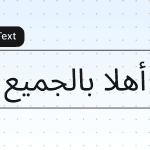
If you create emails for an international audience using native languages based on RTL texts, it is vital to adapt your email copy accordingly. As mentioned earlier, we have a dedicated RTL feature. Click on General Styles and activate the Right-to-Left Text Direction option.

All your text will then be adapted to RTL rules.

Learn more about this feature in our dedicated article.
-
Translations
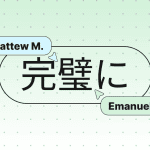
Creating email campaigns for international audiences can become a real headache, and the more languages you need to cover, the stronger this headache may be. Translating your emails is a tough task that can take a lot of your precious time. However, we have a built-in translation feature to make your life easier.
Click on this button to open our translation menu:

Select the languages you want to translate your email into.

Once you have selected the languages, hit the Translate button.

After a few seconds, you’ll have the fully translated versions of your email saved, so you can tweak them and use them for your campaigns.

4. Personalizing email content
Emails with personalized copy are a good approach if you want to stand out from the competition and take your brand closer to your audience.
Add merge tags to greetings, as in the example below, to the email footer to specify the recipient’s email address and always address them by name in triggered emails.

Stripo email template builder allows you to add merge tags to any copy in an email template.
-
How to add merge tags in emails with Stripo
To add a merge tag, click on your Text block, and in the Insert section, there will be a drop-down list for adding merge tags.

Once you click on it, the menu will unfold, and you will be able to choose the required merge tags depending on your personalization needs, the ESPs you use, and your specified project settings.

Once you pick your merge tag (in our example, it’s the First Name tag), it will appear in the Text block, where you can add more text to support your tag with a proper personalized message.

Your ESP will replace this parameter with the first name of each recipient. If the first name (or any other parameter) is not specified, then your ESP will leave this field empty.
Learn more about merge tags in our Help center article.
5. Adding images
Imagery is the basis of all emails. No matter how compelling your copy is, you should definitely include images, as they appeal to emotions by showing your products in their best light.
-
How to add an image in emails with Stripo
First, prepare a new structure with the necessary number of columns in your HTML email template. After that, drag and drop the Image block to the desired container, or click on the Image option when hovering your cursor over the container.

Once dropped, you have several ways of adding images to your template.
1. Dropping or uploading an image
Here, you can really just drag and drop the image you are about to use for your campaign or upload it from your computer by clicking the drag and drop area.

2. Pasting external URLs
If you do not have the image saved on your computer, you can insert a link to an image on the web.
Click on the paste URL option within the drag and drop field to open this menu. Then, paste the link to your email and choose whether to save it to your Image Gallery or leave it as an external image (keep in mind that external images can disappear from your template once they have been moved or deleted from the original source).

3. Use images from your Image Gallery
When you upload or download images to the Image Gallery, as shown in the example above, your images are stored in your personal gallery. You’ll see the images below, and clicking on one of them will automatically attach the image to the block.

Images here are sorted by date from the most recent to the oldest. If the list of images is too long, you can search for an image by name.
To use an image in your current HTML email template, you need to click on the selected image, and it will automatically appear in your email.
4. Using photostock or our bank of images
All the images available with Stripo are free, so you can pick the ones you like and use them in your designs. In addition, you have a wide variety of photostock images to choose from. Click on the menu you like to browse through our library and see the images for yourself.

5. Generating images with GenAI
You can also generate a unique image for your banner by clicking on the AI Image option. You’ll see a dedicated menu, where you can add a prompt to channel your GenAI creativity, set different options, such as AI model, Style, and Dimensions, and generate the image you need.

6. Editing images
In the previous section, we showed how to upload images and store them.
But how can you edit them with Stripo?
In this section, we will show you how to edit the images that you want to use for product cards, signatures, logos, presenting panelists, upcoming events, and more.
-
How to edit images with Stripo
Once you’ve uploaded the image, click on it. Then, in the Image Block settings, click on the Edit Image button.

You’ll see a new mini-editor appear, where you can tweak your image in many ways, for example, by:
- adding filters and adjusting colors;
- cropping, resizing, and reshaping;
- drawing on images and adding shapes, texts, stickers, and frames;
- creating rounded corners, adding backgrounds, and merging images.

7. Building banners
It is said that the banner is the face of your newsletter. Hence, you need to work on it thoroughly.
Normally, as a banner, we understand an image that evokes emotions in your target audience, along with complementary copy over this particular image.

-
How to build an email banner with Stripo
First, prepare a one-column structure for your future email banner. Then, drag and drop our Banner block into this structure.

Clicking on this block will open a menu for adding an image to your banner. It works in the same way as adding images, which we described earlier.

Once your image has been added, you’ll have the Banner block settings section at your disposal, where you can change the size of your banner, crop it, add a necessary link to make it clickable, hide the whole banner block on various devices, and add alternate text, as well as set margins and opt to include the block in different email versions.

And don’t forget about the Styles option, where you can set the rotation of your banner image, the background color, or a filter.

Furthermore, this block has a separate set of options for adding text and images on top of your banner. The other options are greyed out, as they are on their way to release and not yet available.

Clicking on the Text button will add an editable text piece, in which you can type the copy you need. You’ll have a dedicated options menu for this text, where you can choose the fonts, style, opacity, rotation, and more. You can also change the position of your text piece or rotate it by clicking and dragging the white dots in the corners and on the top of the square frame.

Clicking on the image button will open the same menu for adding images.

Once added, this image will also have a dedicated options menu, which will be the same as that for the whole banner. It will allow you to edit your additional image to reflect your style and meet your needs.

8. Image rollover effect
The image rollover effect helps you entertain and engage your customers. Moreover, it saves precious space in emails, as you can hide product details behind photos. You can also play games with recipients by, for example, making them “search” for a coupon. There are many reasons to add an image rollover effect to your emails.
But how can you actually build one? This technique was developed by our coders and has been adjusted to our system and, more importantly, for major email clients.
-
How to build an image rollover effect with Stripo
Creating rollover images is easy. First, add your image to the desired part of the email and click on it to open its settings. You will see the Rollover Effect option.

Clicking on this option will open another menu for adding an image, where you can add the image that will appear on the hover action.

Once added, you can replace or edit this image in the same way as you would any other image in Stripo.

Important note: This feature is only supported by Yahoo! Mail, Ukr.net, AOL, Gmail, iCloud Mail, Outlook 2003, Outlook for Mac, and macOS Apple Mail (desktop only). Furthermore, your images must be the same size, down to the pixel.
9. Adding video in emails
Stripo has two ways for you to add videos to your email templates:
- Add a video using our dedicated Video block.
- Embed a video through code.

(Source: Email from Charity: Water)
We’ll cover both ways so you will have a better understanding of which is more suitable for you.
-
Way 1. Adding a video using the Video Block
This is a totally safe way of delivering videos because it works perfectly well in all email clients and on all devices.
First, drag and drop our Video Block into any structure and click on this block.

Once clicked, you’ll see a dedicated options menu for this block, where you can make all the changes you need.

The most important thing is to add a link to the video you want to add to the corresponding fields. Once added, our editor will automatically pull up the video and its thumbnail and create alternate text based on the video title (you still can change the alt text if needed).

You can always change the thumbnail using our Custom Thumbnail control, which opens the familiar interface for adding images. In addition, you can adjust the play button styles or not display the play button at all using the Play Button Styles control. And don’t forget to tweak the size of the block and confirm whether to make its thumbnail image responsive (a responsive image will adjust its size automatically depending on the size of the screen it is displayed on).

-
Way 2. Embedding video
An embedded video is a video that is played directly in an email. Recipients are not required to go to another website to watch the video.
Stripo provides its users with a universal code, which you can use to provide all your subscribers with the video you want to share.
We recommend sticking to the following order:
- Embed the universal code in the email template.
- Customize the code by inserting your URL links.
How to embed a video in Stripo
Here, we’ll use our HTML block created for convenient work with email code. Drag and drop this block anywhere in your template.

Click on it, and you’ll open our built-in code editor, which shows what’s under the hood of your email template.

Now, copy the following code to embed a video:
<video class="adapt-img" controls="controls" poster="https://jenbfo.stripocdn.email/content/guids/videoImgGuid/images/image16586923322854343.png" width="100%" height="313">

<source src="http://www.w3schools.com/html/mov_bbb.mp4" type="video/mp4"> <source src="http://www.w3schools.com/html/mov_bbb.webm" type="video/webm">


<!-- fallback -->


<a href="https://www.youtube.com/watch?v=ryqOEPk51Lg/" class="esd-frame-element esd-hover-element esdev-disable-select">

<img class="adapt-img" src="https://jenbfo.stripocdn.email/content/guids/videoImgGuid/images/image16586923322854343.png" alt="" width="100%" height="313"></a>

</video>
And paste it here (basically, replace this placeholder text) and click Apply Code:

Once applied, you’ll see the basic layout of an embedded video player with our example video attached.

The only thing that’s left to do is to change the links to your own URLs to make your video play. All the links you need to change are located here:

- The first link is for the thumbnail image. Certainly, some devices can generate a thumbnail image using an MP4 video, but this image will not render on an iPhone X and devices with retina displays. Paste this link after the “Poster” attribute.
- The next two links are links to video files in the formats .MP4 and .WebM. Links to YouTube or Vimeo won’t work here. Replace the links after the “source src” attribute with your own links.
- The other two links that go after the word “fallback” are links to a YouTube video and its preview image. This is our fallback for those email clients that don’t support embedded videos. Upload your video to YouTube or Vimeo, then upload the second image used as a thumbnail. Replace the links after the “href” and “src” attributes with yours.
10. Adding CTA buttons
A button is, in fact, a beautifully designed URL link. It should be visible, and its copy needs to be clear and concise.
Previously, you set the styles for all your buttons in the General Styles section, but if you want to make a new button unique, here’s what you need to do.
-
How to build a CTA button with Stripo
The process of creating a CTA button is quite simple. Drag and drop a Button block to any place in your template.

Then, click on the button to open its settings, where you can make all the tweaks you need.

The most important things for any CTA are the attached link and a compelling message that draws attention and conveys the reason the user needs to click on the button. Paste the required link and button text inside the corresponding fields.

The next things you want to adjust are the alignment of your CTA button and its height (you can set the exact height for each button in the email). You may also want to attach an icon and confirm whether or not to hide the button on different devices.

The basic settings also allow you to set the padding and margins, include your CTA on different versions of the email, and attach an anchor link.

To change the design of your CTA button, click on the Styles section to open a new settings menu where all styling can be done. You can change the button colors, fonts (size, color, and text styles within the button), set it to fit the whole container, add a background color or image and different borders, and much more.

-
Hover button option
If you’d like to apply a hover effect to your buttons, you will need to go to General settings and activate the Hover Button Styles. This will make all the buttons change their styles if a recipient hovers their cursor over them. This section allows you to fine-tune the styles of the hover effect, such as the button colors, fonts, and borders.

Here’s what hover buttons can look like.
11. Building product content modules
Well, this section is a complex one, as it contains a number of blocks and elements.

(Source: Email from M&M’S)
Normally, a product card consists of the product snippet, a brief description of the product, its price, and a CTA button.
Some brands, like M&M’S, add an introduction prior to showcasing their products. Others add a product promo right under the banner or video. It’s entirely at your discretion.
To build a similar product card, start with a two-column structure, add an Image block into any column, and make the necessary changes.

Then, add a Text block into the structure right next to your image. Add your copy, and work on the formatting, fonts, and other details.

Keep in mind that you can add more blocks next to one another to enter more information and design your product card the way you want.

Once the text is complete, add a Button block directly below the text. Add the required links and edit the button to match your style using the built-in options.

You have full creative control, and product cards are easy to make because they consist of basic, editable blocks.

If you want to build one or two more modules similar to this one, you can hover your cursor over your created product card and click on the Duplicate button.

Then, you’ll receive a duplicate version of the product card directly under the original one. Now you can edit it, too, to create even more product cards.

12. Building countdown timers for emails
Countdown timers in emails can build a sense of urgency, notify recipients of the duration of a sale, or let them know how soon a certain event will start.

(Source: Email from Malooka)
You can build, design, and add a timer to your HTML email template right in the editor.
-
How to build and add a countdown timer in emails with Stripo
To create your own timer, drag and drop our dedicated Timer Block into any container and click on it.

You’ll then see a settings menu with a calendar that automatically opens so you can choose the right date and time for your countdown.

Once you have set the date and time, the timer will automatically start its countdown. Now, it’s time to make some adjustments.

You can set the exact time zone for your timer to make it more convenient for your audience who live in different countries and time zones. In addition, you can add various links to your timer for sharing, personalization, and overall clickability to send your audience to the pages you need.
Display Days and Digital Labels control whether you want to display days on your timer and the overall labels, namely, Hours, Minutes, and Seconds (once disabled, your timer will only display digits).

You can also change the letter case for your labels, set the right language for them, and make a separator suitable for your style by entering your preference. And don’t forget about the Expiration Image option, which allows you to add an image that will be shown to recipients once the countdown hits zero.

The Styles options are pretty extensive, as they allow you to change how the digits, labels, and separators will look to match the timer to your overall design.

13. Adding a spacer
A spacer (i.e., a divider) does not drive conversions or anything else. It is just a decorative element that makes emails look structured and leads to a better and clearer perception of the email content.

-
How to set a spacer in emails with Stripo
Adding a spacer to your email is easy. Just drag the one-column structure into your HTML email template and then drop the Spacer block inside this structure.

Click on this block to open its settings. Here, you can choose one of two options for how you want your spacer to look: a regular line or an invisible space. You can also set its width, style, color, border, and alignment.
Keep in mind that all spacers you add inherit your background colors from the General Styles options, so if you want to change them, you must do this manually using the Block Background Color for each spacer you add.

You can set the exact padding, add an anchor link (if necessary), and choose whether to include or hide your spacer in different versions of the email here.

14. Inserting social media icons
Social networking icons, or social media icons, can be located anywhere: in the menu, in the footer, or somewhere in the middle of an email. Wherever you think is most suitable.

-
How to add social media icons with Stripo
Adding social media icons is easy, as we have a dedicated block for them. Drag and drop the Social Networks block into your template and click on it to open its settings.

You’ll have one social media icon enabled by default. To add more social media icons, click on the Plus button and choose one from the drop-down list (social media icons are added one by one, so you’ll have to do this several times to add all the icons you need).

Once added, they’ll appear in the design, and all you have to do is paste the links to your social media inside the corresponding input fields. If you want to delete one of the social media icons, just click on the trash bin icon near the one you want to delete.

You can also change the way all your icons look by using the drop-down menu and choosing one of the many design options.

And don’t forget about additional tweaks that apply to the whole Social Networks block: icon size, spaces between them, titles, background color, and more. These options allow you to fine-tune your Social Block details to match the overall design and element size criteria.

You can also predefine which social media icons will appear in your Social Block once you have added them by changing your project settings. In your Account, go to Settings, then Workspace, and Projects & Groups, and choose the required project.

After that, click on the Social Networks tab. Here, you can set up the required social media platforms by adding them and attaching links to each one.

Choose from a wide range of social media icons and set up your Social Block the way you want.

15. Building an email footer
An email footer normally contains contact information, such as your website address, the reason you’ve reached out to the recipient, links to your social media accounts (hidden behind the social media icons), the unsubscribe link, and the name of the person responsible for the newsletter email. The latter is optional, yet all the elements that precede it are mandatory.

-
How to build an email footer with Stripo
The footer is a compound element in emails. To build an email footer, you need to drag a structure with the necessary number of columns, add the required number of Text blocks, paste all your text, and edit it. Then, you can add a Social Networks block and edit it to align with the social media you want to promote.
16. Background color and image
The backgrounds applied to individual containers/stripes (rows) help you focus recipients’ attention on certain elements. Backgrounds applied to entire emails can make your design look complete and unified. You would have already set your main color for the background earlier, but here’s a short guide on how to set it up for a separate email design piece.
In this example, we are going to apply a background color to a structure.
-
How to set a background color for a structure
First, click on any element in the structure and go to the Styles options (it’s important that you click on the structure itself, as clicking on the container will open the container settings, which for now, are not the priority).

Click on the Background Color option to open a palette, from which you can choose the exact color you want the background of the structure to be.

If you have the exact color number, you can paste it into this input field.

To set the color for the entire email background, go to the Global Styles & Layout settings and adjust the General Background Color option.

-
How to set a background image for the entire email
The background image will be shown on desktop devices only; it won’t display on mobiles. In the Global Styles & Layout settings, click on the Background Image option. It will open a familiar menu for adding images. Select an image from photostock or upload one from your device for your email background.

The background image will be attached but will have a default position, so you’ll need to make a few adjustments for it to match your design vision.

You can make your background image repeat through the entire email, change its horizontal and vertical positions, and set the exact width and height.

17. Writing subject lines and preheaders
To add a subject line and preheader, go to Message Settings and fill in the two corresponding fields.

You can add any text you need as well as reinforce your message with emojis.

The same goes for preheaders, except you have the additional option of filling them in with white space.

If you don’t have time to create subject lines, you can always turn to GenAI capabilities and click on the Improve with AI button. It will allow you to write an explanatory prompt to channel AI creativity and generate a perfect subject line or preheader in a matter of seconds.

18. Adapting your email for mobile devices
By default, all design changes, including dimensions and padding, apply to the desktop version of the email. However, you can also fine-tune each setting for the mobile version of the email.
To switch to this mode and design the mobile version of the email, click this button.

Once clicked, these style settings (and others for each of the email elements).

will turn into these:

In addition, the mobile version of your email, that is, the way it will look on these devices, will be displayed in the editor.

You can also hide various elements on mobile if they are interfering with your mobile design vision while still looking great on mobile. As a result, you may have two different email versions: one for the desktop version with all the design elements and one for the mobile version with some elements hidden (or vice versa).

And don’t forget about the Container Inversion option, which changes the position of the containers on mobile devices (Responsive Structure must first be applied for this structure, and then you will be able to use Container Inversion).

Here’s how it looks:

19. Previewing and testing your emails
Always preview and test your emails prior to sending them out to recipients. In Stripo, you have an easy way to preview and test your templates before going live with your email creations.
-
How to preview your email with Stripo
Once you’ve finished designing your template, click the Preview button above the template.

You’ll see our preview mode, where you can view how your template will look on desktop and mobile screens.

You will also be able to see your email with both Light and Dark themes by clicking on the Light and Dark buttons.

-
How to send a test email with Stripo
The next way to test your email is just to send it to your inbox to see how it will look in real email client conditions. Click the Test button to open the small Testing Template window.

Paste the email addresses needed for the test in the corresponding field and hit the Send Test button. You’ll then receive a test email you can check.

-
How to test an email across all popular environments
Now that you’ve previewed the desktop and mobile versions of your emails and sent a test email to yourself to identify and fix all the little issues that may have occurred, you should also see this email exactly as your subscribers will see it to ensure you deliver an email with a proper layout.
Due to our integration with Email on Acid, you can now preview your emails across popular combinations of email clients and devices directly in Stripo.
In the same testing menu, click on the Email Client Testing section followed by the Run a Test button.

By doing so, you’ll have launched a test of your template across different devices and platforms. Once complete, you will be able to click on each of the results to take a closer look.

Choose the exact platforms you want to test your email on and see how your template will look in both Light and Dark themes. Check to make sure your email is flawless, no matter what device or email client it’s opened on.

20. Email accessibility testing
Don’t forget about accessibility testing. There’s a high chance of having people with visual impairments among your recipients, so your design must be prepared. In the Testing Template menu, first click on the Accessibility section and then the Run a Test option.

Your template will undergo a quick check, which will show the elements you nailed in terms of accessibility and some imperfections to fix.

Select a specific visual impairment according to which you want to test your email, check the results, and tweak your design accordingly.

-
How to test email anti-spam compliance
It would be a shame to go through the entire design process and end up in a recipient’s spam folder after you’d sent your email. To avoid this scenario, you can test your email for anti-spam compliance.
First click on the Spam section and then the Run Check button.

Your template will quickly be tested on popular spam filters, and you’ll see a few other small results that will also affect whether or not your email will be marked as spam.

Keep in mind that every email created using Stripo contains code that has been fully adapted for screen readers, so you won’t have to worry about that.
21. Optimizing your email for dark theme
Dark themes are everywhere nowadays, and you can’t just ignore them. It’s therefore vital that you adapt your email design for the Dark theme. Images, fonts, design elements, icons, and other design elements can look drastically different when using the Dark theme, so you should be prepared.
In Stripo, you can emulate both Light and Dark themes using our Display Conditions option. Click here to see our Theme Emulation option. By default, every email is created using the Light theme.

Once you change the theme, you will be able to clearly see what your email will look like with the Dark theme, so you can adjust your design accordingly.

22. Applying display conditions
Display conditions allow you to create personalized emails by showing various content depending on certain conditions. For example, let’s assume you have an email with a special offer for men and women’s sneakers. You can set these two blocks up in the same email but create different display conditions for them so that men will only see the offers for men while women will only see those relevant to them.

Learn more about display conditions in our Help Center article.
23. Teaming up with collaboration tools
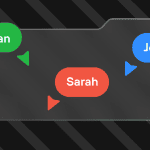
You don’t have to create your emails solo all the time. You can team up with your colleagues and create emails together in real time. Your colleagues can help you with the editing by adding their own tweaks to the design right alongside you. They can also leave valuable comments with feedback that you can resolve.

See how this works in detail in our special article guide.
24. Implementing interactive content
To make your email even more unique, you can add interactive content using our special blocks. For example, you can add the Carousel block if you need to create a carousel of several images.
Want to save some space within your email? Use our Accordion block, which folds and unfolds the information you put inside.
Want to hear your audience’s opinions? Add our Form block to allow recipients to type in their answers so you can see which answer you received from which email.
The main idea with interactive content is that it is fully operational within the email. There’s no need for the recipient to be transferred to a third-party web page. It makes your emails much more engaging and interactive.
Important note: Keep in mind that not all email clients support interactive content. For example, if you send emails to Outlook, it doesn’t provide support for any interactive type of content (yet).

If you want to raise your email engagement level, you can add even more interactivity using our Interactive module generator. It has a pack of interactive mechanics that comprise Wheel of Fortune, quizzes, NPS questionnaires, and others for you to choose from. And the most important thing is that you don’t need to be a tech-savvy marketer to create these interactive modules. Everything is created using an intuitive interface, and you can easily save and download the created interactive module for use in your emails.


25. Saving email elements as modules
You can save all kinds of content to your personal library for later use: elements, blocks, containers, modules, and stripes.
To save one, you just need to hover your cursor over the element, then click the Save as Module button.

The system will ask you to name the element in the settings panel to make searching easy.

By saving modules this way, you can build entire emails just by dragging modules into your template.
We recommend storing and reusing the following elements: headers, footers, contact information, and containers with smart elements. The first three will remain unchanged; the latter will require you to insert new links.
Stripo modules have much more in store to make your life easier. Read more about them in our article, where we explain each module feature in detail.
26. Exporting email to your ESP
Once your email is completely finished (we mean tested and polished), you can easily send it to your ESP. Stripo is integrated with more than 90 ESPs as well as email clients like Gmail and Outlook, applications, and more.

This means that you can transfer your emails to any of them with just one click. If these options are not enough, download your email as HTML/AMPHTML, a PDF file, or an image.
-
How to export your email from Stripo
To export your email, click on the Export button above the template.

Then, in the opened menu, click on the Email Provider section to see the entire range of integrated ESPs.

Click on any ESP option to open the pre-export tweaks, enter the required information, and you are done.

The same process applies for exporting to applications and files (just click on the corresponding menu sections).
Tips and features to significantly reduce email production with Stripo
So many emails, so little time, and that means you need to cut corners or create an efficient email design process. We have several features to help you with this task.
-
Undo and Redo buttons
These simple buttons help you cancel a previous action or return to your current email design state from the canceled ones.
It prevents you from having to rebuild an email element from scratch and gives you room to experiment with your design.

-
Version History
Version History allows you to see who made changes to your emails and when. What is more important, it allows you to restore any previous version of your email.
It also prevents you from having to rebuild an email from scratch (in the event you do not like the last changes made to the email).

When you click this “magic” button, you will see all the previous versions of the email, all the version dates, and the names of all those who made changes.

-
Duplicate and Move actions
The Duplicate and Move options offer a very convenient and fast way to use similar elements in emails. For instance, let’s assume you previously designed a content structure that fits your email perfectly, and you want to use it in your current email. There’s no need to build it again and again. You can just click the Duplicate button to create a copy of the structure.

You can then click the Move button and drag the copied element to the place where it is needed in your template. That’s it.

-
Storing and reusing existing templates
This is probably our favorite part. If you need to send similar emails daily, and you just need to update some information in them, like the text or a banner, you can simply copy your previous email and edit the elements that need to be edited. Voilà!
-
Creating a basic email with the AI Assistant
If you need to create a basic layout of your email fast, you can always use our AI Assistant. It allows you to write an explanatory prompt describing what your email is about and which elements should be included. You can then hit the Generate button.

Once it’s done, you can fine-tune the basic layout and save the template so that you can work on it and design a fully-fledged email based on it.


Wrapping up
As you can see, you have all the tools you need to create an email from the ground up and much more. We hope this article will help you with your onboarding process and set a perfect foundation for your future email designs with Stripo.


0 comments